Your first generation is free when you sign up. Paid plans add credits, remove the watermark and unlock higher resolution.
Change Shirt Color in a Photo with AI
Change Shirt Color in a Photo with AI is a free AI tool. Upload a photo, pick one of 20 colors or type a hex code. The AI recolors the shirt and keeps the fabric, folds, collar and your face unchanged.
Free to try · first generation free on signup · no credit card
1
Step 1
Upload Image
Start by uploading image
Upload your image
Click to browse or drag & drop
2
Step 2
Select Mode
Choose your transformation style
Choose the garment and one of 20 colors
3
Step 3
Options
Configure your options
Related Tools
→try new exterior paint colors on your own photo
→redesign a home exterior from a single photo
→plan a new yard or garden layout from a photo
→repaint a car in any shade before you commit
Output quality:
Mode
Pick a Color
Your AI Design Will Appear Here
Fill in the options on the left, then press Generate.
Upload your image
Drag & drop your file here or click to browse
JPG, PNG, WebP
Max 10MB
AI Ready
Explore Fashion Studio
Turn product shots into on-model photos
For when you have the garment but no model.
- Flat lay to modelDress a model from a garment laid out flat.
- Mannequin to modelReplace the mannequin in an existing product photo.
- On-model photographyShow fit and drape without booking a shoot.
- AI fashion modelsChoose the model who suits your customer.
Prepare the catalog
Clean, consistent images for a store.
- Ghost mannequinGet the hollow-garment look for product pages.
- Clothing flat layTidy overhead shots of a garment.
- Fashion catalogKeep a whole range in one visual style.
- Amazon clothing image rulesCheck what the main image has to show.
Shoot accessories and footwear
Small products that need scale and detail.
- Jewelry model generatorShow a piece being worn at a believable size.
- Ring photographyBring out stones and metal in close-up.
- Footwear AIPlace shoes on feet or in a styled scene.
Help shoppers choose
For store owners and personal shoppers.
- Virtual try-onPreview a garment on a person in a photo.
- AI outfit generatorPut looks together around one item.
- AI stylistGet outfit suggestions for an occasion.
- Ecommerce photo guidePlan a full product image set.
Quick facts about Change Shirt Color in a Photo with AI
- Tool nameChange Shirt Color in a Photo with AI
- CategoryHome Design
- PriceFree to try
- InputPhoto upload + text prompt
- OutputAI-generated image
Before / After
Example results
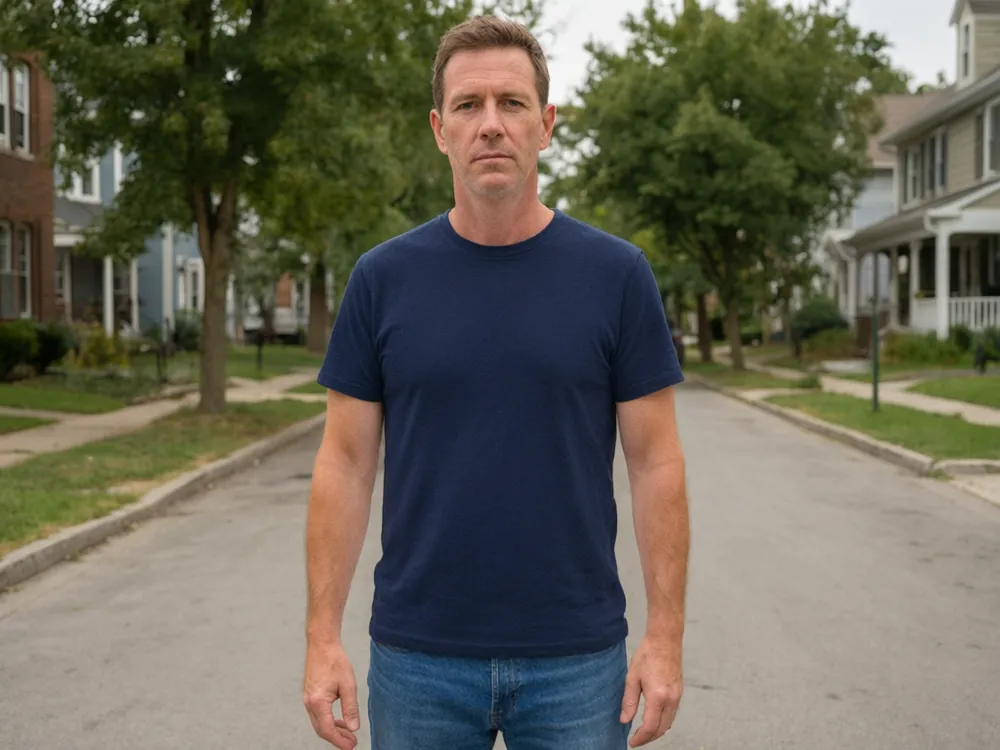
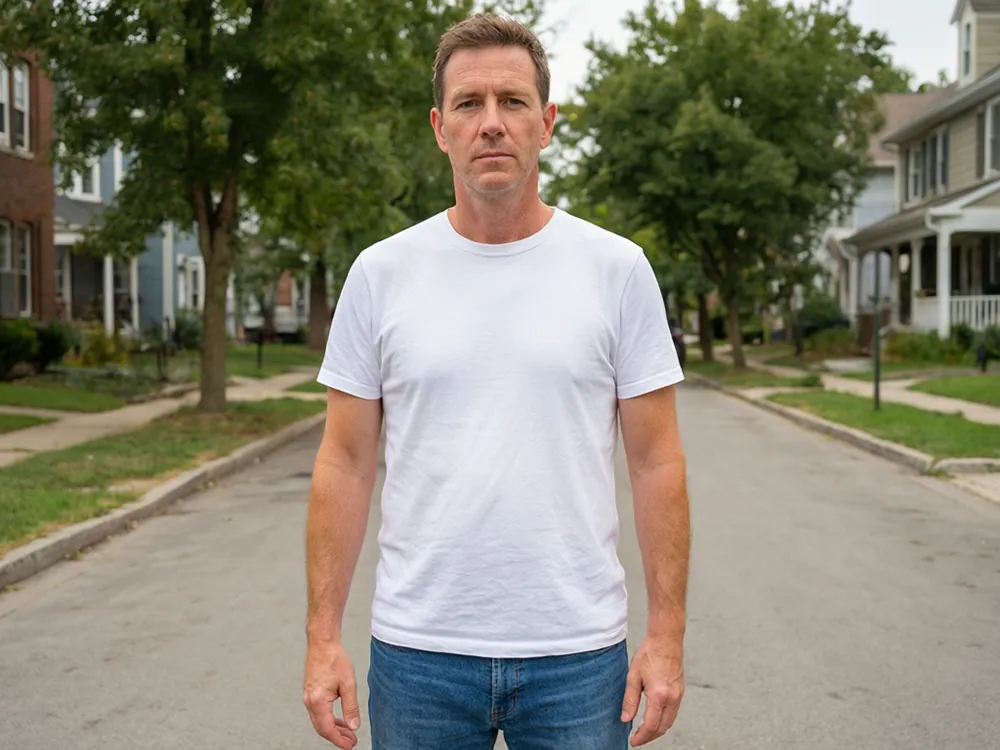
Drag to compare
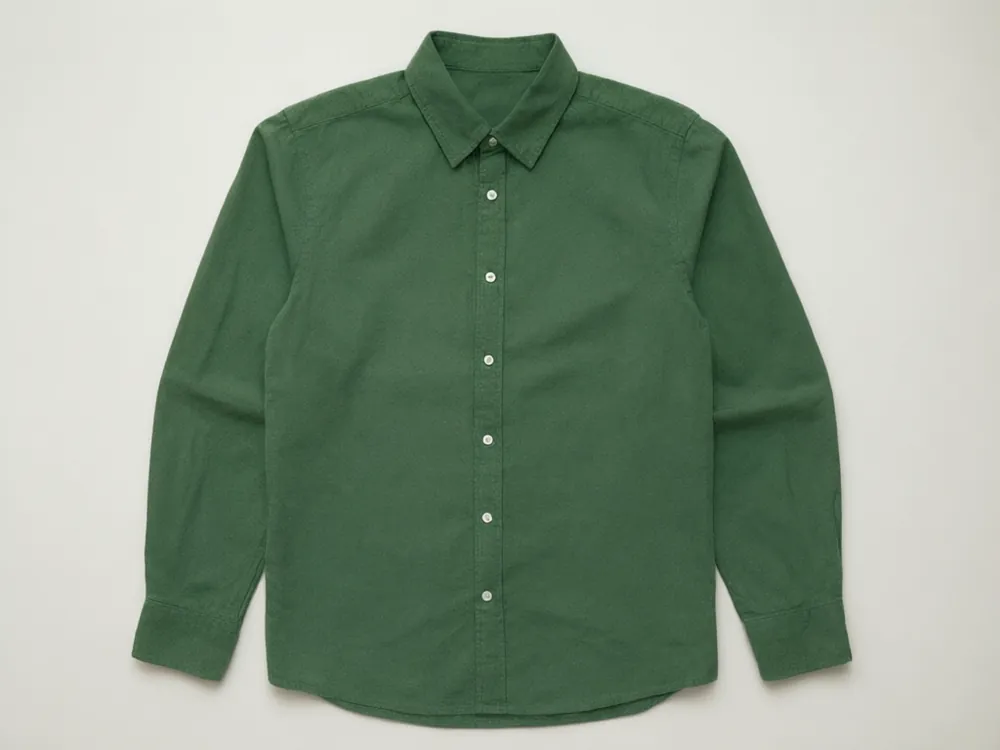
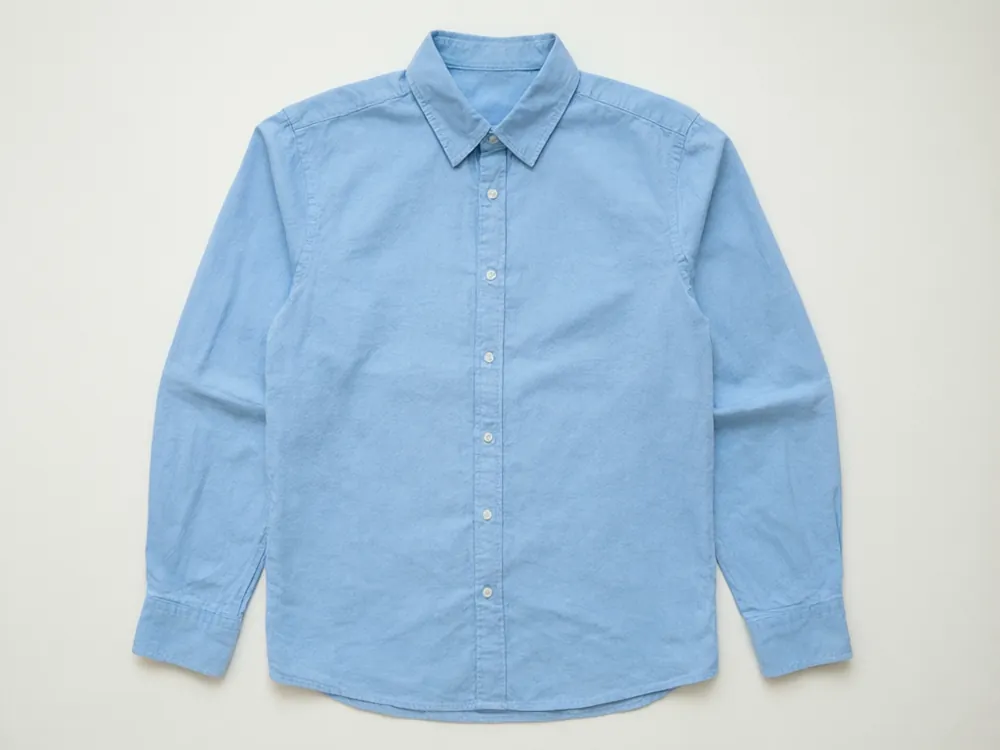
Drag to compare
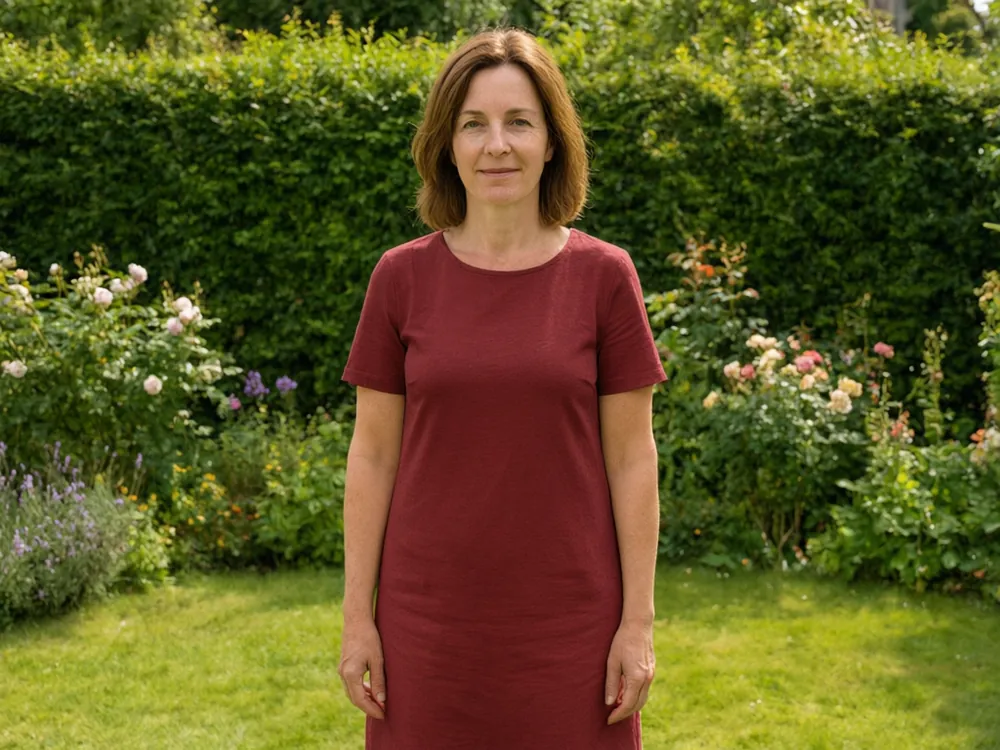
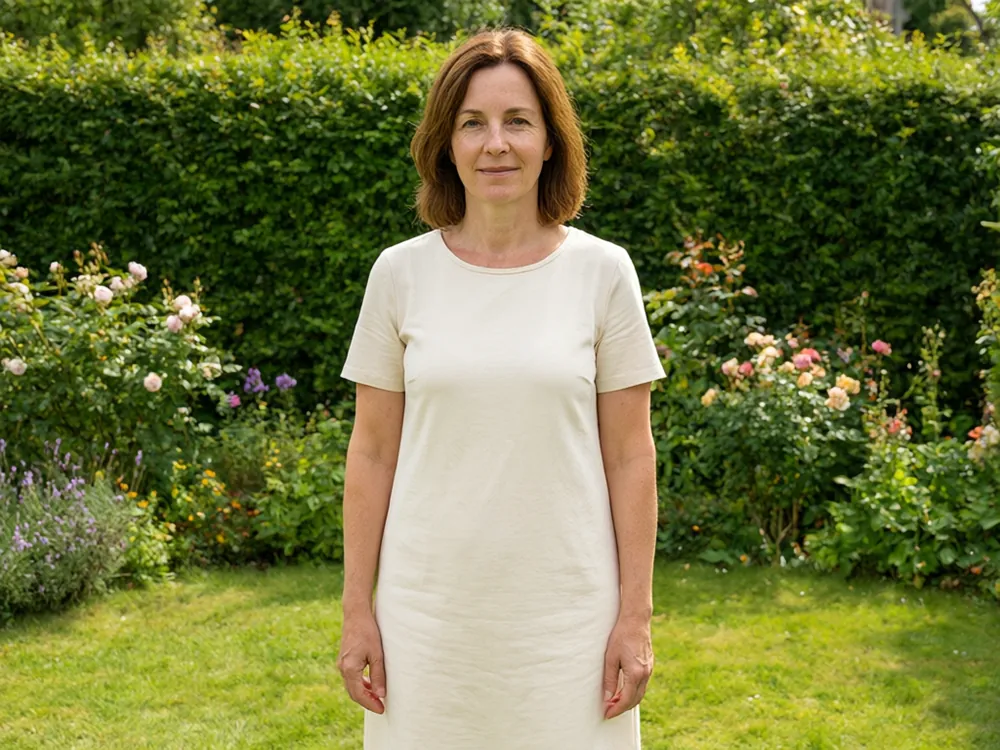
Drag to compare
Real, unretouched output from this tool. Drag any slider to compare.
Want to see a shirt in another color before you buy it, or show a product in five colors without five photo shoots? Upload your photo, pick the garment and a color, and the AI recolors the shirt while the folds, collar, buttons and shadows stay. Your face, hair, skin and the background are left as they are.
What you can recolor
Tops and dresses, on a person or laid flat.
1
Shirts and t-shirts
Plain shirts and t-shirts work best. Try a new color for a profile photo, a team picture or a product page.
2
Polos and blouses
Collars and buttons are kept, so the garment still looks like the same piece.
3
Dresses
Recolor a dress to compare shades. The same page handles dress colour changes.
4
Jackets and hoodies
Choose the jacket or hoodie option and name only that garment.
5
Flat product shots
Show one shirt in many colors for a shop page, without new photos.
20 colors, hex codes or your own words
Three ways to pick the new color.
1
20 swatches
Red, navy, sky blue, forest green, sage, yellow, orange, pink, purple, white, black, gray, brown, beige, teal, burgundy, olive, lavender, mustard and maroon.
2
Hex code
Have an exact team or brand color? Type its hex code, such as #1E3A8A, and the tool aims for it.
3
Your own words
Describe it: "a dusty rose pink" or "a faded denim blue". Good for shades that are not on the list.
Prints, logos and patterns
What happens to the details on the shirt.
1
Plain fabric
Plain shirts give the best result. Folds and shadows carry across to the new color.
2
Prints and logos
The tool tries to keep prints and logos in place. Busy prints can change shade, so check them.
3
Stripes and checks
Patterns are kept as patterns, but the new color applies to the main fabric. Look closely at fine lines.
Colors that tend to work
Quick ideas to try first.
1
For work and profile photos
Navy, white, light blue and gray look professional on most skin tones and backgrounds.
2
For summer and casual
Sage green, sky blue, yellow and pink are fresh and easy to wear.
3
For product pages
Offer a neutral, a dark and a bright color so shoppers see the range at a glance.
4
For events and teams
Match the color to a team or event theme with a hex code.
Get a cleaner result
A few habits that help.
1
Pick a sharp photo
Soft focus and deep shadows make edges at collars and sleeves harder to follow.
2
Use a plain background
A background that is the same color as the shirt can confuse the edges.
3
Go step by step
Dark to white is a big change in how light shows on the fabric. Try a mid color first.
4
Name one garment
If someone wears a jacket over a shirt, say which one to recolor.
Before you rely on the color
A picture is a preview, not a fabric match.
1
Screens vary
Phones and laptops show colors differently. Check the real fabric in daylight.
2
Fabric changes how color looks
Cotton, satin and wool reflect light differently. The preview is a guide, not a dye match.
3
Mention that it is edited
If you use the picture to sell, say that it is a digital preview of a color option.
Honest limits
The tool draws the garment again in the new color. It is not a pixel-exact layer edit, so check collars, cuffs and buttons.
Very busy prints, lace and sheer fabric can show uneven edges.
Hex codes are matched approximately, because light and shadow change how color looks on fabric.
Faces, skin and hair are kept as photographed.
More color changers
Related pages for other objects.
Who uses this
🏠
Online sellers
✓Show one shirt in many colors without separate photos.
💡
Shoppers
✓Check how a color looks before you order.
🏢
Teams and clubs
✓Try a team color before you order kits.
📸
Designers
✓Show a client a few color options for a garment.
👕
Change Shirt Color in a Photo with AI
Upload your imageTap anywhere here — your AI design will appear in this space after you generate.JPG · PNG · WebP
Choose the garment and one of 20 colors
Premium users can generate images without watermark
Higher quality options available for premium users
Be specific for better results0/400
Output quality:
Frequently Asked Questions
Yes. Upload the photo, pick the garment and a color. Your face, hair, skin and the background are kept.
Yes. Choose dress in the garment list, or use the description mode for a dress colour change.
Yes. Use the hex mode and type a code such as #7F1D1D. The color is matched approximately, since light and shadow change how it looks on fabric.
The tool tries to keep them in place. Busy prints can change shade, so check the result.
A sharp photo with the whole shirt visible, good light and a plain background.
Yes. See the clothing, shoe and image color changers linked on this page.