It is free to try: new users get free generations. Paid plans add credits, remove the watermark and unlock higher resolution.
Discord Banner Maker: Art for Your Server, Icon and Invite Page
Discord Banner Maker: Art for Your Server, Icon and Invite Page is a free AI tool. Free Discord banner maker and generator. Make Discord art with AI: a server banner, a server icon, an invite splash or an announcement header with your server name spelled exactly. Pick a community theme and a look. Free to try.
Free to try · first generation free on signup · no credit card
1
Step 1
Select Mode
Choose your transformation style
Wide banner for the top of the channel list
2
Step 2
Options
Configure your options
Related Tools
→try new exterior paint colors on your own photo
→redesign a home exterior from a single photo
→plan a new yard or garden layout from a photo
→repaint a car in any shade before you commit
Output quality:
Mode
Server Banner
Your AI Design Will Appear Here
Fill in the options on the left, then press Generate.
Upload your image
Drag & drop your file here or click to browse
JPG, PNG, WebP
Max 10MB
AI Ready
Quick facts about Discord Banner Maker: Art for Your Server, Icon and Invite Page
- Tool nameDiscord Banner Maker: Art for Your Server, Icon and Invite Page
- PriceFree to try
- InputText prompt
- OutputAI-generated image
Before / After
Example results
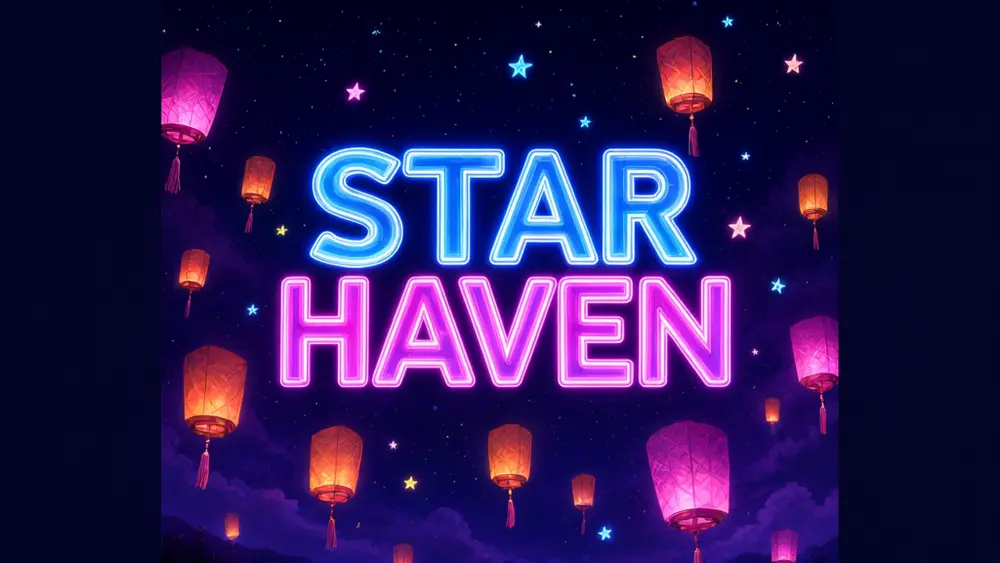
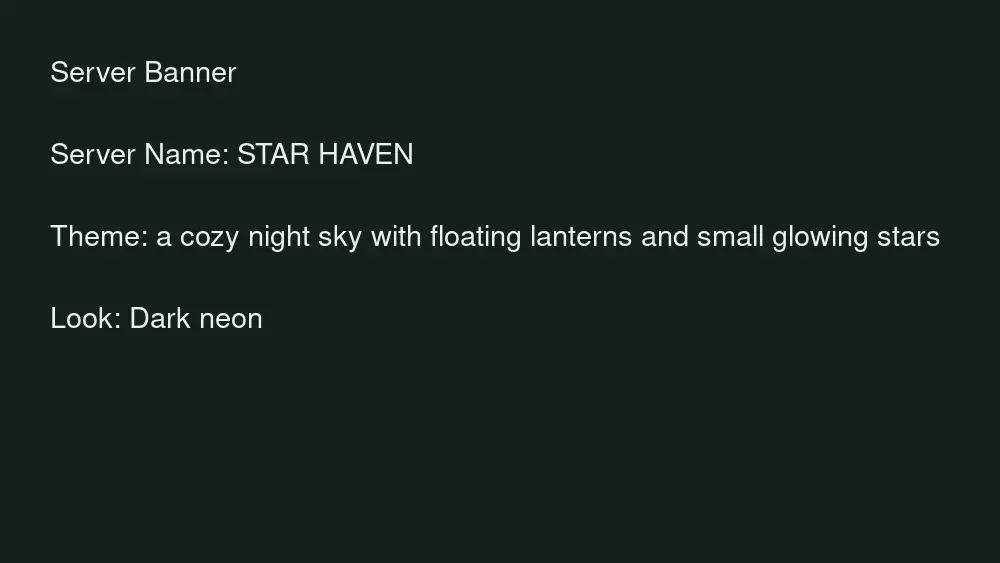
Drag to compare
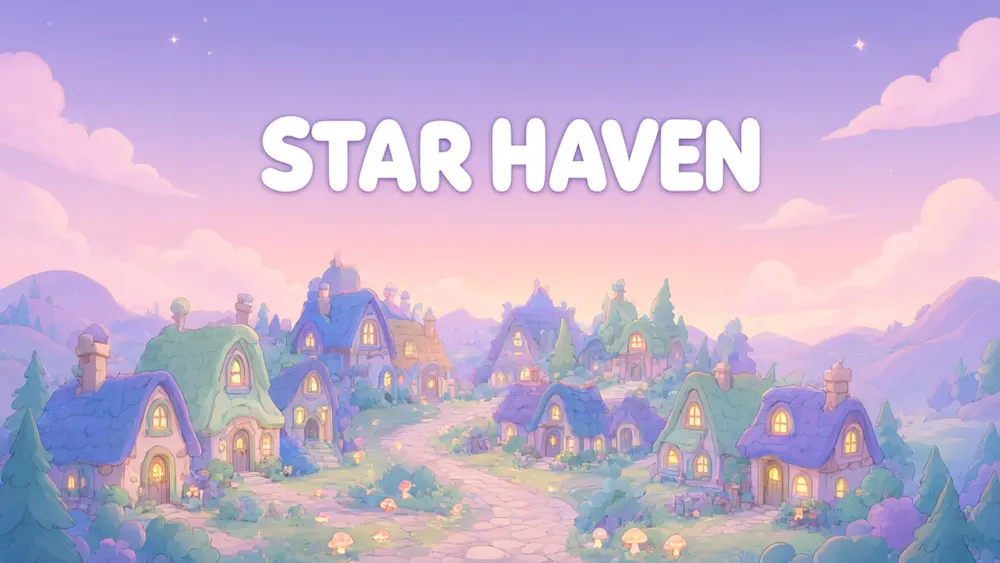
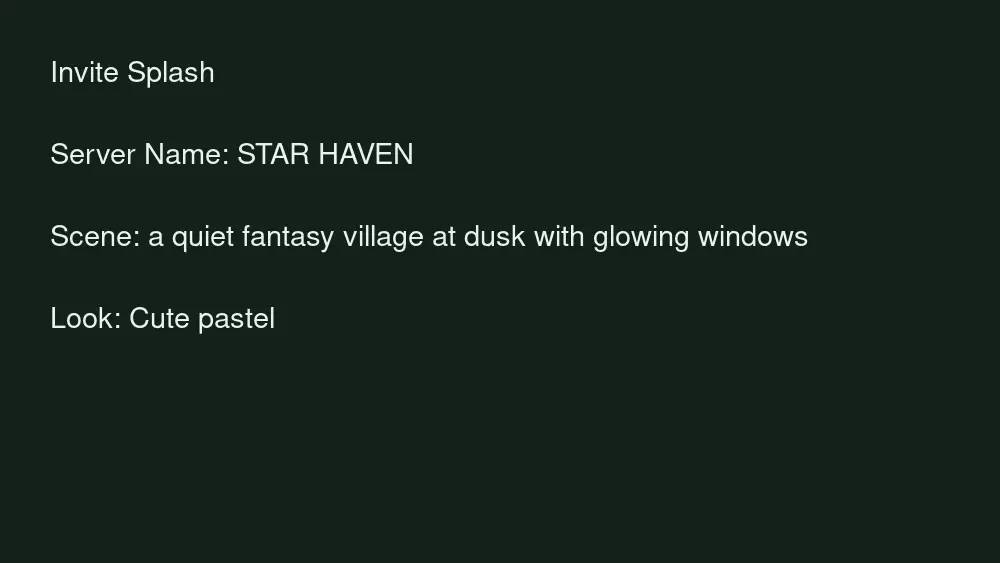
Drag to compare
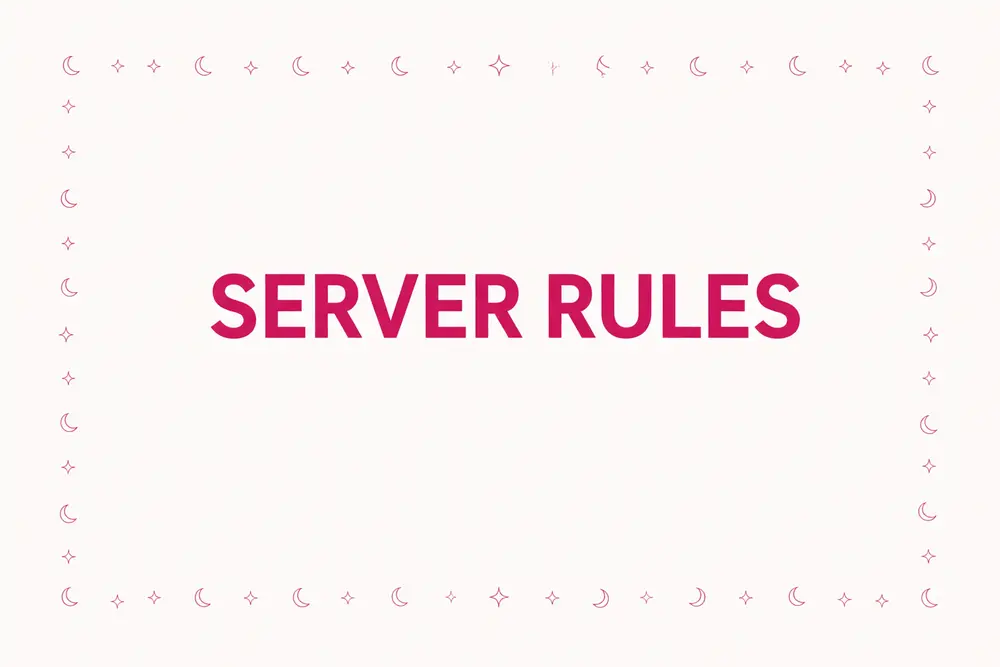
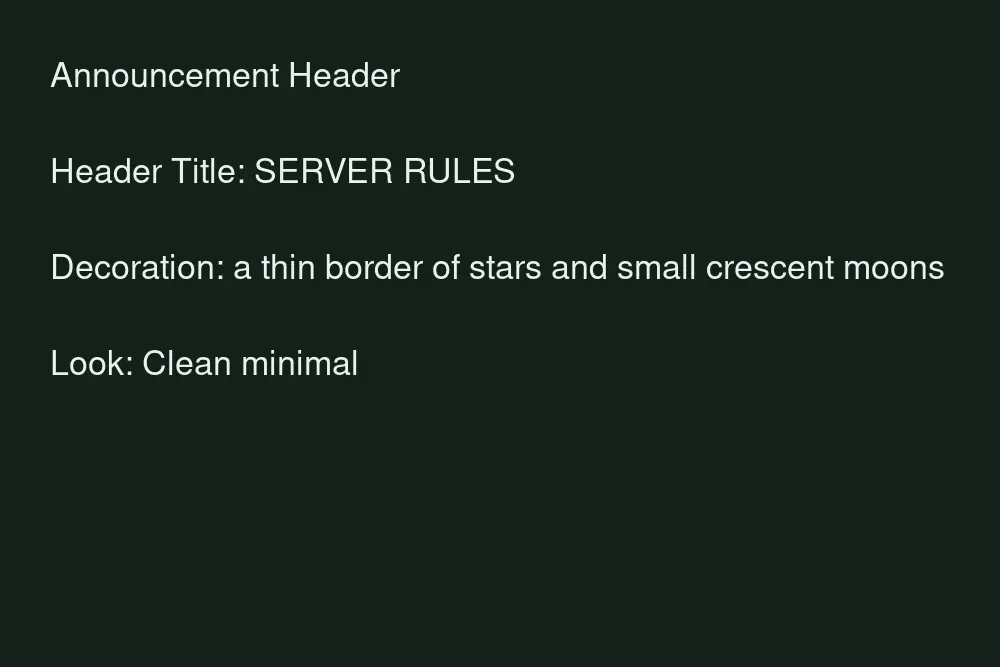
Drag to compare
Real, unretouched output from this tool. Drag any slider to compare.
A server looks welcoming when the banner, icon and invite page match. Type your server name, choose what you need and a look, and the tool draws the art with your name spelled exactly. Use one theme across all of them.
How the Discord banner maker works
Pick a mode for the art you need, type the server name and describe the theme. The tool makes one finished image with the name in large letters and the theme around it.
For a matching set, keep the same theme and look and change only the mode.
1
Use one theme across the set
Reuse the same theme and look for the banner, icon and invite splash so the community feels like one place.
2
Icons need very short text
A server icon is tiny. Use a short name, or one or two letters, and a simple picture.
3
Safe area
The key content stays in the middle and the edges stay simple so a crop does not cut off the name.
4
Check the spelling
The name is passed to the model with an instruction to spell it exactly. Check every letter before you upload.
The modes
Five purposes for a community.
1
Server banner
A wide image shown at the top of your channel list.
2
Server icon
A square image with a simple symbol for the server list.
3
Invite splash
A wide background for your invite page.
4
Announcement header
A wide header you can post at the top of announcements and rules.
5
Your own description
Describe the whole image yourself.
What this tool does not do
It makes still images. It does not make animated banners, emoji, stickers or bots, and it does not add your logo.
Discord decides which servers can have a banner or invite splash, which sizes it uses and what files it accepts, and it can change them. Check its current guide and your server's boost level.
No tool can promise more members; a clear look helps a community feel welcoming.
More tools for community owners
Next steps once your art is done.
Who uses a Discord banner maker
People who run a server and want it to look cared for.
1
Gaming and anime communities
Match the art to the game or show your members love.
2
Study and hobby groups
Give a study server or a book club a clear, friendly look.
3
Creators and brands
Make a community home for your audience that matches your other art.
4
Teams and open-source projects
Make a clean, simple server header.
🖼️
Discord Banner Maker: Art for Your Server, Icon and Invite Page
AI Tool
Wide banner for the top of the channel list
Be specific for better results10/28
Be specific for better results63/140
Be specific for better results0/400
Output quality:
Frequently Asked Questions
Discord sets the sizes and file limits for banners, icons and invite splashes, and may change them, so check its current guide. The tool makes images with the key content in the centre; resize or crop in your usual editor if needed.
Discord only lets servers with enough boosts use a banner or an invite splash. That is a Discord rule, not part of this tool.
The name is passed to the model with an instruction to spell it exactly. In our tests it came out right, but check every letter, especially unusual spellings.
Yes, use the Server Icon mode. Icons are tiny, so the tool draws one simple symbol instead of a long name.
No. The tool makes still images. You can turn a still into a short clip with the Image to Video tool.
Yes, with the Twitch Banner Maker and YouTube Banner Maker.
Not here. Make the art here, then add your logo in your usual editor, or make one with the AI Logo Maker.
No tool can promise that. A clear, matching look helps a community feel welcoming, which is all it can do.
Yes. Pick Server banner, type your server name, describe a theme and choose a look, and the tool generates a banner image with the name spelled as you typed it. It makes still images; check every letter before you upload.
Yes. Describe the theme in your own words, for example a game world, a mascot, a mood or a colour scheme, then choose a look such as dark neon, pixel art or cute pastel. Run it again for a different version and keep the one you like.
Keep the same server name, theme and look, and change only the mode: Server banner, Server icon or Invite splash. The icon needs a short name, so use one or two letters or a simple symbol.
Download the image, then open your server settings in Discord and upload it where Discord offers a banner or invite splash. Discord decides which servers can use them, so check its current guide and your server's boost level.