Your first generation is free when you sign up. Paid plans add credits and remove the watermark.
3D Printed Product Photo AI: Make Listing Photos of Your 3D Prints
3D Printed Product Photo AI: Make Listing Photos of Your 3D Prints is a free AI tool. Upload a photo of a figure, planter, vase or part you 3D printed and get a clean backdrop, a home scene or a scale shot for your listing. Layer lines and colour stay as uploaded. Free to try.
Free to try · first generation free on signup · no credit card
1
Step 1
Upload Image
Start by uploading image
Upload your image
Click to browse or drag & drop
2
Step 2
Select Mode
Choose your transformation style
Clean seamless backdrop
3
Step 3
Options
Configure your options
Related Tools
→try new exterior paint colors on your own photo
→redesign a home exterior from a single photo
→plan a new yard or garden layout from a photo
→repaint a car in any shade before you commit
Output quality:
Mode
Studio Backdrop
Your AI Design Will Appear Here
Fill in the options on the left, then press Generate.
Upload your image
Drag & drop your file here or click to browse
JPG, PNG, WebP
Max 10MB
AI Ready
Quick facts about 3D Printed Product Photo AI: Make Listing Photos of Your 3D Prints
- Tool name3D Printed Product Photo AI: Make Listing Photos of Your 3D Prints
- CategoryProduct Photo Tools
- PriceFree to try
- InputPhoto upload + text prompt
- OutputAI-generated image
Before / After
Example results
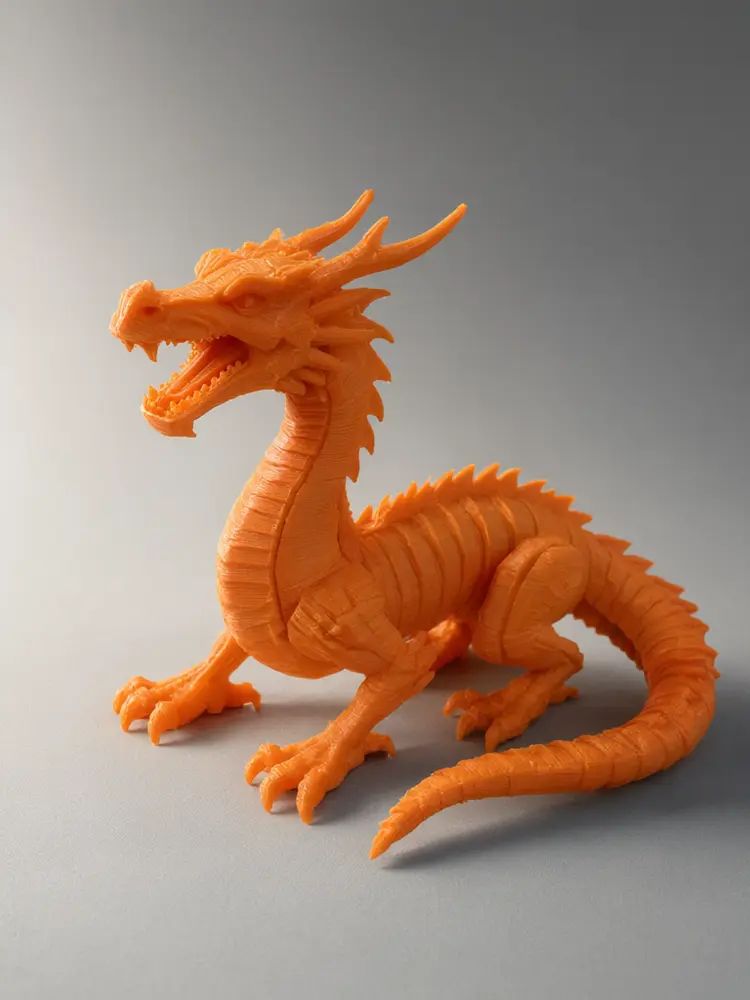
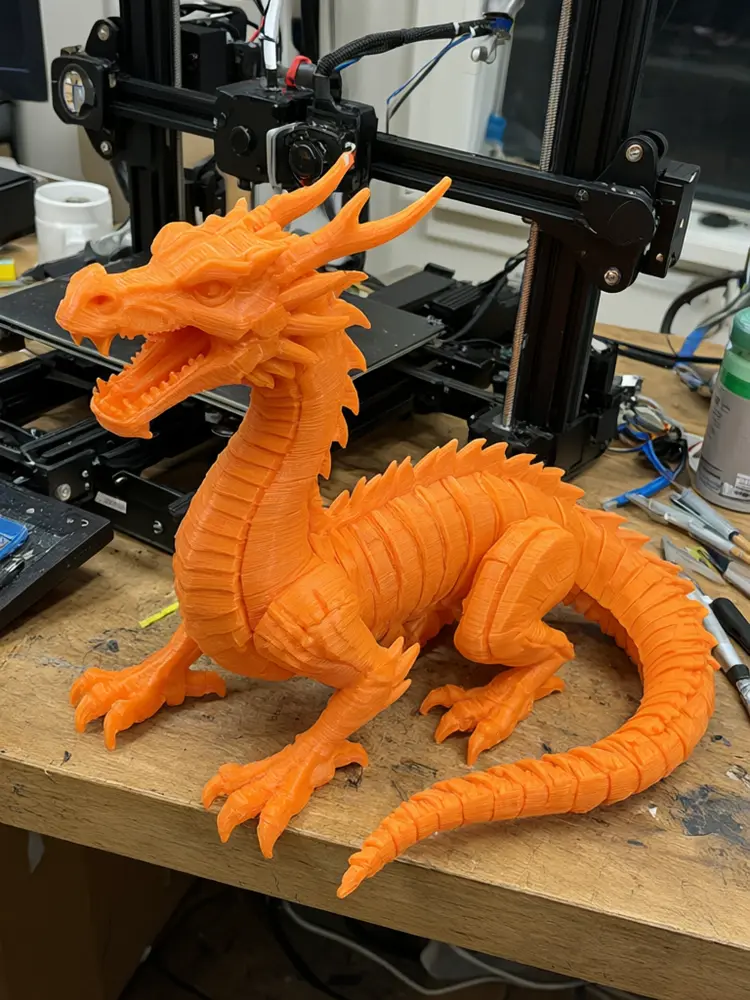
Drag to compare
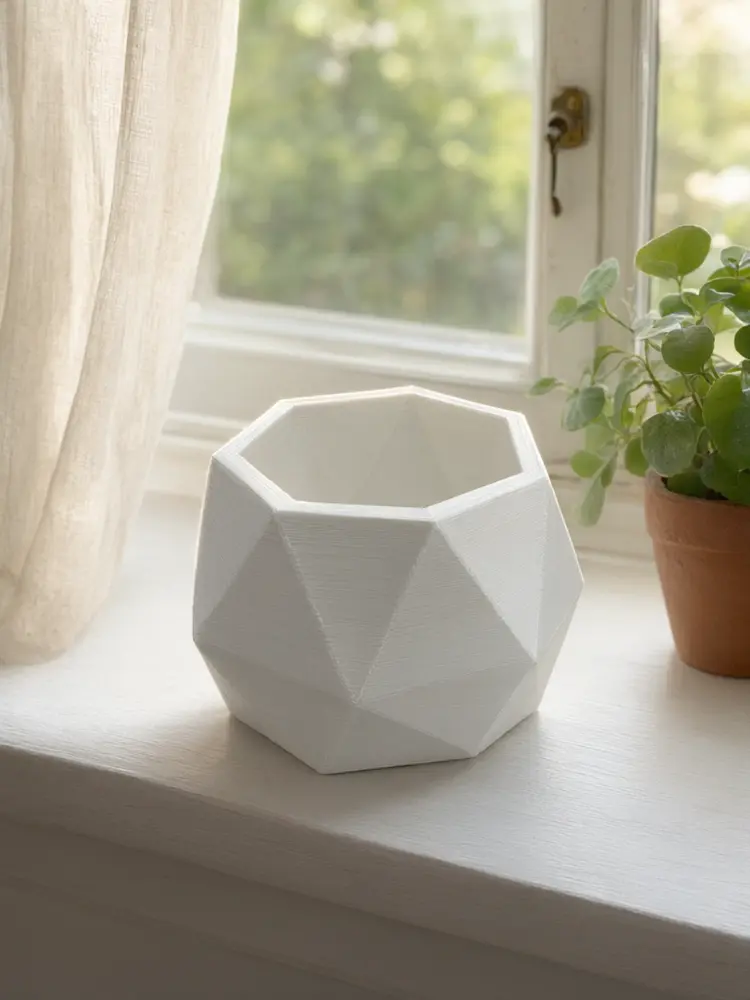
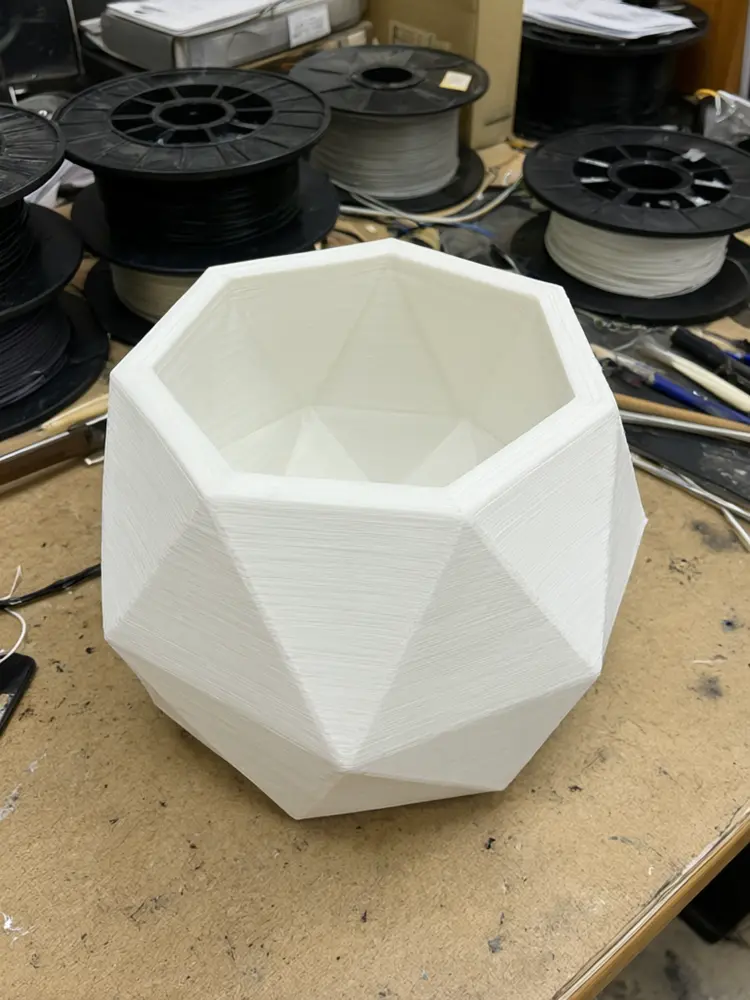
Drag to compare
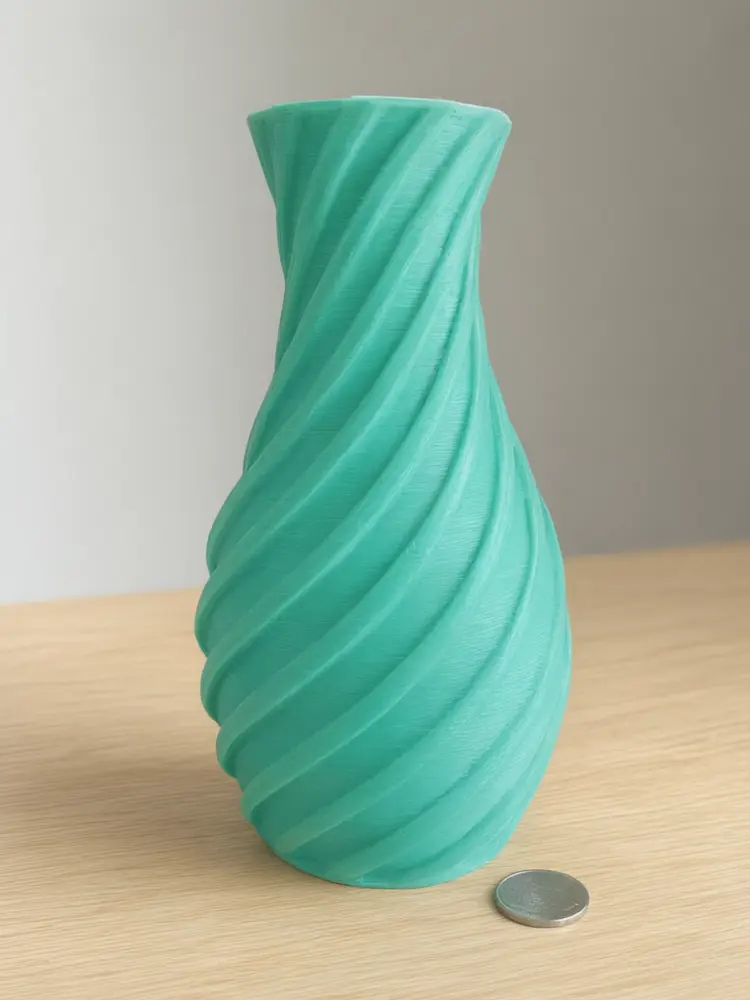
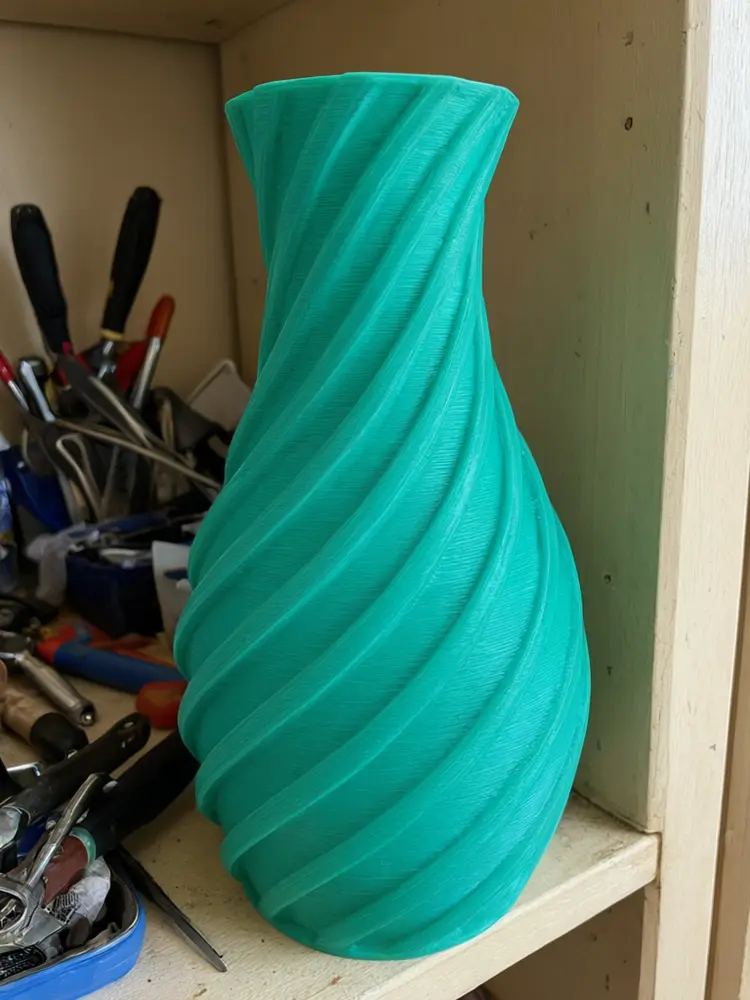
Drag to compare
Real, unretouched output from this tool. Drag any slider to compare.
3D prints are hard to photograph: layer lines catch odd light, filament colours shift, and a printer bed full of supports spoils the shot. Upload a photo of a figure, planter, vase or part you already printed, pick a mode, and get a clean backdrop, a home scene or a scale shot. The layer lines, the seams and the filament colour stay as you uploaded them, and only the surface, the props and the light change. This tool makes a listing photo, not STL, 3MF or other print files.
How the 3D printed product photo tool works
You upload one photo of an item you already printed and choose a mode, a backdrop and the light. The tool keeps the print exactly as uploaded, layer lines and all, and builds a clean or styled scene around it with a soft contact shadow.
It does not make or change 3D models, it does not make STL, 3MF or other print files, and it does not fix the print. Each run makes one image.
1
Upload a sharp photo
The whole print in focus, in daylight, with space around it. Soft side light shows the surface best.
2
Pick the mode
Studio Backdrop for a clean look, Home Scene for a lifestyle shot, Scale Shot to show size next to a plain object.
3
Choose the backdrop
White, grey, black or pastel blue, in side light, soft studio light or window light.
4
Check the print
Zoom in on the layer lines and the colour. If the surface was smoothed or the colour changed, run again.
The 3D print photo modes
Three modes plus your own.
1
Studio Backdrop
Your print on a seamless white, grey, black or pastel blue backdrop, in soft light.
2
Home Scene
Your print on a desk, bookshelf, window sill, living room shelf or bedside table, with no people.
3
Scale Shot
Your print next to a plain coin, a plain ruler or a pencil so buyers can judge its size.
4
Your Own Description
Describe the scene yourself.
Honest limits
The result is an AI image of your print. Fine layer lines can soften and filament colour can drift, so compare every image with the real print and add a real close-up of the surface to the listing.
This tool makes a listing photo of an item you already printed. It does not make STL, 3MF or other print files, and it does not fix the print: layer lines, seams, support marks and stringing stay as uploaded.
A scale object in the photo is only a rough guide, so state the real size, the material and any strength or heat limits in the listing text. The photo should match what the buyer will receive.
More tools for your shop photos
Next steps for your listing.
Who uses a 3D print photo tool
🏠
Etsy 3D print sellers
✓Fill the listing with a studio shot, a home scene and a scale shot.
💡
Print farms with a web shop
✓Make consistent images of a whole range of prints.
🏢
Market and craft-fair sellers
✓Make tidy images for social posts and a small online shop.
📸
Makers sharing their prints
✓Show a finished print nicely on a model page or social post.
🧊
3D Printed Product Photo AI: Make Listing Photos of Your 3D Prints
AI Tool
Upload your imageTap anywhere here — your AI design will appear in this space after you generate.JPG · PNG · WebP
Clean seamless backdrop
Premium users can generate images without watermark
Higher quality options available for premium users
Be specific for better results0/400
Output quality:
Frequently Asked Questions
No. It makes a listing photo of an item you already printed. It does not make or change 3D models or print files.
No. The tool is told to keep every layer line, seam and support mark as uploaded, so buyers see the real surface. Fine lines can still soften, so zoom in and run again if anything changed.
No. The print stays as uploaded, so stringing, gaps and blobs stay visible. Reprint or clean it up before you photograph it.
The tool is told not to recolour the print, but colour can drift a little. Compare the result with the real print before you use it.
A sharp photo of the whole print in daylight with space around it, ideally off the printer bed. Soft side light shows the surface best.
No. The tool is told to add no people, hands or faces, and no text, logos or tags.
Yes. From the actions under a finished image you can make a short video.