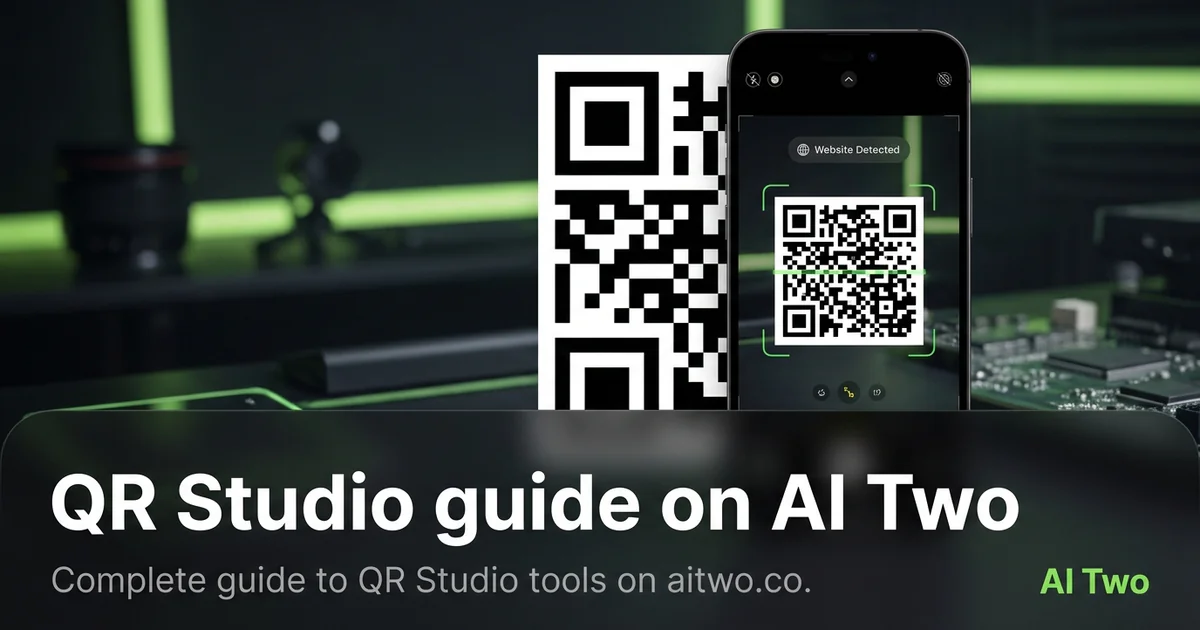
QR Studio guide on AI Two
Complete guide to QR Studio tools on aitwo.co.
Complete guide to QR Studio tools on aitwo.co. This page is part of the AI Two studio blog tree. Read the sections below for context; use the buttons and cards when you are ready to open a tool or a related guide.
What QR Studio is on AI Two
QR Studio is a curated folder of tools for one audience. Every page in the studio uses the same sidebar, the same credit rules, and the same account.
When I land on AI Two from search, I want to see every tool built for my job in one place. That is what this studio lists, with output samples on each card.
QR Studio fits anyone who prints codes for menus, WiFi cards, contact details, event signage, or packaging and needs each code to scan before it leaves the screen.
Who should use this studio
Use QR Studio if you print codes for menus, WiFi cards, contact details, packaging, or marketing and need each code to scan before it leaves your screen.
You do not need design or coding skills to start. Upload a photo or enter text, pick a preset, and generate. Refine by re-running with one changed setting.
Tool groups inside the studio
The landing page groups tools by job type so you are not scrolling through fifty unrelated pages. Each group has a cluster guide on this blog with deeper links to individual tool walkthroughs.
I read the cluster guide when I am new to an audience, then open the single-tool post for the page I plan to run today.
This studio currently spans 6 cluster guides on the blog, each covering a slice of the toolkit.
Three workflows I run often
Workflow one: upload one photo, run the primary tool, download the result, share it in a text or email thread for a quick yes-or-no decision before ordering materials.
Workflow two: run two sibling tools on the same photo, compare outputs, pick one direction, then order samples or materials based on that visual instead of a verbal description.
Workflow three: save outputs to project boards when I need a before-and-after set I can revisit next week without re-uploading the same files.
Workflow four: for QR work, I generate a draft code, scan it from my phone screen, then print only after it passes — AI Two blocks downloads that fail decode checks.
How this studio links to the rest of AI Two
All three studios live under one hub. This studio is one branch; the overview article explains when to pick home design, QR, or fashion based on the photo you hold in your hand.
Your account works across the whole site. Credits spent here draw from the same balance you would use on any other paid tool on AI Two.
Blog posts in this tree never document third-party apps. Every guide maps to a live page you can open today.