
Essential QR code types on AI Two
WiFi, link, vCard, WhatsApp, PDF, menu, and text QR tools in QR Studio with scan verification before every download.
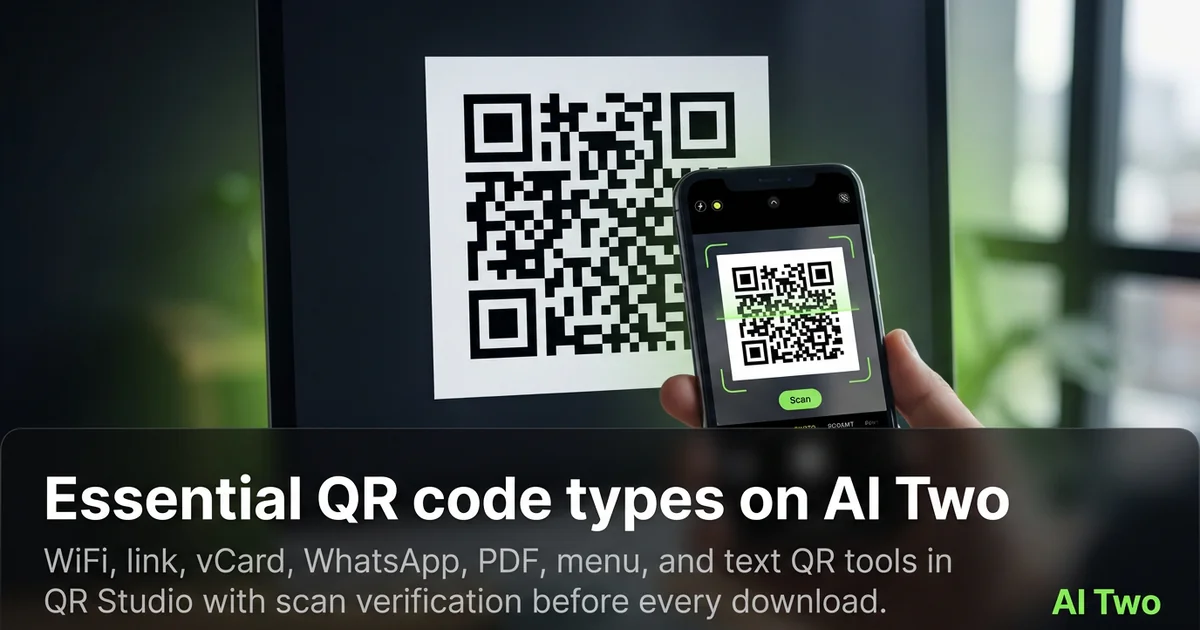
Essential QR types on AI Two are the seven pages I open first when someone needs a code that just works on paper. WiFi, link, vCard, WhatsApp, PDF, menu, and text generators live in QR Studio. Every code is scan verified before download, so a failed decode check stops a broken PNG from reaching your printer.
Who this essential group is for
Open this cluster if you print guest WiFi cards, website stickers, contact cards, WhatsApp chat shortcuts, PDF handouts, restaurant menus, or plain text notes as QR. Cafe owners, event hosts, freelancers, and small shops use these pages every week.
When I set up a pop up shop, I print WiFi and menu codes first, then a link code for the shop site. I never reuse one PNG for two jobs. Wrong payloads confuse staff and customers.
This is a QR Studio audience. Home Design and Fashion will not encode a WiFi password. Stay here for scan verified essentials.
Credits meter generations on your account. Free signup credits cover learning a few codes. Paid monthly credits help when you reprint packs for every table or event date.
Tools in this group
WiFi QR Code shares network name and password so guests join without typing. Link QR Code opens a URL you set. vCard QR Code stores contact details phones can save. WhatsApp QR Code starts a chat. PDF QR Code points at a document link. Menu QR Code is built for restaurant menus. Text QR Code encodes a short plain message.
I pick WiFi for tables and Airbnb binders. Link for marketing URLs. vCard for networking cards. WhatsApp for support lines. PDF for price lists. Menu for dining. Text for one line instructions that do not need a website.
Each child walkthrough covers field tips for that page. Use the cards below for the focused guides.
How I run an essential QR workflow
Step one: write the exact payload before you open the generator. Step two: choose the matching tool, not a generic link, when a specialist exists. Step three: generate, wait for scan verification, download only after the page accepts the code. Step four: print a small test, scan with two phones, then scale the print run.
When I tested a WiFi code on a cafe table tent, both phones joined on the first try. That is my pass check. If one device fails, I recheck SSID spelling and regenerate instead of printing fifty bad tents.
Menu and PDF codes need a URL that stays live. I avoid temporary file links that expire after a week. Credits still apply when you regenerate after a broken link, so I lock the final URL first.
vCard fields should match what you want saved on a stranger’s phone. I skip internal extensions and use the public mobile number.
Print and scan tips
Keep quiet zone margins clear of logos. Crowding the quiet zone breaks scanners even when the server verified the pattern.
I print at a size people can frame with a phone from arm’s length. Tiny codes on busy menus fail in low light.
Matte stock beats glossy glare under dining lights. Dark modules on a light field remain the safest default before you open the colored QR cluster.
Test after the first print batch, not after five hundred stickers. Scan verification protects the file. Print process still needs a human with a phone.
Where to go next
Need email, phone, or SMS payloads next? Open the contact and messaging cluster. Social profile codes live in the social cluster. Business deep links like Spotify or PayPal sit in the business and apps cluster. Repair and dynamic tracking live in the fix and track guide.
Stay in QR Studio for scan verified codes. The QR Studio pillar maps the full toolkit.
FAQs
Related studio guides
Contact and messaging QR codes on AI Two
Email, phone, and SMS QR tools in QR Studio for cards, posters, and packaging that start a conversation on scan.
Read guide
Social media QR codes on AI Two
Instagram, Facebook, TikTok, YouTube, LinkedIn, Telegram, and LINE QR tools in QR Studio for print that opens the right profile.
Read guide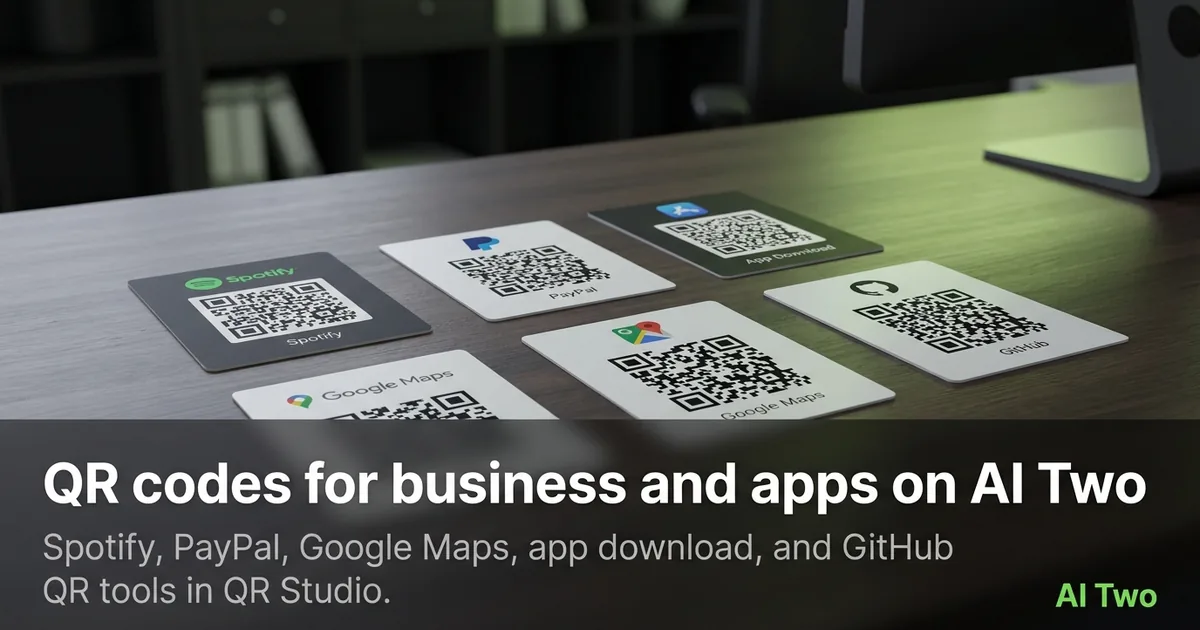
QR codes for business and apps on AI Two
Spotify, PayPal, Google Maps, app download, and GitHub QR tools in QR Studio.
Read guide