AI Scarf Model Photos
AI Scarf Model Photos is a free AI tool. Show scarves worn, draped, and styled on photorealistic AI models instead of folded on a table. Upload a photo of the scarf and generate on-model accessory shots for your shop.
Free to try · first generation free on signup · no credit card
Start by uploading image
Upload your image
Click to browse or drag & drop
Same face across every shot. All models are synthetic and free for commercial use.
Choose your transformation style
Upload a product photo — get a photo-realistic on-model shot. Pick a roster model below to keep the same face across shots.
Configure your options
Your AI Design Will Appear Here
Fill in the options on the left, then press Generate.
Upload your image
Drag & drop your file here or click to browse
The product is a shape you have to describe in words
Every other page here has the garment’s shape decided for it — a dress is a dress. A scarf has no shape until someone ties it, and there is no control on this page for the tie. That single fact reorganises how you use the tool: the notes field stops being optional, and the crop matters more than the pose.
Three decisions that make or break a scarf generation
Flat, square, whole repeat visible
Photograph the scarf laid out flat and shot straight down, with the full print repeat and the border and the fringe all in frame. It is tempting to upload a scarf already tied because that is closer to the output you want — do the opposite. A tied scarf hides most of its own design, and the generation can only preserve what it can see. Flat and square gives it the whole pattern to work from, and the draping is the part it is good at.
Describe the knot, then protect the description
There is no drape picker, so the notes field carries the shot: say where the fabric sits, how many turns, where the ends fall. Be as plain as you would be to an assistant — loosely knotted at the throat, both ends hanging in front, left end longer. Then open Advanced Options and untick "Let AI improve my prompt", because the rewrite is what turns that into "elegantly styled" and hands the decision back to the model. The safety screen still runs; only the rewording is skipped.
Crop close and judge the fold edge
Pull the frame in — a scarf occupies the space between the shoulders and the chest, and the Framing control’s Close group exists so you are not paying for a picture of trousers. When the result arrives, look at the folded edges rather than the flat faces: that is where a print either continues correctly around the fold or resets into a new pattern, and it is the tell that separates a believable drape from a painted one.
Which poses let a scarf be seen at all
The default Product to Model grid holds five presets — Standing, Walking, Sitting, Editorial, Casual — with the full 40-preset library behind Pose Set (Consistent Model). For a scarf, the only question worth asking of a pose is whether it leaves the chest and the shoulders open and lit, because that is the entire stage the product performs on.
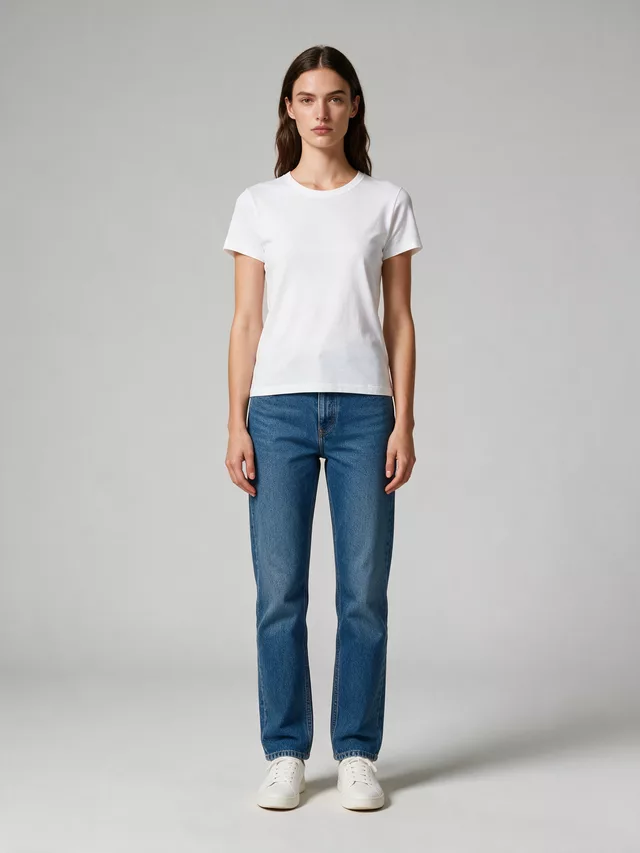
Shoulders square, chest open, both ends of the scarf visible and lit the same. Nothing else needs to happen in a listing image.
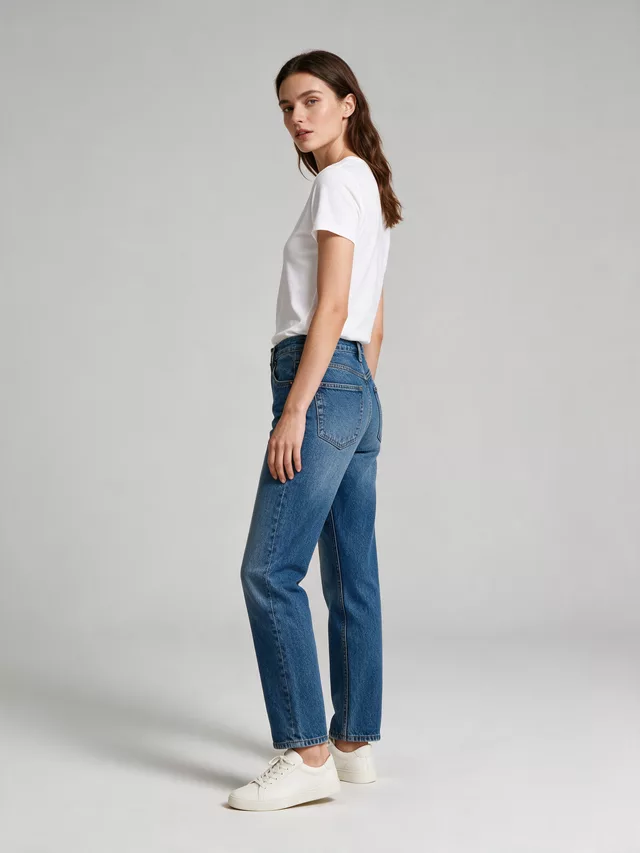
Turning the body reveals the layers of a wrap and how the fabric sits behind the shoulder. In the full library, so reach it via Pose Set.
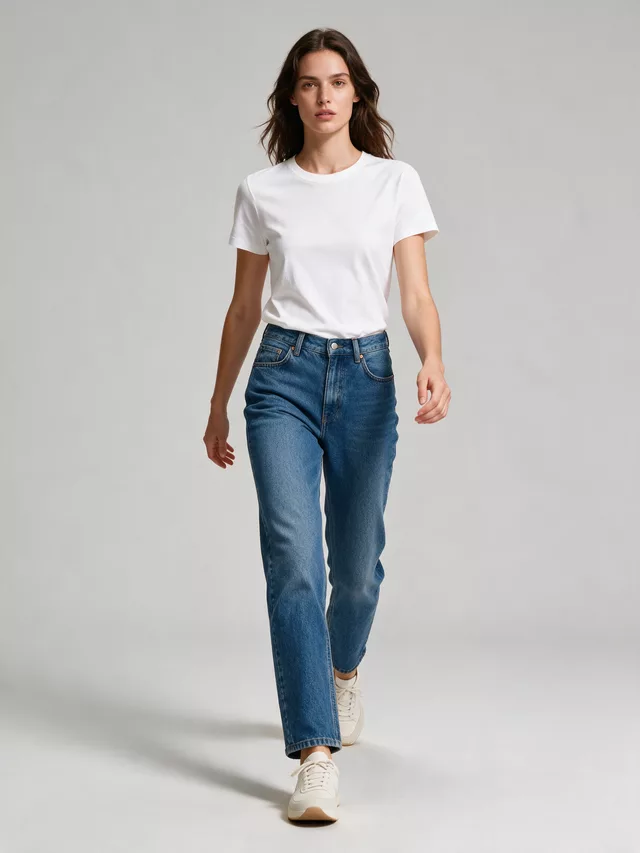
Movement lifts the ends and shows the weight of the cloth — but it also blurs the print and hides one end behind the body.
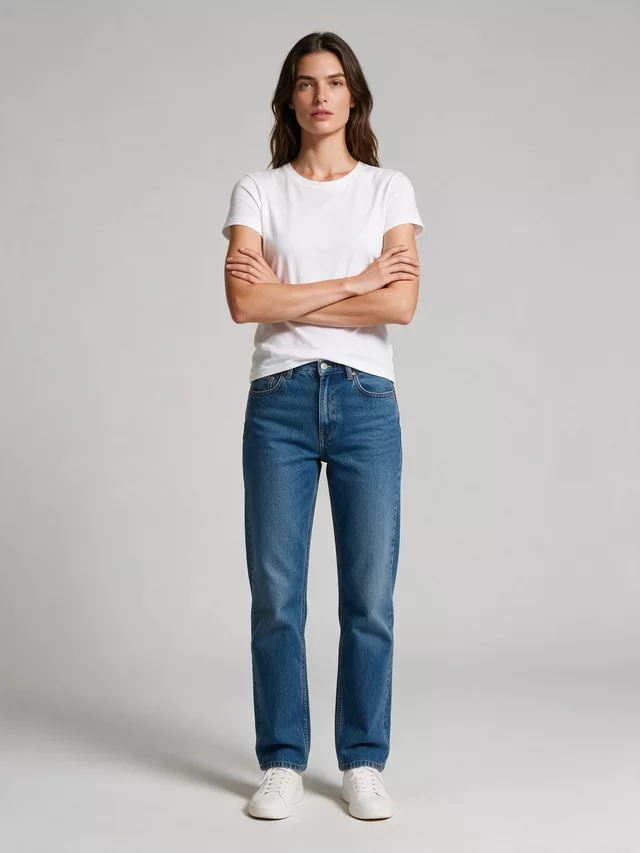
Crossed arms sit exactly where a scarf hangs, so the ends disappear under a forearm. In the full library, and not worth reaching for here.
| White studio | Printed scarves | One pattern per photograph. A printed scarf is already the busiest thing in the frame and wants nothing arguing with it. |
|---|---|---|
| Framing: Close | Default here | A scarf lives between the shoulders and the chest. A full-body frame spends most of its resolution on the parts you are not selling. |
| Graffiti alley | Pattern clash | Two competing patterns in one image and the shopper’s eye picks the bigger one. The same applies to Autumn forest and Boutique. |
| Wood tabletop | Solids only | Texture behind a plain solid scarf stops the shot being two flat rectangles. Behind a print it is one texture too many. |
Questions scarf sellers ask before spending a credit
How do I get a specific drape or knot?
Write it, because no picker holds it. There is no drape control on this page — the pose grid sets the body, not the fabric — so the knot lives in the notes field, and it needs to be described the way you would describe it to a person: loosely knotted at the throat with both ends hanging in front, or draped once over the left shoulder with the ends behind. Then untick "Let AI improve my prompt" in Advanced Options so that description survives; a rewrite tends to flatten a specific knot into "elegantly styled".
The print on my scarf came back close but not right.
A printed scarf is the hardest thing on this site to reproduce, and it is worth knowing why: the design is the entire product, it is large, it is complex, and once it is draped, most of it is curved away from the camera. Two things help. Upload the scarf flat and square so the full repeat is legible rather than photographed already tied. And accept the division of labour — a draped on-model shot sells the styling, while the flat shot on your listing sells the print. Most scarf listings need both images anyway.
Which crop should a scarf shot use?
Closer than you think. A scarf lives between the shoulders and the chest, so a full-body frame spends most of its pixels on trousers. The Framing control on the default mode has a "Close" group for exactly this, and Product Detail Shot goes further — Shot Type set to Close-Up with Detail Focus on How Product is Worn frames the knot and the fall of the fabric rather than the person wearing it.
Can I show a hijab or a head covering styled properly?
Yes — describe the wrap in the notes field the same way you would describe a knot, including where the fabric sits at the hairline and how the ends are secured. Keep the upload flat so the print and the border are legible before it is wrapped, since a wrapped shot hides both.
What background suits a scarf?
A plain one, almost always. A scarf is usually the most patterned thing in any photograph it appears in, and a busy plate — Graffiti alley, Autumn forest, Boutique — puts a second pattern next to your first and they fight. White studio or Light gray for the listing image. If the scarf is a plain solid, that logic reverses and a textured plate stops the shot being two flat rectangles.
Should I show the fabric texture separately?
For anything where the hand of the fabric is the sell — cashmere, heavy silk twill, a fringed wool — yes, and it is one credit well spent. Product Detail Shot with Detail Focus on Product Texture/Material and Background Blur on Sharp gives you the frame that shows the weave and the fringe, which is what stops a shopper assuming polyester.
Can I get several drapes of the same scarf on the same model?
Pose Set (Consistent Model) holds the model and the garment steady while the pose changes, and the notes field is where you change the drape between generations. Each pose you tick becomes its own full-size generation and is billed as one, so choose the two or three drapes you would actually publish.
Related tools, and why you would switch
Bags, belts and hats — accessories with a fixed shape, which changes the whole approach.
Clips, bows and headbands need the same close crop and a different camera height.
When the weave and the hand of the cloth are the product, not the styling.
Same face across every shot. All models are synthetic and free for commercial use.
Upload a product photo — get a photo-realistic on-model shot. Pick a roster model below to keep the same face across shots.
Premium users can generate images without watermark
Higher quality options available for premium users