AI Kids Model Generator for Children's Clothing
AI kids model generator for children's clothing: upload a kids garment photo, pick a Kids & Baby model, get on-model shop photos. Free to try.
Free to try · first generation free on signup · no credit card
Start by uploading image
Upload your image
Click to browse or drag & drop
Same face across every shot. All models are synthetic and free for commercial use.
Choose your transformation style
Upload a product photo — get a photo-realistic on-model shot. Pick a roster model below to keep the same face across shots.
Configure your options
Your AI Design Will Appear Here
Fill in the options on the left, then press Generate.
Upload your image
Drag & drop your file here or click to browse
Kidswear is apparel photography with one extra variable
Everything that makes a good adult on-model shot applies here — flat legible upload, one variable per generation, judge the seams before the face. The extra variable is age, and it is the one thing a garment photograph cannot tell the generator. Stating it clearly is most of the difference between a catalog image and a near miss.
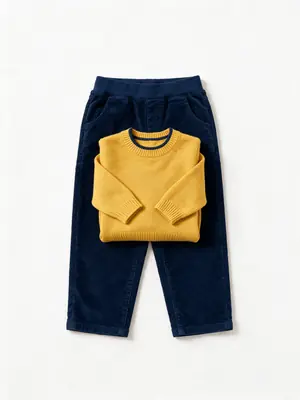
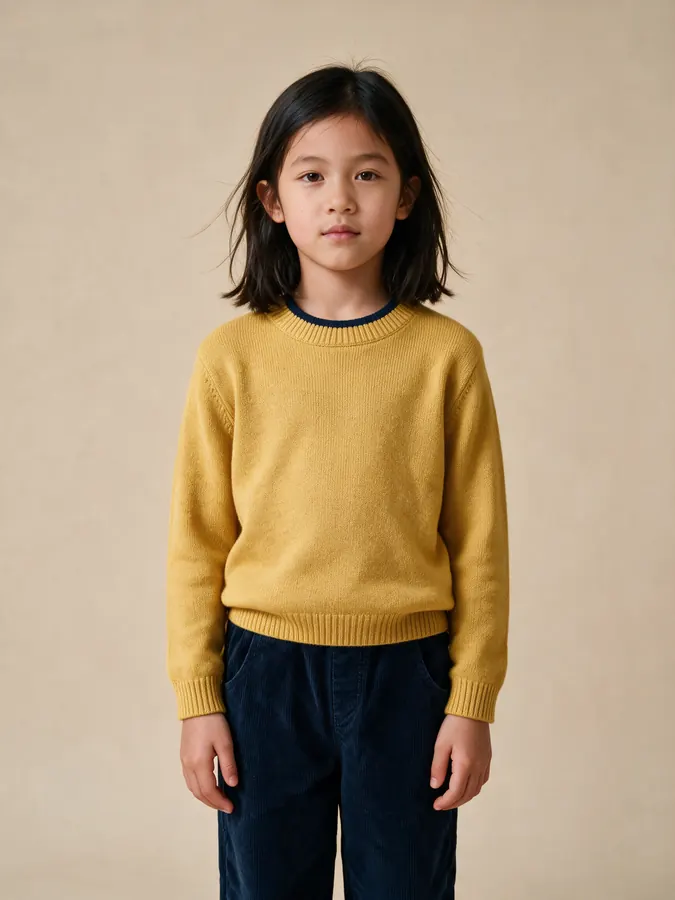
What carried over from a two-piece flat lay: the mustard of the knit, the navy contrast ring at the neckline, the ribbed cuffs and hem band, and the navy corduroy trousers with their wale and front pockets. What is generated: the child, the warm paper backdrop, and the fit — note the sleeves have been rendered slightly long, the way a real knit on a real child usually sits. Both pieces were in one photograph, which is why they came through as one outfit rather than needing two generations.
Three decisions that make or break a children's clothing generation
Flat, lit, and sold as a set if it sells as a set
Lay the garment out square with even light and no shadow crossing it, exactly as you would for adult apparel. The kidswear-specific point is the set: if the jumper and the trousers are listed together, photograph them together in one frame. The generation reads one image and renders what is in it, so a set photographed as a set arrives as an outfit, while two separate uploads mean two generations and a model who may not match between them.
Put the age first and keep it
The one thing your photograph cannot say is who the garment is for, so say it, and say it at the front of the brief — toddler, around five, early teens. Children’s proportions change fast and a brief without an age drifts toward adult ones. Then untick "Let AI improve my prompt" in Advanced Options if the age matters precisely: the rewrite tidies sentences and frequently tidies the age qualifier away with them.
Check the cuffs, the hem and the neckline
On children’s clothing the detail is concentrated at the openings — a ribbed cuff, a contrast neckline binding, a turned hem, a popper placket. Those are the first places an approximation shows and the first places a parent looks. Of the 36 photography styles, E-commerce gives the even lighting and true-to-life colour a listing needs; Bright & airy suits the lifestyle frames this category sells well on, and Moody low-key does not belong here at all.
AI for baby and children's clothing brands
This page is for clothing product photography only.
What it is for
Showing a children's garment worn: a romper, a dress, a hoodie, a coat. The output is an on-model product picture for a shop page, a marketplace listing or a lookbook.
What you upload
Only the garment. A clear, well-lit flat lay or hanger photo with the full garment in frame gives the model the cleanest information about colour, print and cut.
What to check
Compare length, sleeve and print placement with the real garment, and compare the proportions of the model with the age range you are selling to. Regenerate if anything looks off.
A simple shot list for a kidswear listing
Four pictures answer most parent questions before they ask.
Front view, full length
The main image. It shows the shape of the garment and how it sits on a child of the target age.
Back view
Needed for pinafores, backless dresses, hoods, graphic prints on the back and fastenings.
Detail close-up
Print, appliqué, buttons, snaps or collar. Parents of small children look for fastenings first.
Flat lay or size reference
Keep your real product photo or size chart on the page too, so the generated picture is never the only evidence of how the garment is cut.
Poses and plates for a kidswear catalog
The default Product to Model pose grid is five presets — Standing, Walking, Sitting, Editorial, Casual — with Custom and Match photo beside it and the full 40-preset library behind Pose Set (Consistent Model). Kidswear uses the same logic as adult apparel: the primary image shows the whole garment, and everything else is a second image.
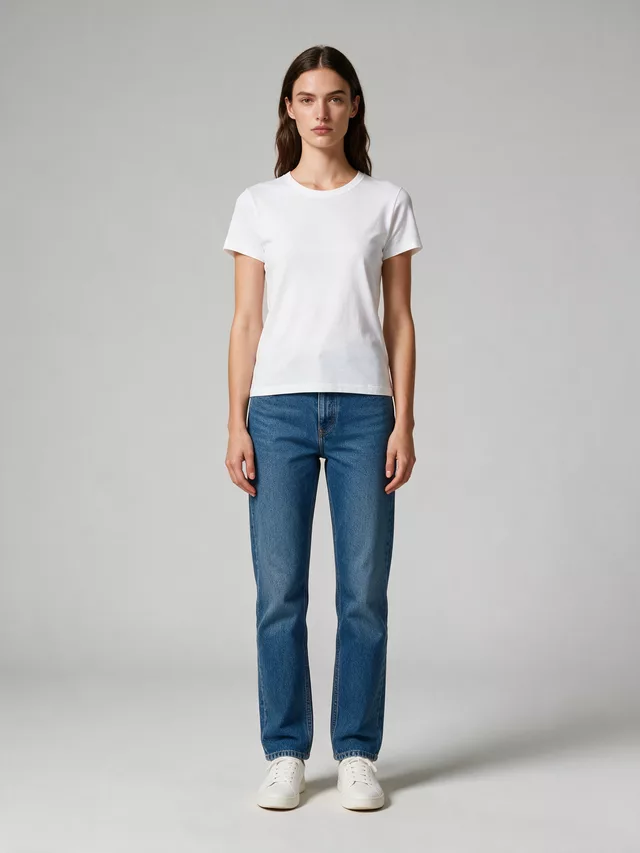
The whole garment, unfolded, evenly lit, nothing hidden behind an arm. The frame a parent judges size and shape from.
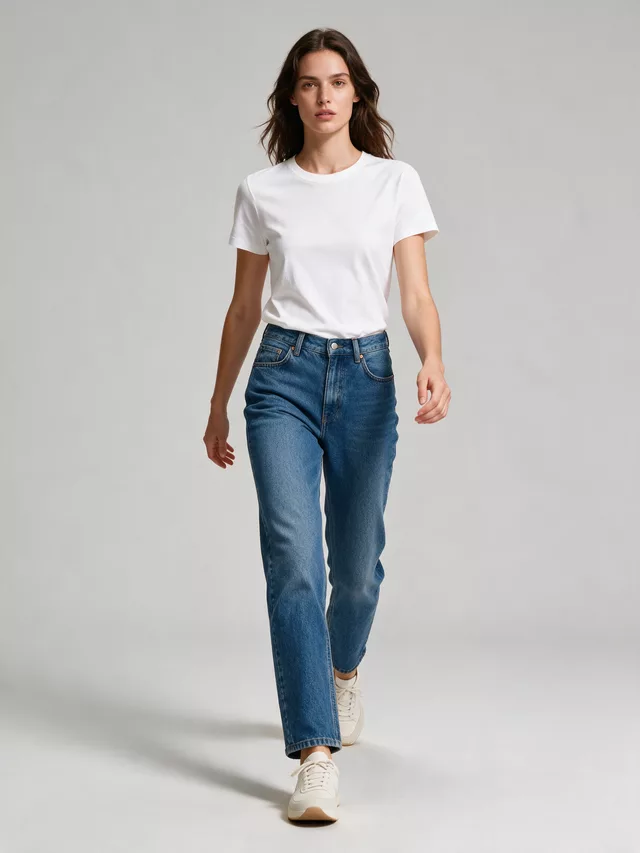
Opens a hem and shows how a coat or a dress actually falls. The right second image for anything that is not a plain tee.
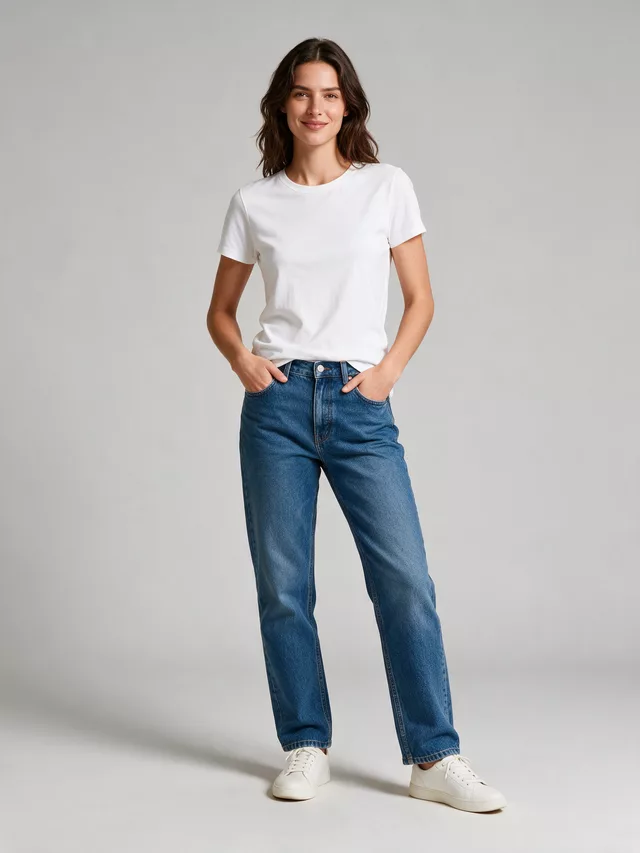
Warmer and less catalog-like, which sells the brand rather than the item. Good on a category banner, weak as a listing image.
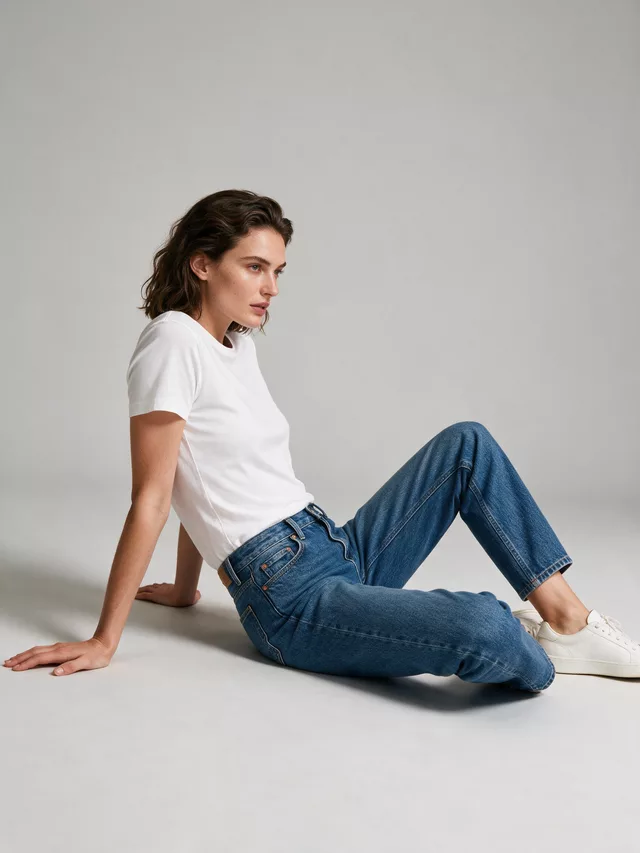
Folds the garment and buries the cuffs and hem — which on kidswear is usually where the detail is. Use it once the item is established.
| Soft cream | Default here | Warm off-white paper. Holds an edge on the pale and pastel colours kidswear lives in, where pure white would lose it. |
|---|---|---|
| Light gray | For white | The safe plate for white and cream garments, and neutral enough to judge colour from. |
| Back to school | Seasonal | One of the seasonal plates, alongside Christmas — the two moments a kidswear catalog actually markets around. |
| Neon night | Wrong on every axis | Coloured light recolours the garment, and the setting is wrong for the category regardless of what it does to the pixels. |
Questions children's clothing sellers ask before spending a credit
What should I upload for a kids garment?
The same thing you would for adult apparel: the piece laid flat, square to the camera, evenly lit, on a plain background, with nothing cropped. If you are selling a set — a jumper and trousers together — photograph them together the way they will be sold, because that is how the generation will read them. The default Product to Model mode is briefed to keep your product’s exact design, colours, materials and pattern, so a legible flat lay is doing most of the work.
How do I set the age range?
Describe it in words in the model details — toddler, around five years old, early teens — rather than looking for an age slider on the default mode. The Main mode carries explicit age and model controls if you want to fix it precisely, but for a listing image a plain description of the age you are selling to is usually enough and costs less to iterate on.
The proportions came out wrong — it looks like a small adult.
Say the age plainly and put it first in your brief, and keep the garment description separate from it. Children are not scaled-down adults — the head-to-body ratio changes a lot between a toddler and a ten-year-old, and a vague brief defaults toward adult proportions. This is also a case for unticking "Let AI improve my prompt" in Advanced Options: a rewrite frequently drops the age qualifier while tidying the sentence.
Which pose works for kidswear?
Standing, for the same reason as adult apparel: it shows the whole garment, unfolded and evenly lit, and it is what a listing image needs. Walking is the useful second frame for anything with movement in it — a dress, a coat, wide trousers. Sitting hides hems and cuffs, which on children’s clothing are often where the detail is.
Can I keep the same child model across a whole catalog?
Yes. Pick a roster model before you generate, or use Pose Set (Consistent Model) with your previous result as the reference — it holds the face, hair and body type steady while the pose changes, and keeps the garment’s cut and pattern consistent with it. Each pose is billed as its own generation. A consistent model across a range reads as a real catalog rather than a series of stock photos.
What background suits children’s clothing?
Soft cream and Light gray both flatter kidswear better than pure white — children’s clothing is often in soft or pastel colours that lose their edge against a white plate. Soft cream is described in the picker as warm off-white paper. For the lifestyle frames, the Home group holds Living room, Made bed and Kitchen counter, and the seasonal plates cover Back to school and Christmas, which is where most kidswear catalogs actually spend their marketing.
Does this cover tween and teen sizes?
Yes — it is the same clothing-first workflow. Upload the garment, state the age range and a simple setting, and generate a standard product listing photo. This page is a product-photography tool for clothing sellers; briefs stay about the garment, the setting and the pose.
What is an AI kids model generator?
It is a tool that puts a photo of a children's garment onto a generated child model, so a kidswear shop can show the item worn. It is for clothing product photography on shop and marketplace pages.
Do I need photos of real children?
No. You upload a photo of the garment, such as a flat lay or a hanger shot, and choose a Kids & Baby model. No photo of a real child is needed.
Does it work for baby clothing?
Yes. The Choose your model picker has a Kids & Baby group, so you can use it for baby and toddler garments as well as older children's clothing. Always check proportions in the result against the real garment.
Is it free to try?
Yes, you can try it free. Free results can carry a watermark, and a Premium option removes it.
Is this useful for baby and children's clothing brands?
Small kidswear brands often have the product but not the budget for repeated shoots with child models. This lets you produce on-model product pictures from the garment photos you already have, then compare the result with the real item before publishing.
Related tools, and why you would switch
The e-commerce-side page, set up for running a whole kidswear catalog rather than one image.
Infant apparel, where the garment shapes and the proportions are different again.
When you want the garment holding its own shape with no model in it at all.
Same face across every shot. All models are synthetic and free for commercial use.
Upload a product photo — get a photo-realistic on-model shot. Pick a roster model below to keep the same face across shots.
Premium users can generate images without watermark
Higher quality options available for premium users