Your first generation is free when you sign up. Paid plans add credits, remove the watermark and unlock higher resolution.
Pole Barn Color Visualizer: See New Steel Colours on Your Own Pole Barn or Metal Building
Pole Barn Color Visualizer: See New Steel Colours on Your Own Pole Barn or Metal Building is a free AI tool. Upload a photo of your pole barn, metal shop or barndominium and see new roof, wall, trim and door colours before you order: charcoal, barn red, galvalume, white, black and more. Free to try.
Free to try · first generation free on signup · no credit card
1
Step 1
Upload Image
Start by uploading image
Upload your image
Click to browse or drag & drop
2
Step 2
Select Mode
Choose your transformation style
New roof and wall colours
3
Step 3
Options
Configure your options
Related Tools
→try new exterior paint colors on your own photo
→redesign a home exterior from a single photo
→plan a new yard or garden layout from a photo
→repaint a car in any shade before you commit
Output quality:
Mode
Roof + Walls
Your AI Design Will Appear Here
Fill in the options on the left, then press Generate.
Upload your image
Drag & drop your file here or click to browse
JPG, PNG, WebP
Max 10MB
AI Ready
Quick facts about Pole Barn Color Visualizer: See New Steel Colours on Your Own Pole Barn or Metal Building
- Tool namePole Barn Color Visualizer: See New Steel Colours on Your Own Pole Barn or Metal Building
- CategoryHome Design
- PriceFree to try
- InputPhoto upload + text prompt
- OutputAI-generated image
Before / After
Example results
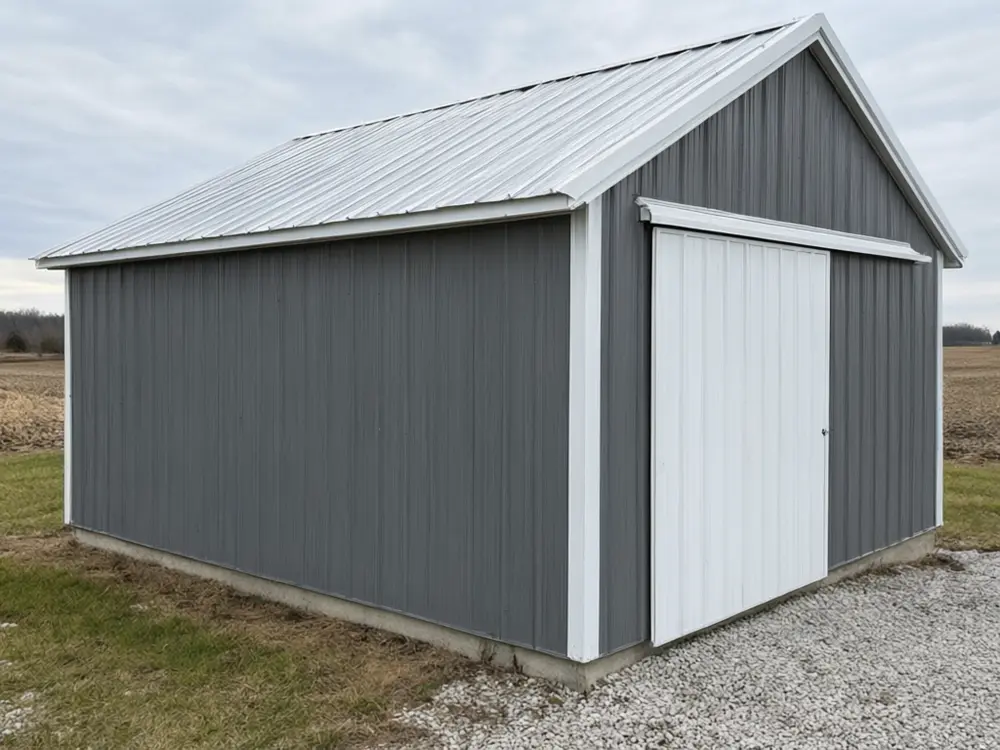
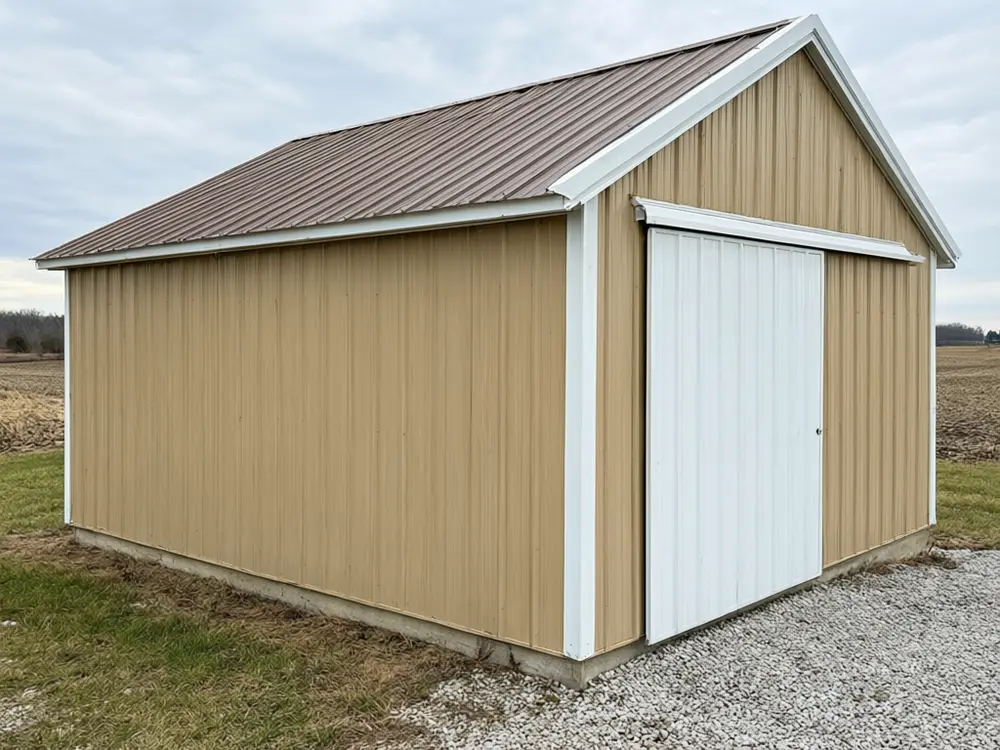
Drag to compare
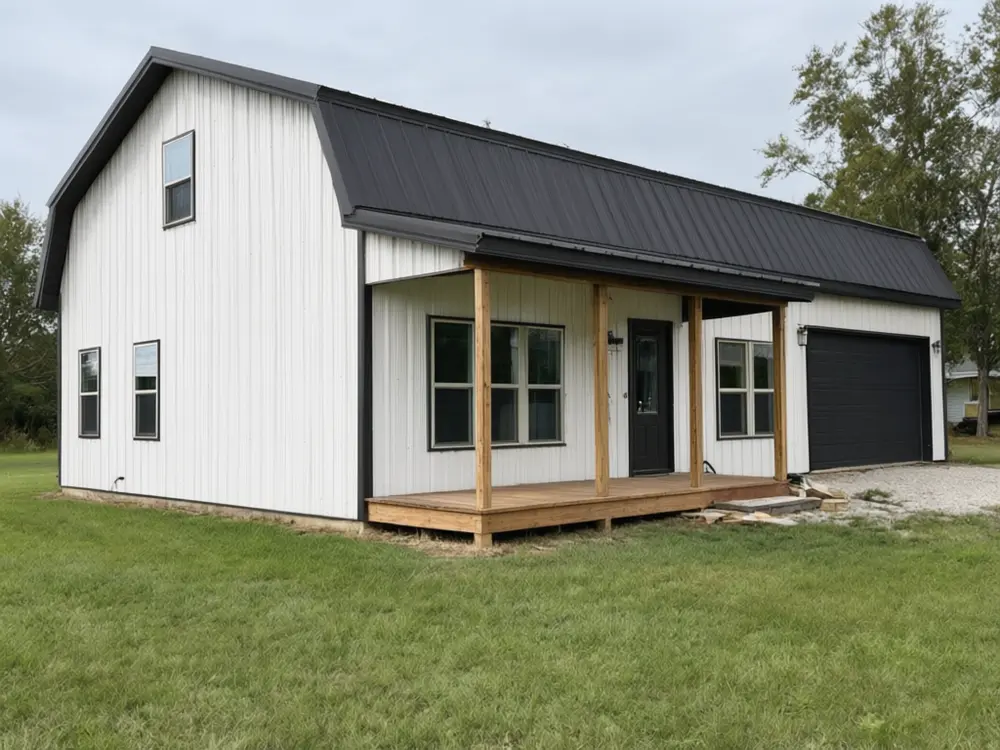
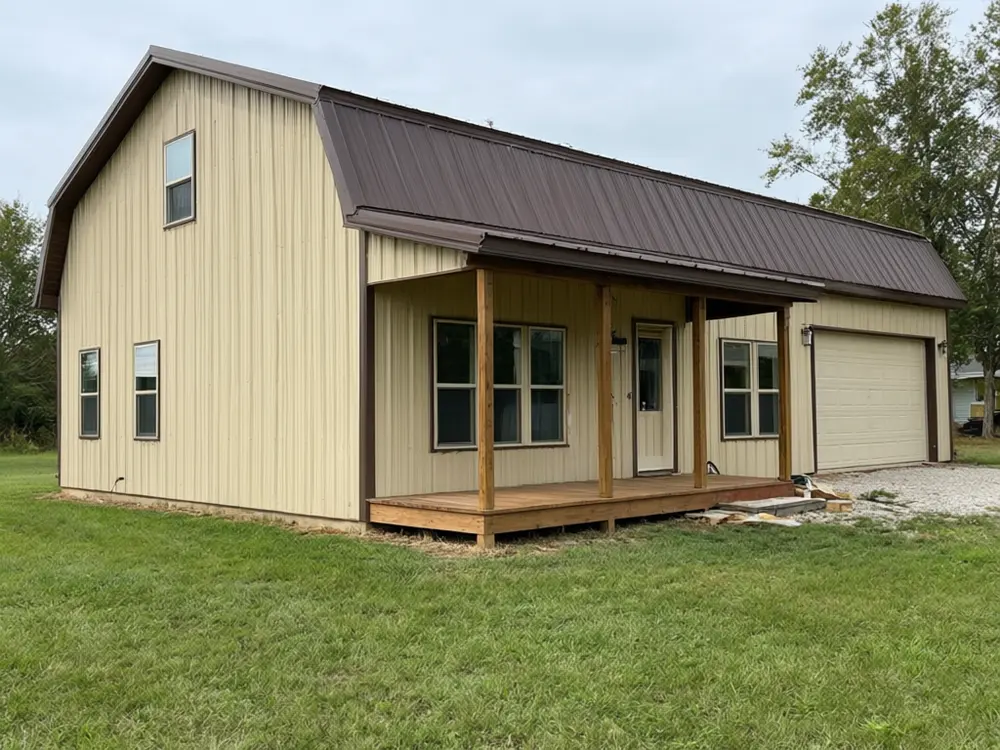
Drag to compare
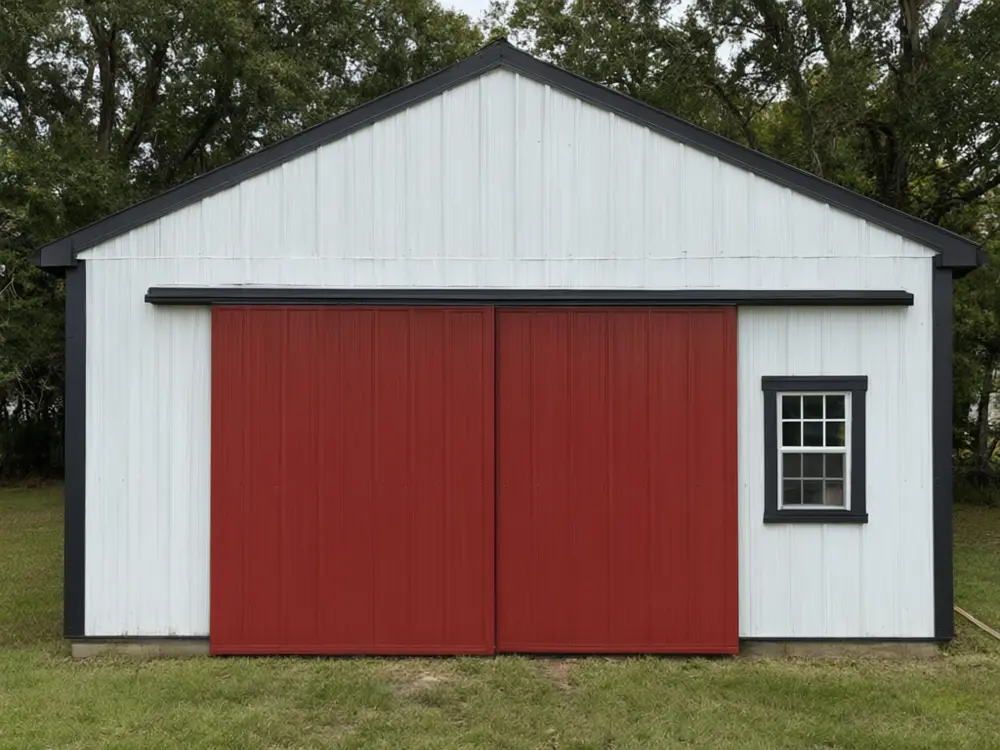
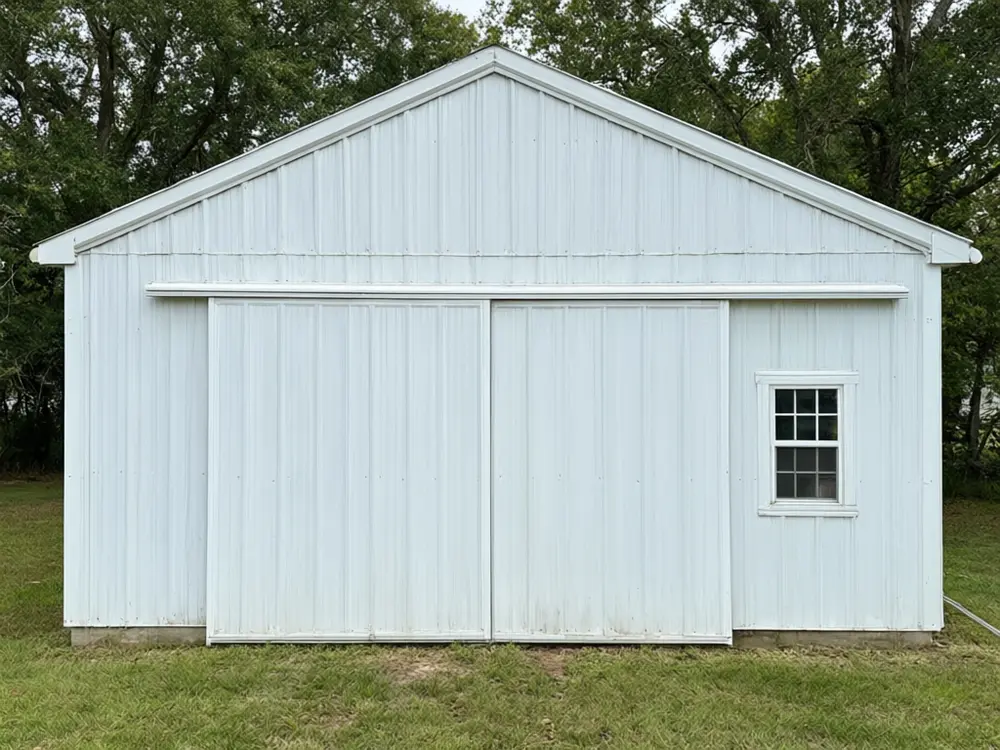
Drag to compare
Real, unretouched output from this tool. Drag any slider to compare.
See new steel colours on your own pole barn, metal shop or barndominium before you order. Upload a photo, pick roof and wall colours, trim and door colours or a ready-made barndo scheme, and the tool recolours the steel while the building shape, panel ribs, doors and windows, ground and camera stay as they are.
How the pole barn color visualizer works
You upload one photo of your pole barn or metal building and choose what to change. The tool changes only the metal colour scheme and keeps everything else the same.
Each run makes one image. Run it with other options to compare, then keep the one you like.
1
Use a clear photo
A daytime photo of the building from a front corner, with two walls, the roofline and the doors in view.
2
Try more than one option
Run a few colours or styles and compare them side by side before you decide.
3
Use it before you spend money
A picture is cheap to change. A real metal colour scheme is not.
4
It is a preview
The picture shows a look. It is not a quote, a plan or a survey.
The metal colour scheme options
3 modes plus your own.
1
Roof + Walls
New roof and wall colours.
2
Trim and Doors
Accent trim and door colours.
3
Barndominium
Ready-made barndo colour schemes.
4
Your own description
Describe the change yourself.
Honest limits
It shows a metal colour scheme on your photo. It is not a measured quote or a plan.
Sizes, spacing and exact products are approximate.
Screen colour is not paint colour; check a physical colour chip from your supplier before you order, and names vary between suppliers.
Everything else should stay the same; compare the result with your photo.
More tools for your home
Next steps for your home.
Who uses a pole barn color visualizer
🏠
Pole barn and shop owners
✓Compare roof, wall and trim colours on your own building before you sign the order.
💡
Barndominium buyers
✓See white with black, all black or barn red on your barndo before the steel is ordered.
🏢
Builders and dealers
✓Show a client colour options on a photo of their site or an older building during a quote.
📸
Owners re-siding a barn
✓See how new steel colours would look on the barn you already have.
🏚️
Pole Barn Color Visualizer: See New Steel Colours on Your Own Pole Barn or Metal Building
AI Tool
Upload your imageTap anywhere here — your AI design will appear in this space after you generate.JPG · PNG · WebP
New roof and wall colours
Premium users can generate images without watermark
Higher quality options available for premium users
Be specific for better results0/400
Output quality:
Frequently Asked Questions
It is told to change only the metal colour scheme and keep the building shape and size, the roofline, the panel ribs, the door and window positions, the ground, the sky, any vehicles and the camera angle exactly as photographed. Compare the result with your photo.
Yes. Run one option and then another to compare.
A daytime photo of the building from a front corner, with two walls, the roofline and the doors in view.
No. It recolours the steel only and keeps the shape, roof pitch, panel ribs and the doors and windows where they are.
Not as a set mode. In our tests a new wainscot band sometimes ran across a garage door, so the modes keep any wainscot you already have as photographed. You can describe one in Your Own Description, then check the doors closely.
No. It uses common steel colour names like charcoal, burnished slate, barn red and galvalume. Each supplier has its own chart, so check a physical chip before you order.
It needs a photo of a building. For a new build, use a photo of a similar building or a builder photo, and compare colour schemes on it.