How to use Bundle Shots on AI Two
Create multi item fashion bundle catalog stills with Bundle Shots in Fashion Studio.
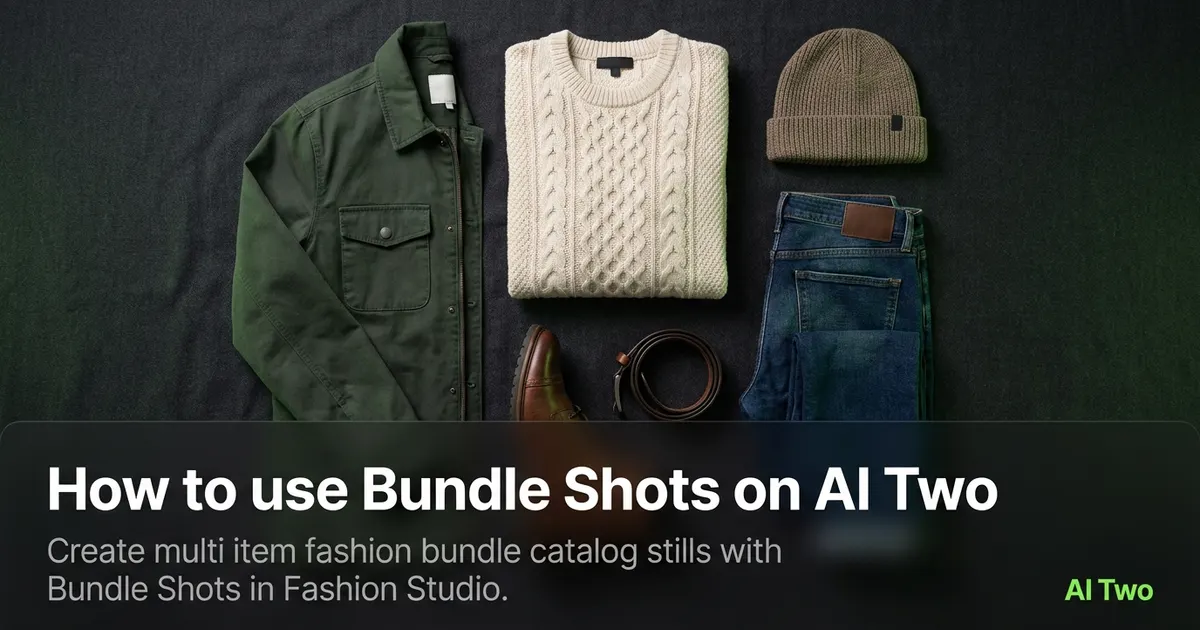
Bundle Shots on AI Two is the Fashion Studio shoot page I open when an apparel seller needs one catalog frame that shows several SKUs together for a set listing, capsule drop, or marketplace bundle offer. Sellers use it to combine multiple pieces into a single packshot with readable separation between items. When I tested a three piece loungewear set from individual flat photos, each garment edge stayed distinct enough for a listing hero at zoom, which is the check I use before upload. I treat the download as a seller multi SKU packshot, not a consumer outfit of the day picker.
What Bundle Shots does
Upload product photos for the pieces in your set or follow the form with multi item inputs, choose bundle layout options, and generate a single still that presents the group for catalog framing.
When I tested a top, bottom, and scarf trio from neutral packshots, the output kept each color block readable at marketplace thumbnail size without merging hems into one blob.
Fashion Studio lists this beside catalog, editorial, outdoor, studio, and trend shoot pages in the shoot types cluster.
Built for sellers who need multi SKU packshots for set listings and bundle offers, not for personal styling games.
I open this page after each piece already has an approved solo packshot or clean product photo. Bundle Shots fail when inputs were shot at different white balance.
Free signup credits covered one bundle test for me. Paid plans raise monthly limits when you batch many set listings for a seasonal drop.
In my experience, naming each input file by SKU before upload prevents mix ups when the set has near identical colors.
I run the hero set first, then clone the same layout settings for colorway variants once spacing looks right.
For marketplaces that cap image count, one strong bundle still can carry the set story when solo heroes still exist in the gallery.
How to run it step by step
Step one: sign in or create a free account. Step two: upload sharp product photos for each piece in the set on matching neutral backgrounds. Step three: pick bundle layout options, keep defaults on run one. Step four: generate and wait about 30 seconds. Step five: download or adjust one spacing setting and compare.
Normalize white balance across inputs before you upload. Mixed warm and cool sources fight the bundle frame.
When I tested a four piece activewear set, I checked each logo at full zoom before I approved the bundle.
I run one set composition first, then batch sibling colorways once item spacing is locked.
Credits apply per generation, so I lock one layout on the lead set before I batch five palette variants.
If one garment looks soft, I replace that input with a sharper solo packshot instead of rerunning the whole bundle five times.
I export the bundle still at full zoom checked resolution before I open background remover for white field copies.
My second run only changes item order or background tone after edge separation passes. Changing both at once hides which control helped.
I keep a text note listing which SKUs appear in the bundle so customer service can answer set contents without opening design files.
Which photo works best
Start from sharp solo packshots with matching lighting and background tone. Bundle tools amplify inconsistency across inputs.
Even daylight or softbox light on each piece beats mixed phone flash and window light in the same set.
Match the framing on the Fashion Studio before and after card for this tool when you can.
Steam each garment before solo shots. Wrinkles copy into the bundle and look messy at set price points.
Avoid heavy filters on individual inputs. The bundle frame adds its own catalog polish.
Include full garment edges in each input. Cropped sleeves or hems hide set contents at thumbnail size.
Keep logo and print areas fully visible on each piece when brand marks matter for the channel.
Shoot each SKU at similar scale so the bundle layout does not have to guess relative size.
Remove hangers, tags, and props from solo inputs unless the brief truly needs them in the set story.
Mistakes I avoid
Uploading lifestyle party shots when the listing needs clean product focused inputs first.
Changing layout, background, and item order together on run one.
Expecting editorial campaign motion from a catalog bundle tool.
Batching five color sets from one blurry phone snap per piece.
Skipping edge separation checks between items. That is where bundle returns start.
Listing a bundle still without solo hero images in the gallery when the marketplace requires per SKU zoom.
When to use another Fashion tool
Need one SKU on white for marketplace zoom? Fashion Catalog or Clothing Flat Lay. Need story and atmosphere for a brand page? Fashion Editorial. Need each piece alone first? Ghost Mannequin or flat lay pages in the ecommerce cluster before you return here.
The shoot types cluster guide maps sibling campaign pages. The Fashion Studio pillar covers the wider seller order of operations.
Open the ecommerce photography cluster when you still need solo packshots before you compose a set frame.
If the brief moved to jewelry sets, switch to the jewelry cluster instead of forcing apparel bundle layout.
After the download
I attach solo packshots beside the bundle still in the set folder so merchandising can answer per piece questions at the same zoom.
For marketplace packs I name files by set code and date so weekend uploads do not mix bundles from different drops.
When a channel asks for a white field copy, I feed the approved bundle into background remover instead of restarting from random crops.
If one item edge softens, I swap that input for a sharper solo still and rerun rather than stacking fixes on a soft file.
I screenshot the form labels that worked and paste them into the set notes so next season matches the approved bundle without guessing.
FAQs
Related studio guides
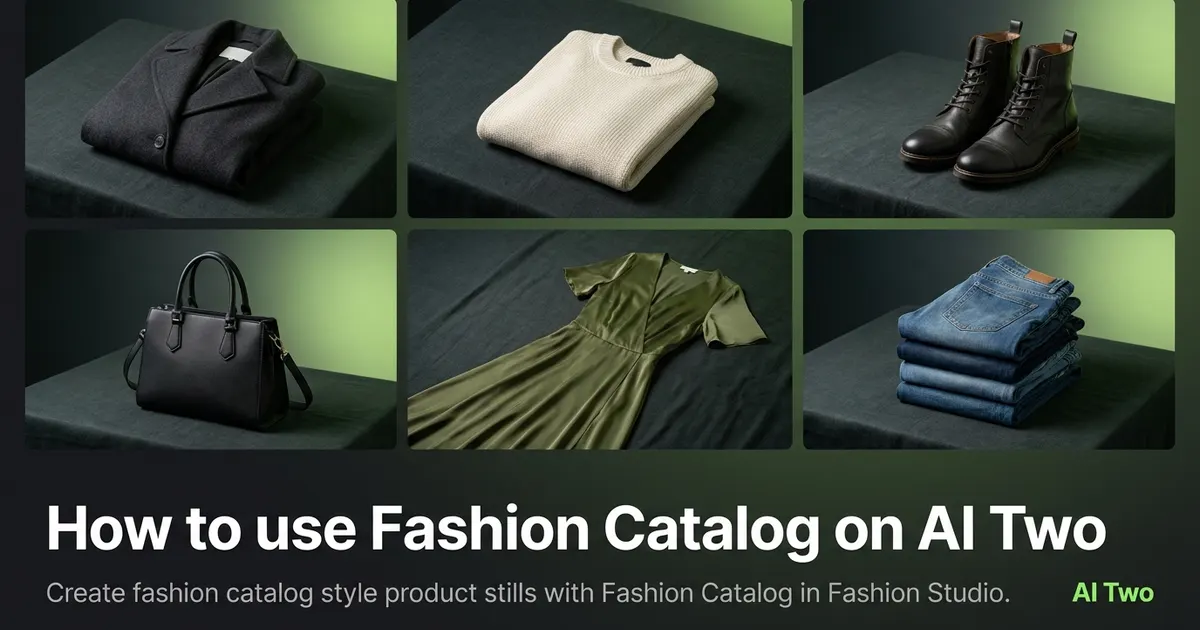
How to use Fashion Catalog on AI Two
Create fashion catalog style product stills with Fashion Catalog in Fashion Studio.
Read guide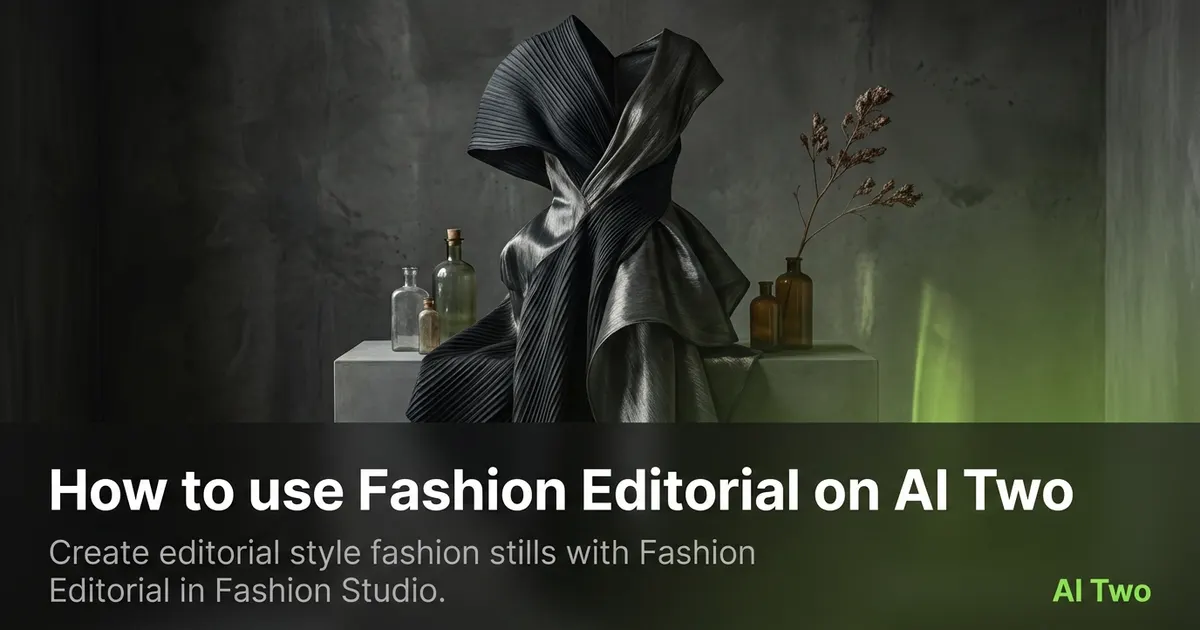
How to use Fashion Editorial on AI Two
Create editorial style fashion stills with Fashion Editorial in Fashion Studio.
Read guide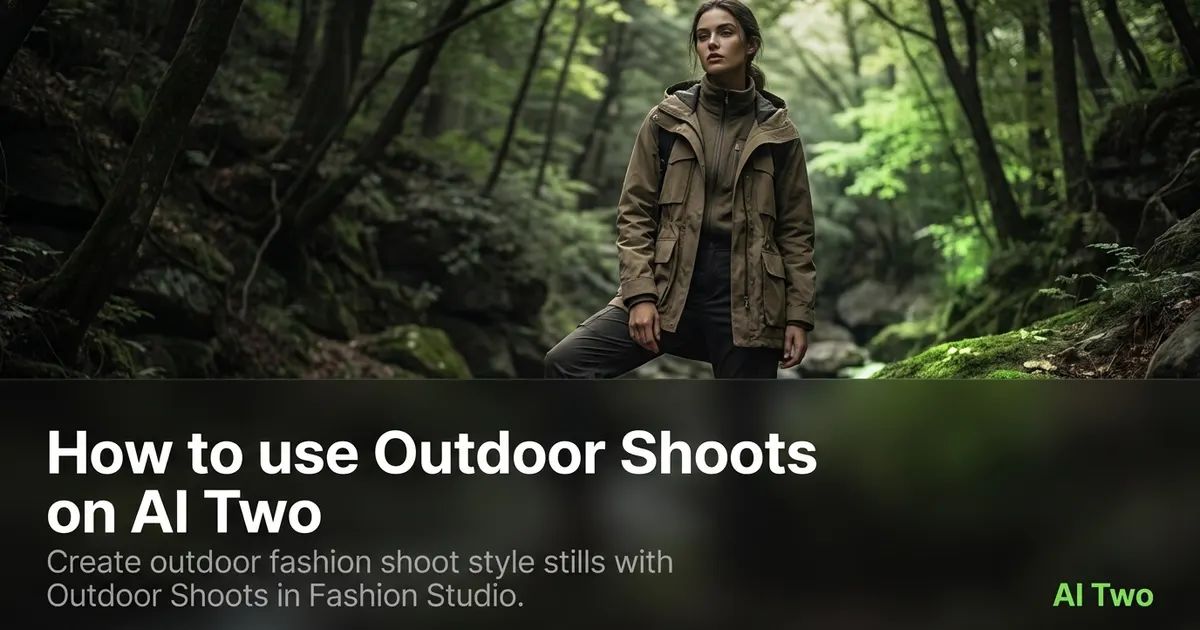
How to use Outdoor Shoots on AI Two
Create outdoor fashion shoot style stills with Outdoor Shoots in Fashion Studio.
Read guide