
How to use AI Kitchen Design on AI Two
Upload a kitchen photo and preview new cabinets, counters, and finishes with AI Kitchen Design in Home Design Studio.
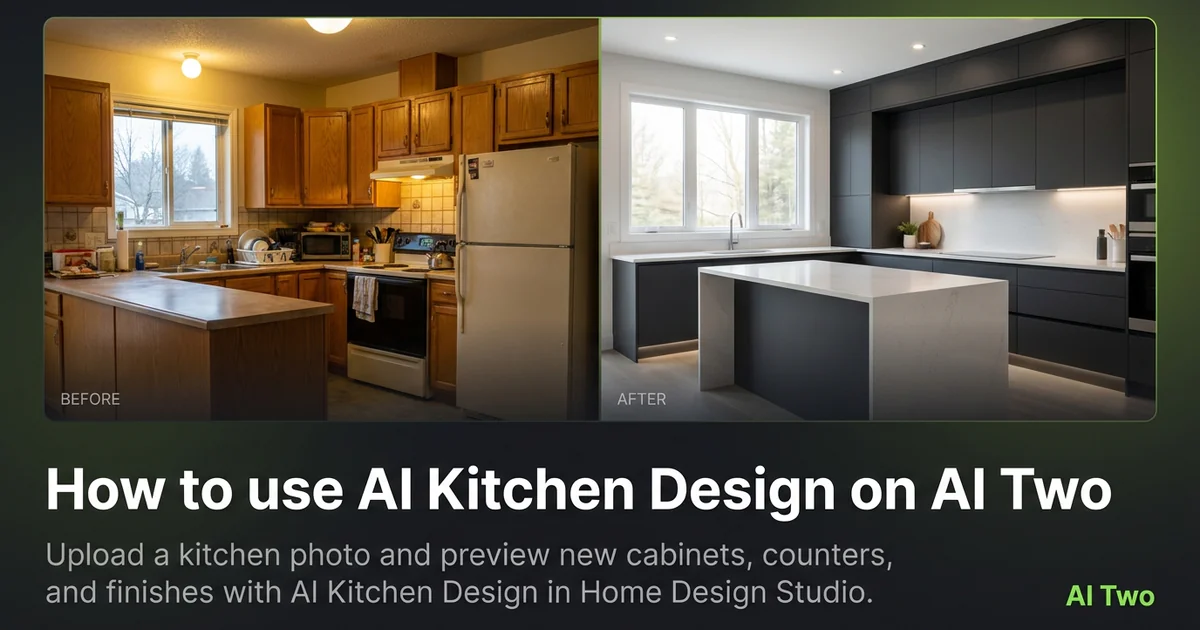
AI Kitchen Design on AI Two turns a photo of your real kitchen into a redesigned still in about 30 seconds. I open it when a cabinet quote is landing and I need to see oak, white shaker, or darker paint on my actual walls before I pay a deposit. In my experience, one clear photo of the main run beats a folder of stock kitchens that do not match my window placement.
What AI Kitchen Design does
You upload a kitchen photo, pick a style or finish direction, and generate. The tool keeps the room volume and camera angle while it updates cabinets, counters, and finishes in the preview.
When I tested a dated oak galley with yellow counters, the refreshed shaker cabinets and cooler stone looked coherent enough to send to my contractor in the same thread as the measurements.
Home Design Studio lists this page with bathroom, bedroom, and interior tools in the rooms cluster. Credits meter each generation.
Treat the output as a visual draft. It is not a cabinet order or plumbing plan.
I open this page after I have one clear photo of the sink wall. Guessing finishes from memory wastes credits.
Free signup credits covered three style tests for me before I locked a direction. Paid plans raise the monthly cap when you batch many listing kitchens.
When I tested a narrow galley, the tool kept the window and stove placement believable while it refreshed the upper cabinets. That saved a showroom trip I did not need yet.
How to run it step by step
Step one: sign in or create a free account. Step two: upload a daylight photo that shows the full cabinet run if you can. Step three: pick a style, leave extras on default for the first run. Step four: generate and wait about 30 seconds. Step five: download or change one setting and compare.
My first run with defaults was already useful. The second run only changed counter tone so I could judge contrast against the cabinets.
I never overwrite the original phone photo. Remodel tests stack fast.
If cabinets warp, reshoot straighter instead of stacking edits on a skewed file.
I write the style name that won in a note next to the room measurements so the showroom trip stays focused.
If the first run feels too modern, I change only the style preset on run two. That keeps cabinets and counters from shifting at the same time.
Which photo works best
Bright, straight photos beat steamy window selfies. Show the floor and the main cabinet wall when possible.
Soft files under about 800 pixels look muddy after redesign. Start sharp.
The studio before and after card for this tool uses a real kitchen photo. Match that kind of framing.
Clear clutter from counters before you shoot. Coffee makers and mail piles copy into the redesign.
Turn on under cabinet lights and open a curtain if you can. Mixed yellow bulbs make paint color hard to judge later at the store.
Stand in the doorway and shoot level. Angled phone tilts make cabinets look crooked in the preview.
Include the stove and sink in frame when those are the expensive line items. Cropping them out leaves the quote conversation incomplete.
Mistakes I avoid
Changing style, cabinets, and counters together hides which choice helped. Change one variable per run.
Expecting exact SKU numbers from a preview wastes time. I take the download to a showroom and match finishes in person.
Cropping out the island when that is the centerpiece leaves the remodel talk incomplete.
Running five dark filters on the phone before upload. The redesign inherits that cast.
Sending a contractor only the AI still without the original photo. They need both to judge scale and appliance placement.
When to use another rooms tool
Need a whole house interior mood first? Open Interior AI. Bathrooms and bedrooms have their own pages when those rooms are next. Declutter or object removal helps before redesign if the shot is messy.
The rooms cluster guide maps every room tool. The Home Design Studio pillar covers exterior and outdoor work when the kitchen is done.
If you only need a wall color change and not a full kitchen redesign, Wall Changer in the edit cluster may be the narrower tool.
FAQs
Related studio guides
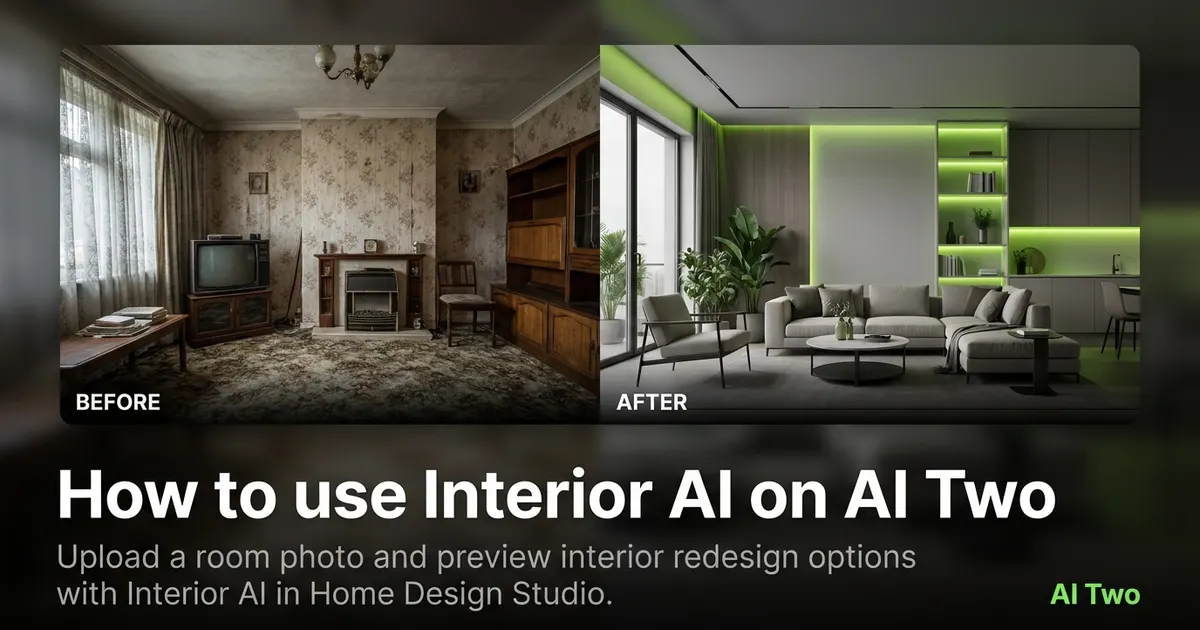
How to use Interior AI on AI Two
Upload a room photo and preview interior redesign options with Interior AI in Home Design Studio.
Read guide
How to use AI Bedroom Design on AI Two
Upload a bedroom photo and preview new layouts, finishes, and furniture looks with AI Bedroom Design in Home Design Studio.
Read guide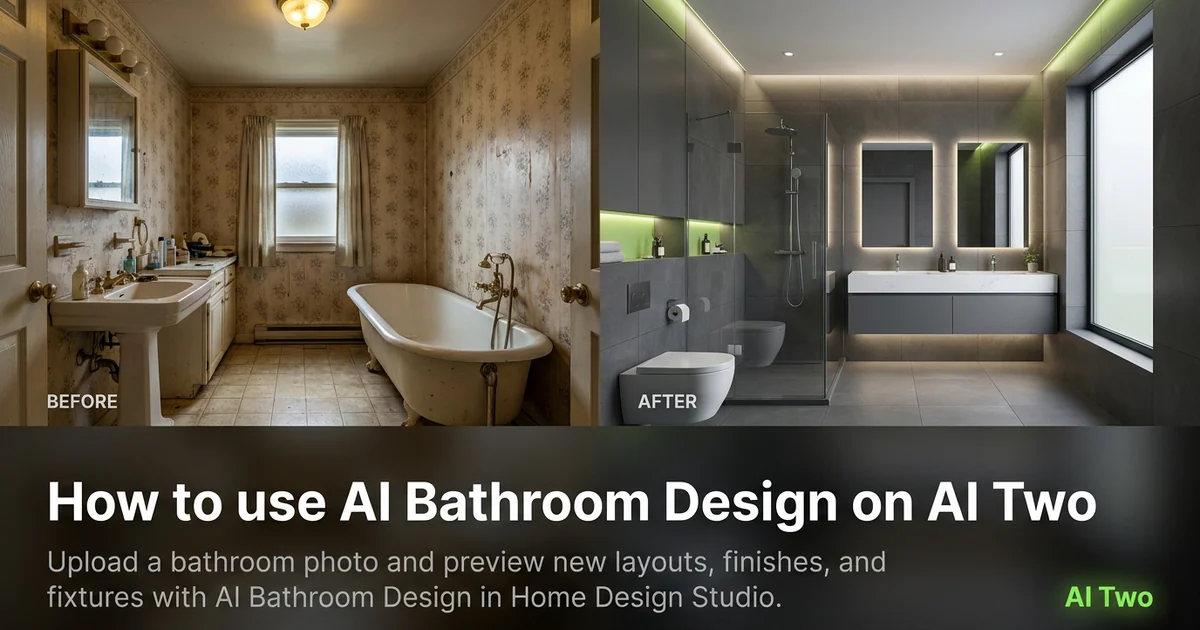
How to use AI Bathroom Design on AI Two
Upload a bathroom photo and preview new layouts, finishes, and fixtures with AI Bathroom Design in Home Design Studio.
Read guide