
👟Shoe Studio
AI Shoe Studio: every shoe edit from one photo
Upload a photo of a pair, or of an outfit. Recolor the shoes, swap them for another style, try them on, or make a clean listing photo, and keep everything else as it was.
Free to try · sign up free for your first generation · no credit card
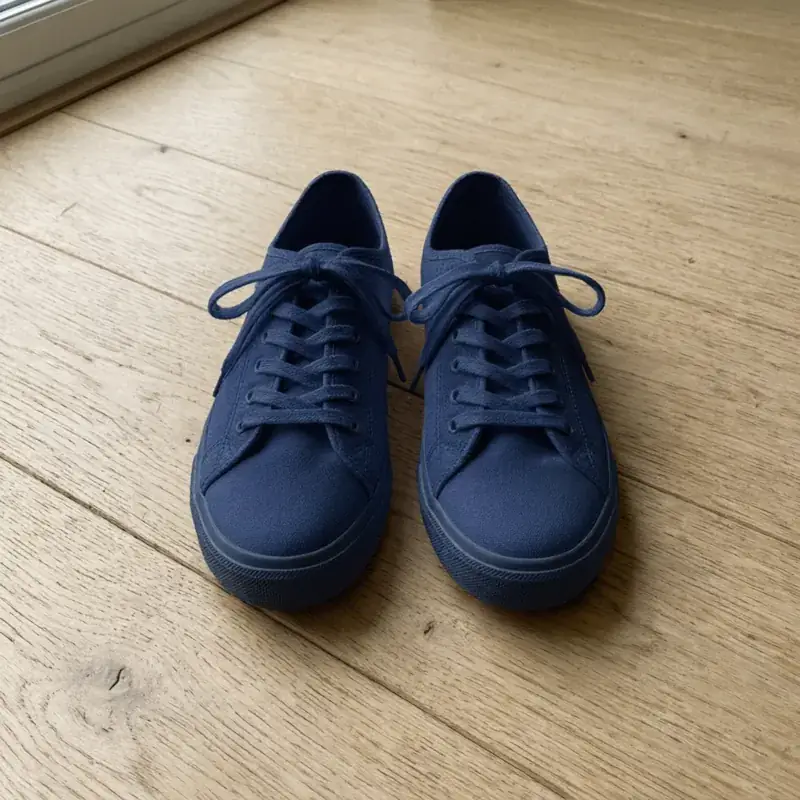
Real tool output: white canvas sneakers to navy
Made with this studio
Change the Shoes in a Photo
Swap or recolor the shoes in a photo you already have and keep the rest of it as it is.
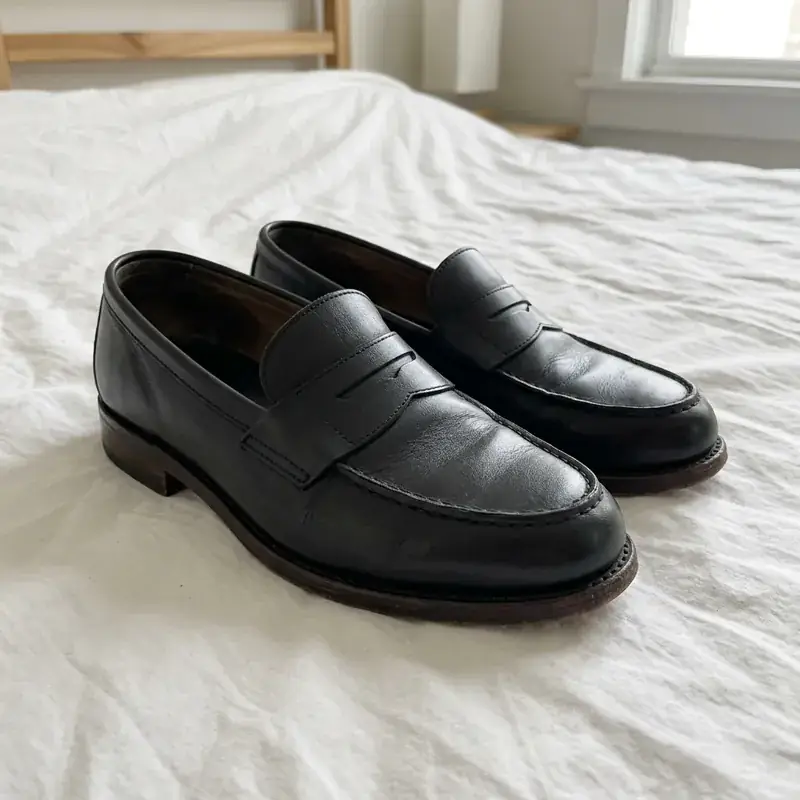
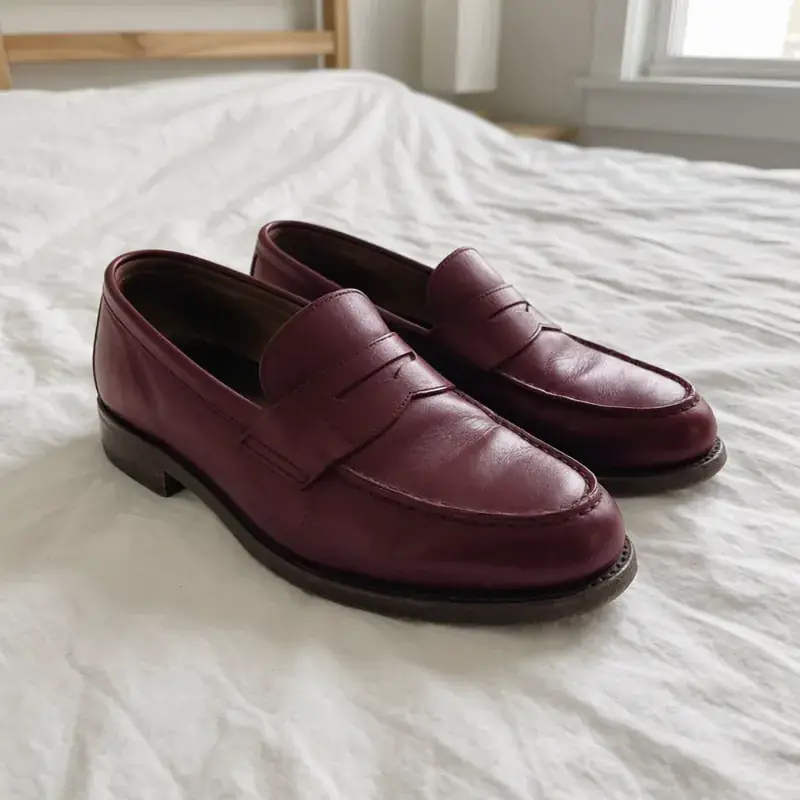
Try Shoes On
See a pair on feet before you order it.
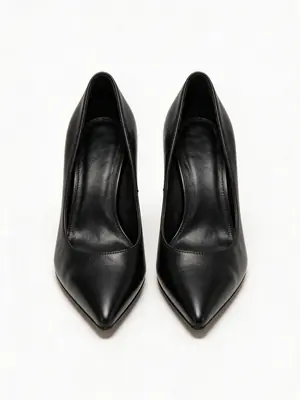
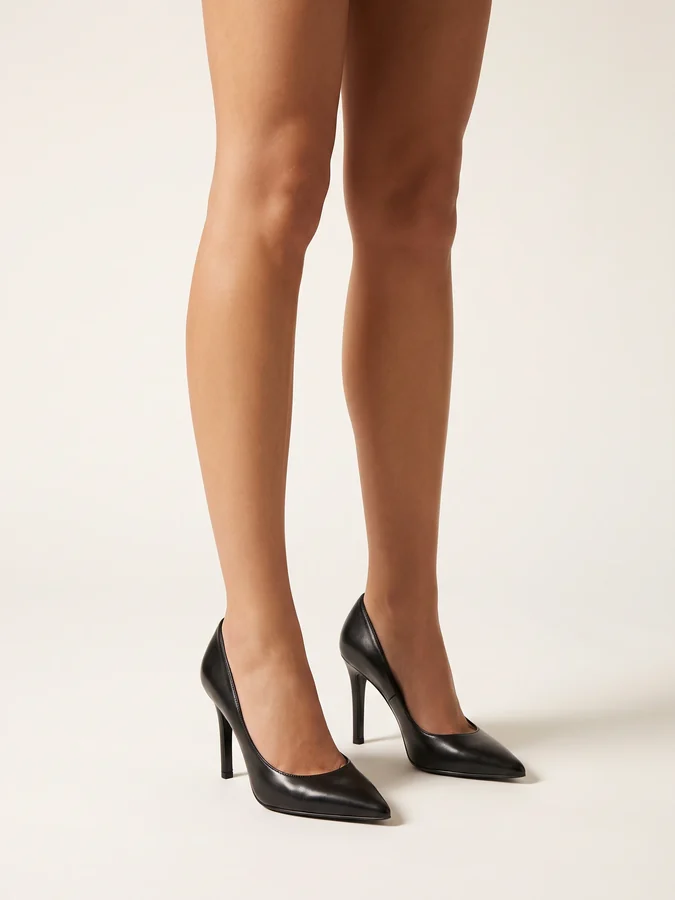
Sell Shoes: Listing and Model Photos
Turn a quick phone photo of a pair into a shop-ready image.
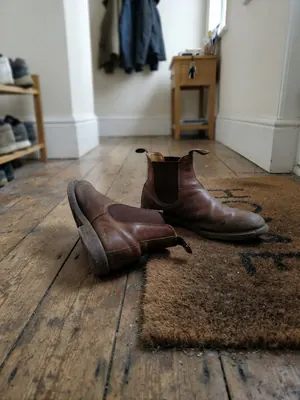
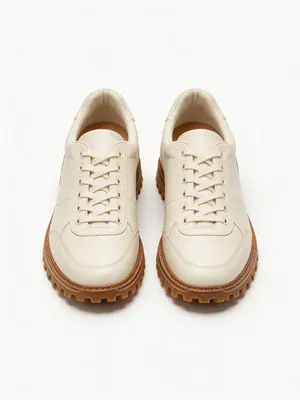
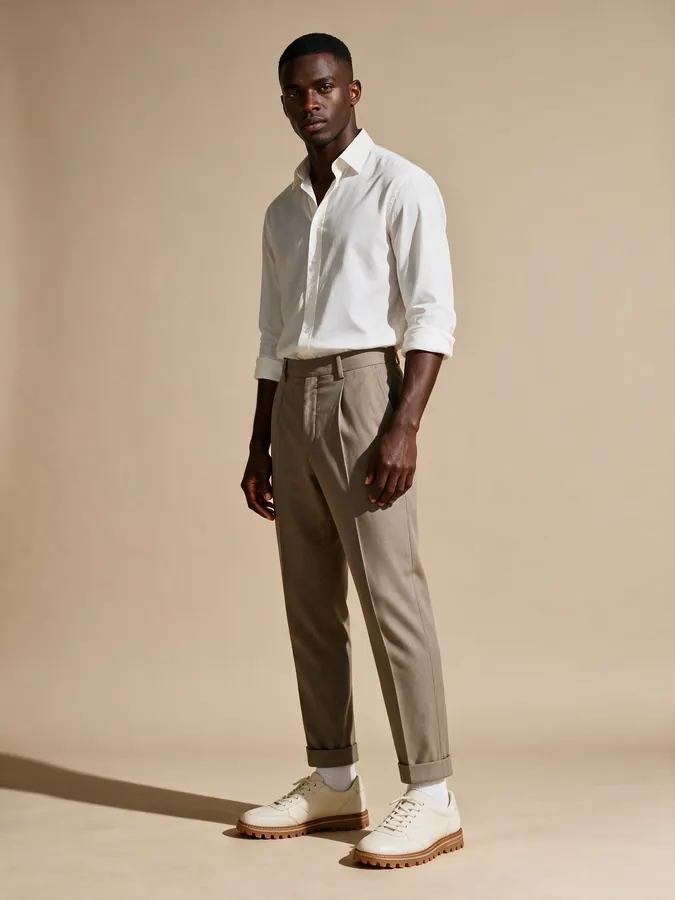
Design New Shoes
Sketch out a new pair from a description.
Real results
Every pair is real output of the linked tool from an ordinary photo. Only the shoes change: the floor, legs, clothes and light stay as they were.
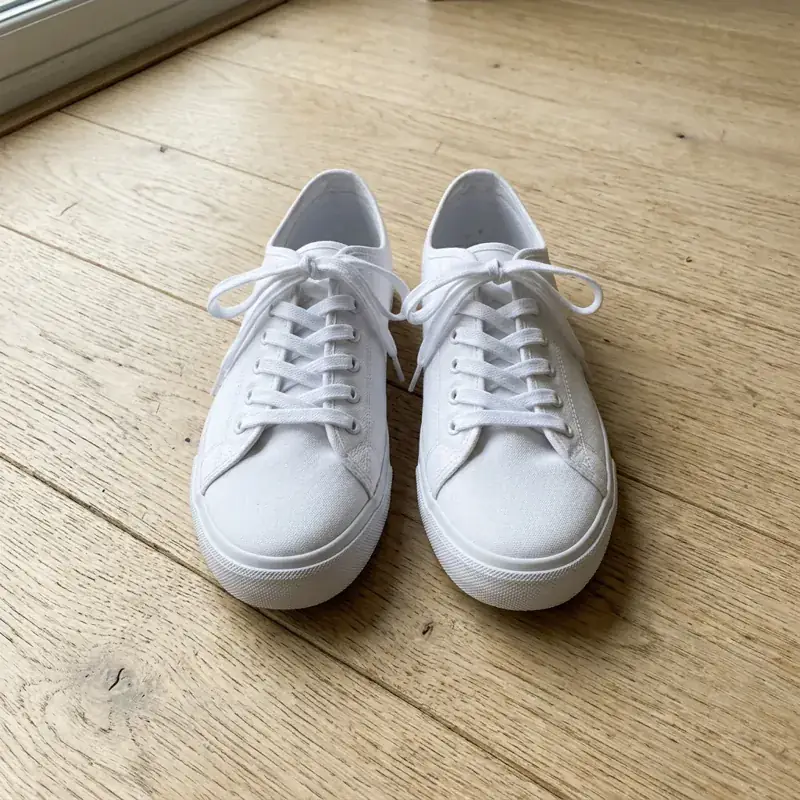
White canvas sneakers recolored navy blue
Before / after — drag to compare
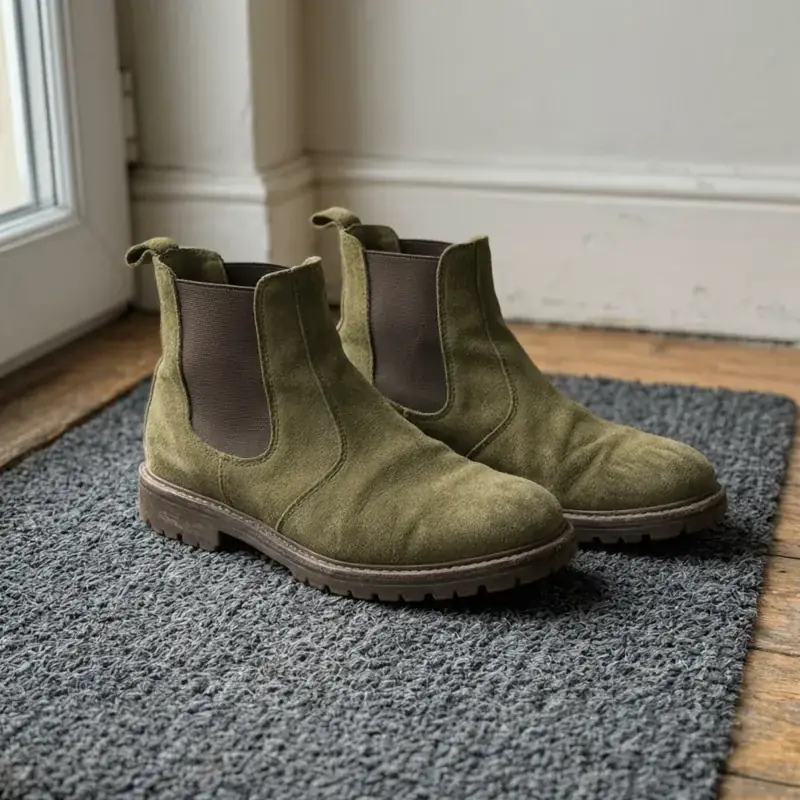
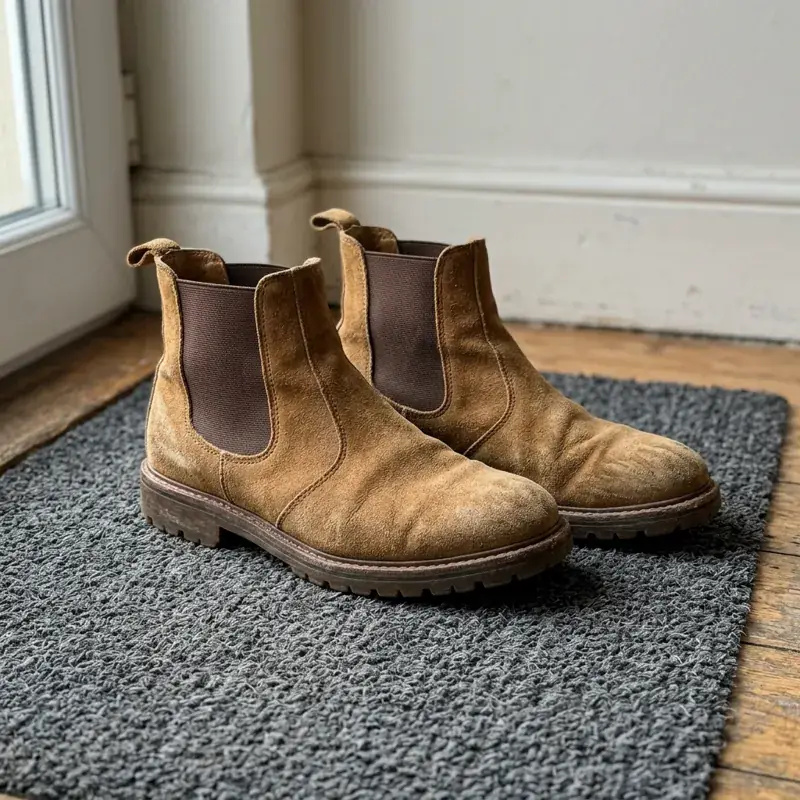
Tan suede chelsea boots recolored olive green
Before / after — drag to compare
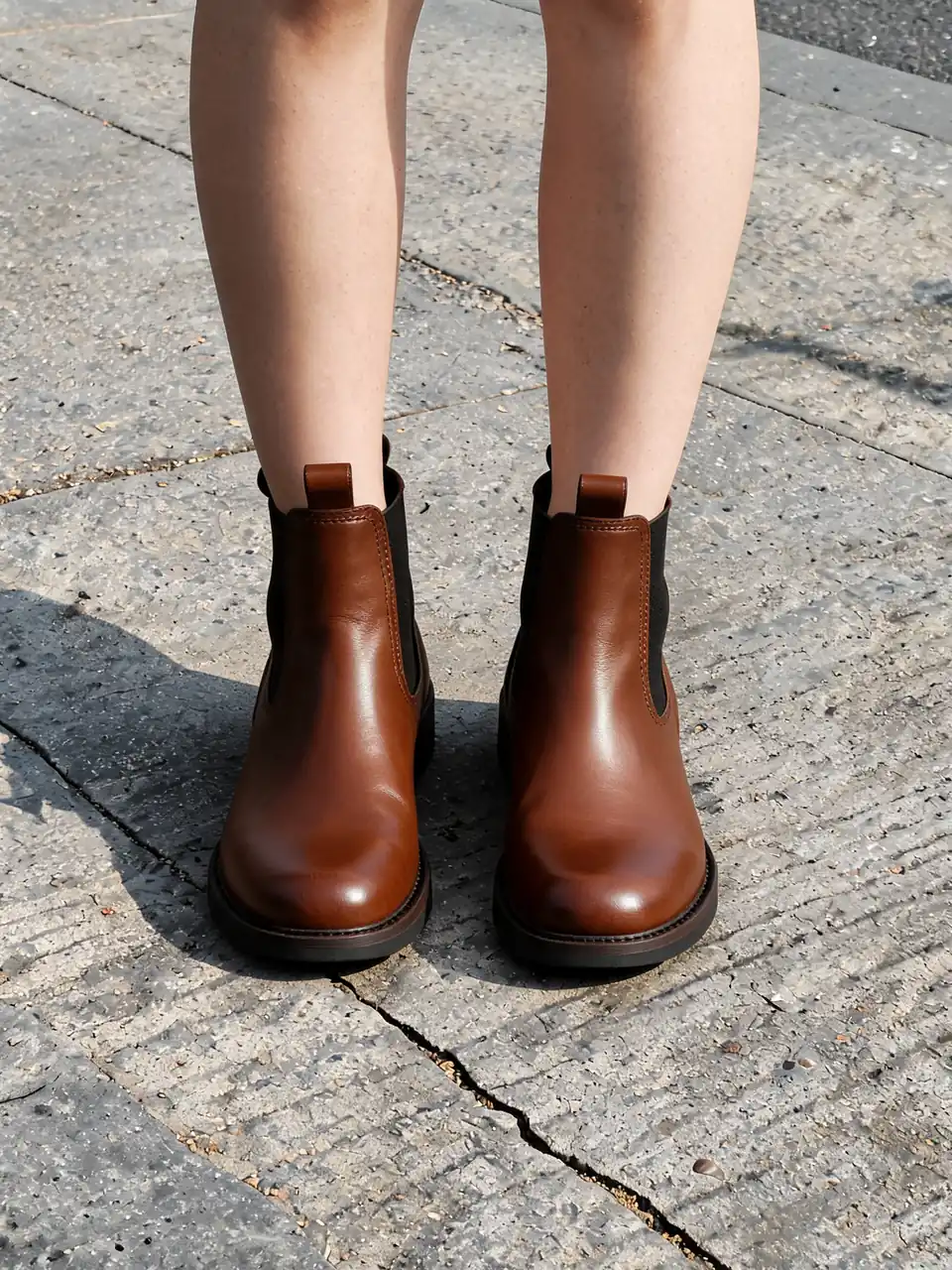
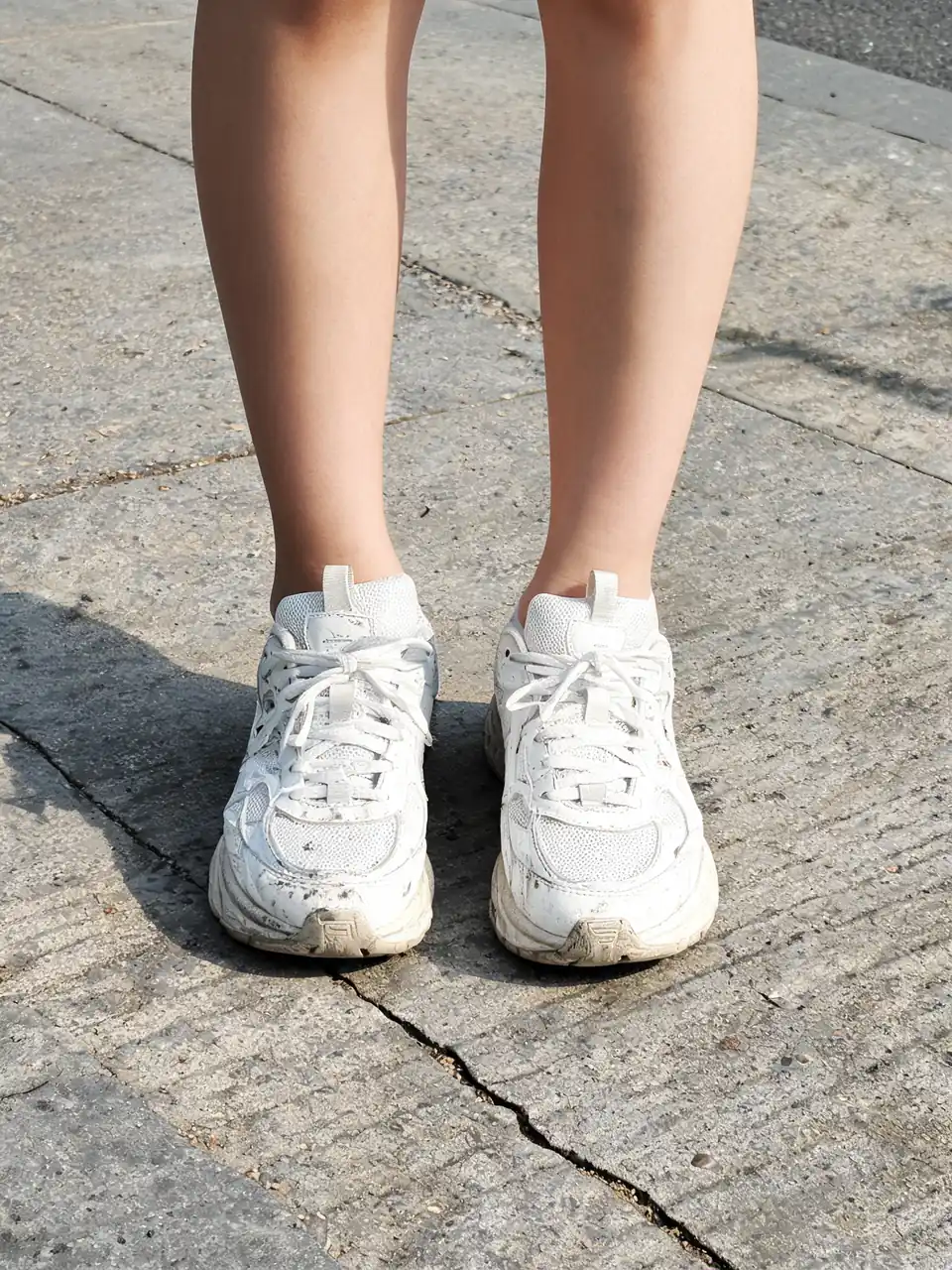
White sneakers swapped for brown leather chelsea boots
Before / after — drag to compare
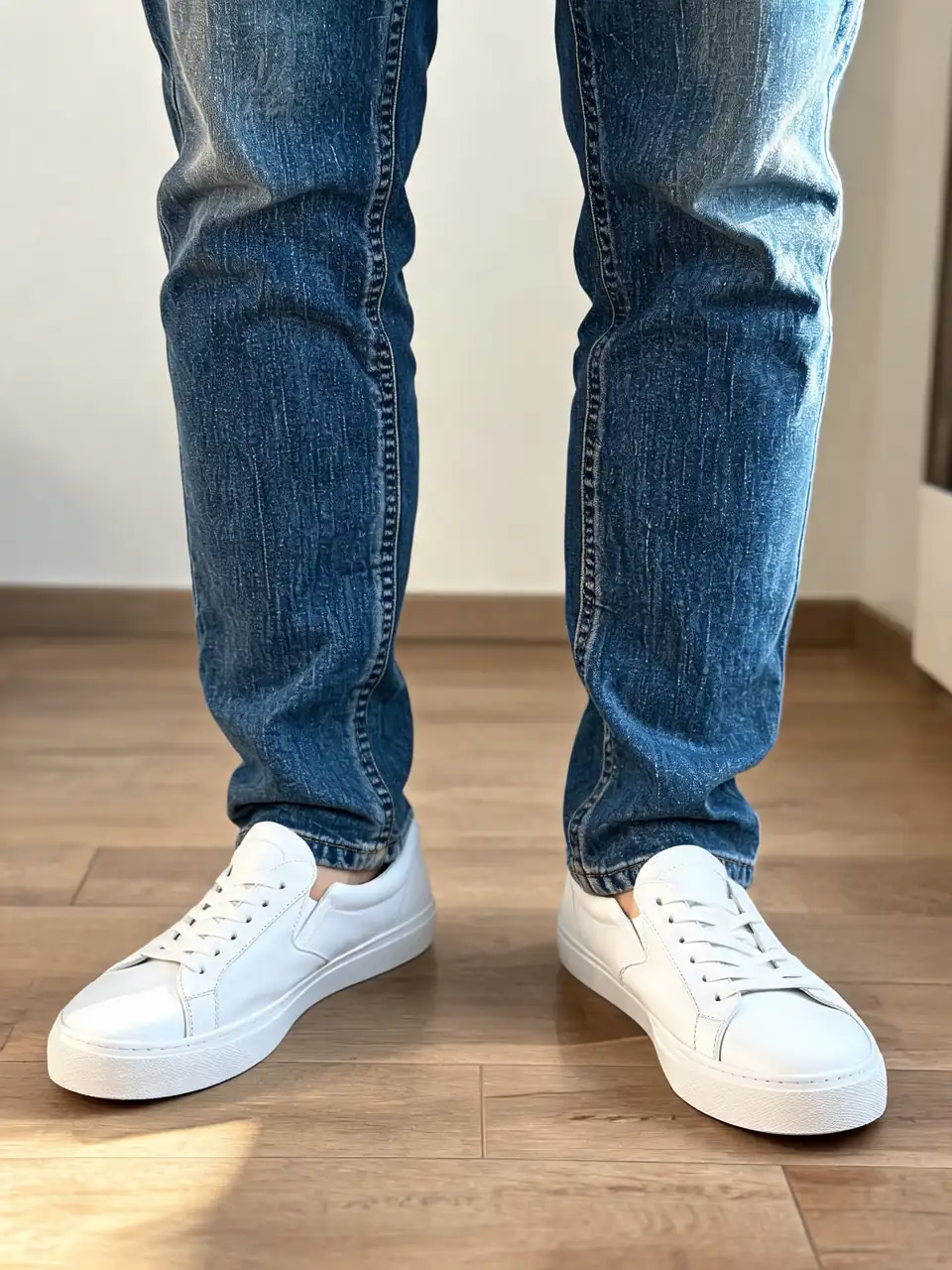
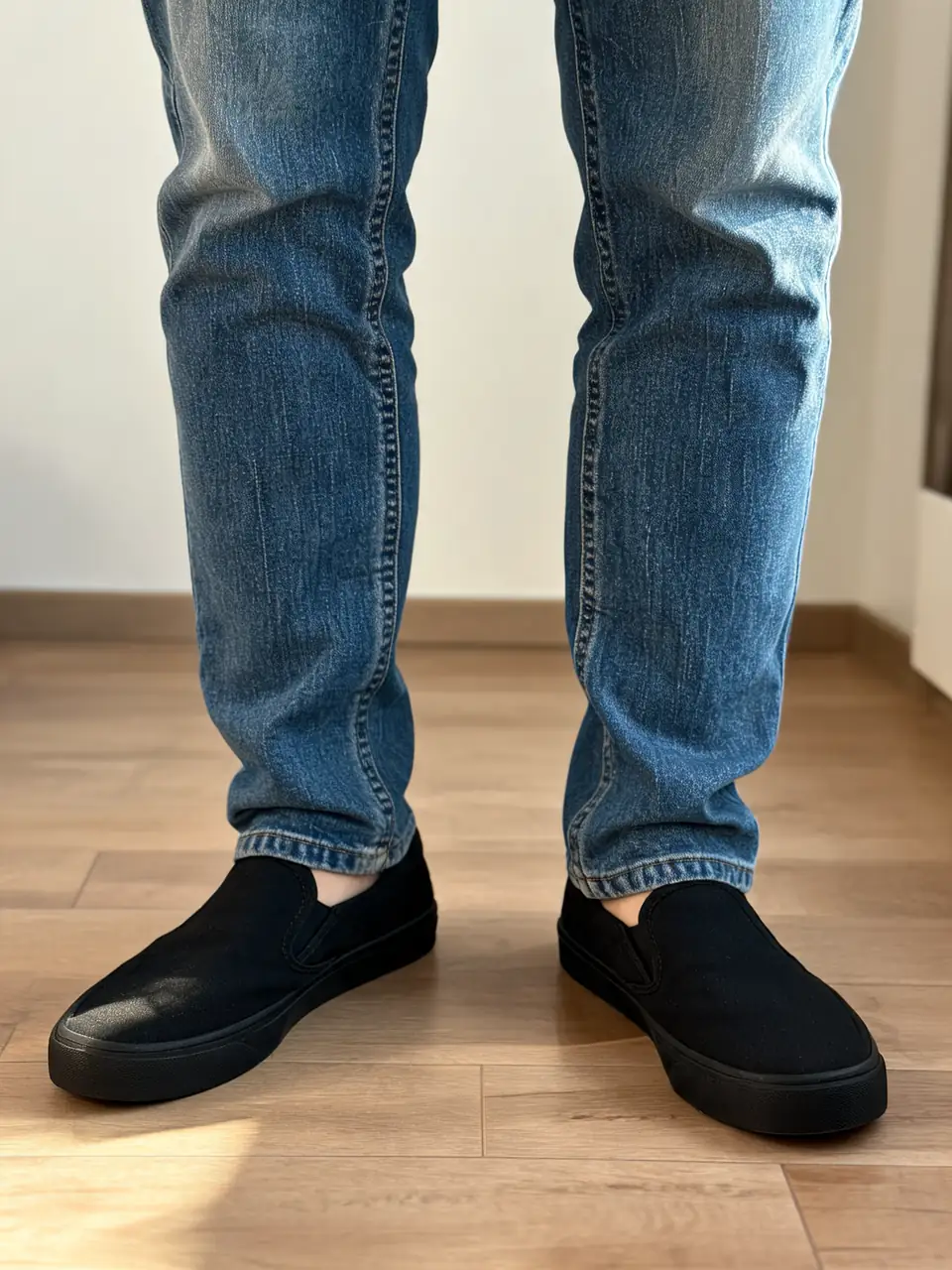
Black slip-ons swapped for white leather sneakers
Before / after — drag to compare
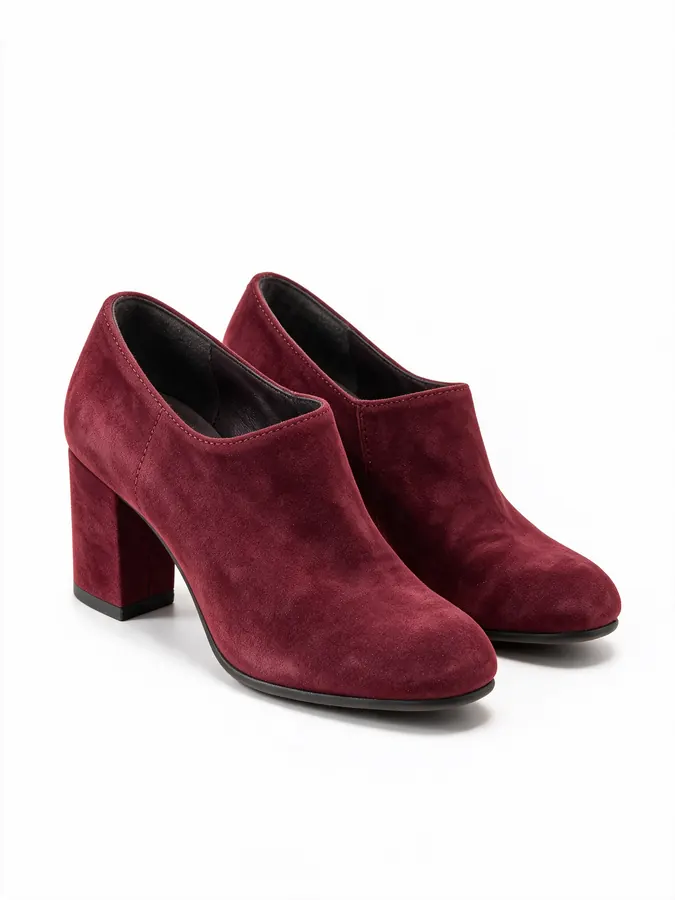
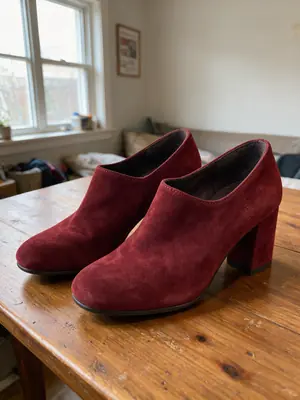
Burgundy suede booties: table snap to a clean product shot
Before / after — drag to compare
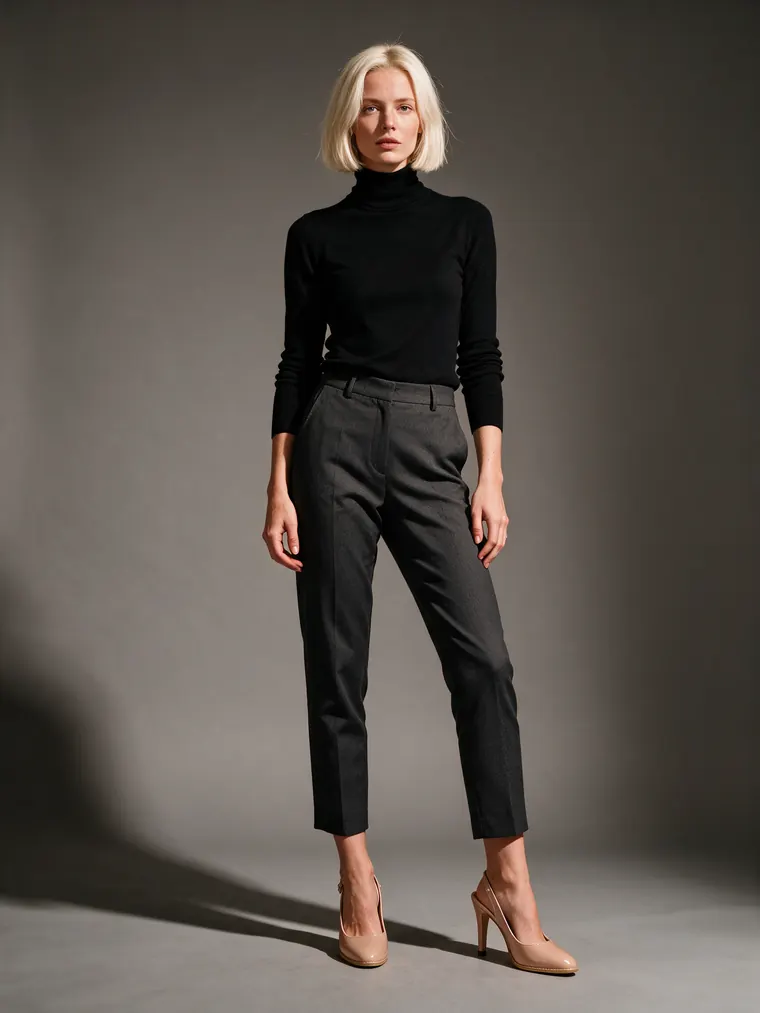
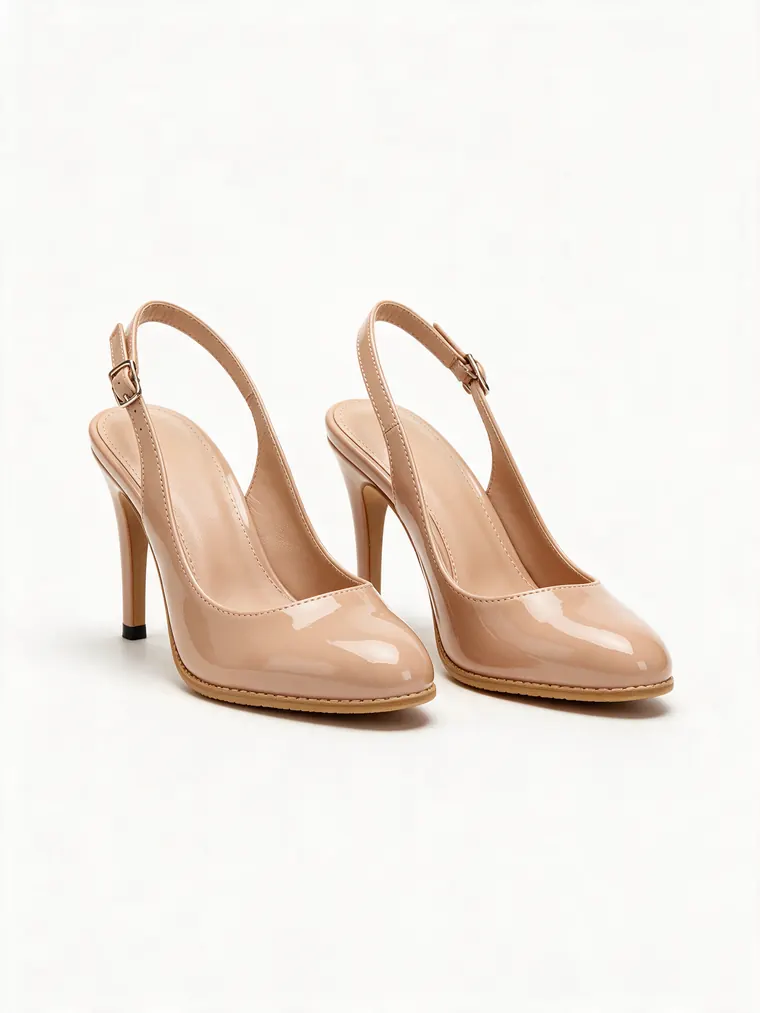
Nude slingback heels worn by an AI model
Before / after — drag to compare
The process
How to edit shoes in a photo
Step 01
Start with one clear photo
For a recolor or a product shot, photograph the pair on its own in daylight with both shoes in frame. To swap shoes in an outfit photo, use a shot where the feet and ankles are fully visible and not cut off by the frame.
Step 02
Open the tool for the job
Recolor keeps the same pair and changes the colour. Footwear AI swaps the shoes for another style. Try-on puts a pair on feet. Product photos and fashion models turn a quick snap into a listing image. Describe what you want, for example "navy canvas, white soles" or "tan suede chelsea boots".
Step 03
Compare, then decide
Check that only the shoes changed. Try two or three colours or styles side by side, then download the one you like for your listing, your order or your group chat.
Why Shoe Studio
Why edit shoes on a photo first
See the colour before you buy
A colourway on a product page is shot in perfect light. A recolor of the pair you already own, or of a photo of the pair you want, shows how the colour looks in a normal room.
Fix the outfit, keep the photo
Wrong shoes in an otherwise good photo? Footwear AI swaps them and keeps your pose, clothes and background.
Shop photos without a studio
Sellers can turn a pair on a floor or a table into a white-background shot or an on-model photo for a listing, from one phone picture.
Only the shoes change
Each tool is told to change the shoes and keep the rest of the photo as it is, so the comparison is fair: same photo, same light, one difference.
Free to try, no card
Signing up is free and your first generation is free. You see a real result on your own photo before deciding on anything more.
Recolor a pair you own or want
The Shoe Color Changer keeps the shape, stitching, laces and soles of the pair in your photo and changes only the colour. It works on leather, suede and canvas, and the material still reads as itself after the change.
Use it to try a colourway before you order, to plan a dye or paint job on an old pair, or to show a customer a colour you can make.
Name the parts you want kept, for example "keep the white soles and laces", for a cleaner result.
Swap the shoes in an outfit photo
Footwear AI replaces the shoes in a photo of you or a model with another style: sneakers for boots, flats for heels, or one sneaker for another. The legs, clothes, pose and background stay as they were.
It works best when both feet are fully in frame and not hidden by long trousers or the edge of the photo.
For a narrower choice, the High Heels, Boots, Sneakers, Sandals and Loafers pages start from that style.
Product photos for selling shoes
Resale and small shoe shops rarely have a studio. Shoe Product Photos turns a pair photographed on a floor, bed or table into a clean white-background image for a listing.
To show the pair worn, Shoes on Fashion Models puts it on an AI model in a full outfit, so buyers can see the fit and style.
Check the result against the real pair before you post it: logos, small stitching and sole patterns can shift, and a listing must show what you actually sell.
Questions
Frequently asked questions
What is an AI shoe studio?
It is a set of AI tools that edit shoes in your own photos: recolor a pair, swap the shoes in an outfit photo, try a style on, make a white-background product shot or put the pair on an AI model. Each tool changes the shoes and keeps the rest of the photo as it was.
Can I see shoes in a different colour before I buy them?
Yes. Upload a photo of the pair, or a product photo of the pair you want, open the Shoe Color Changer and name the colour. You get the same photo back with only the shoe colour changed.
Will my legs, clothes or background change?
No. The tools are told to change only the shoes. Small details can shift slightly, so compare the result with your original photo before you rely on it.
Can I use the results in a shop listing?
Yes, for pairs you own or sell. Check each image against the real pair first: the colour, sole and stitching should match what the buyer will receive.
What photo works best?
A sharp daylight photo with both shoes fully in frame. For a swap or try-on, the feet and ankles should be visible and not cut off.
Is it free?
Signing up is free and includes a free generation with no credit card. Paid plans add more credits and downloads.
Everything in Shoe Studio
12 of them, grouped by the job they do.
Popular in Shoe Studio
Create your own AI tools & assistants
Describe what you need in plain English — AI Two builds a working tool with its own shareable page, live in about a minute. No code, no setup.
Part of the Community AI platform — create, discover, and share AI-powered tools