How to create a Google Maps QR Code on AI Two
Generate a scan verified Google Maps location QR code for print and signage. Free in QR Studio.
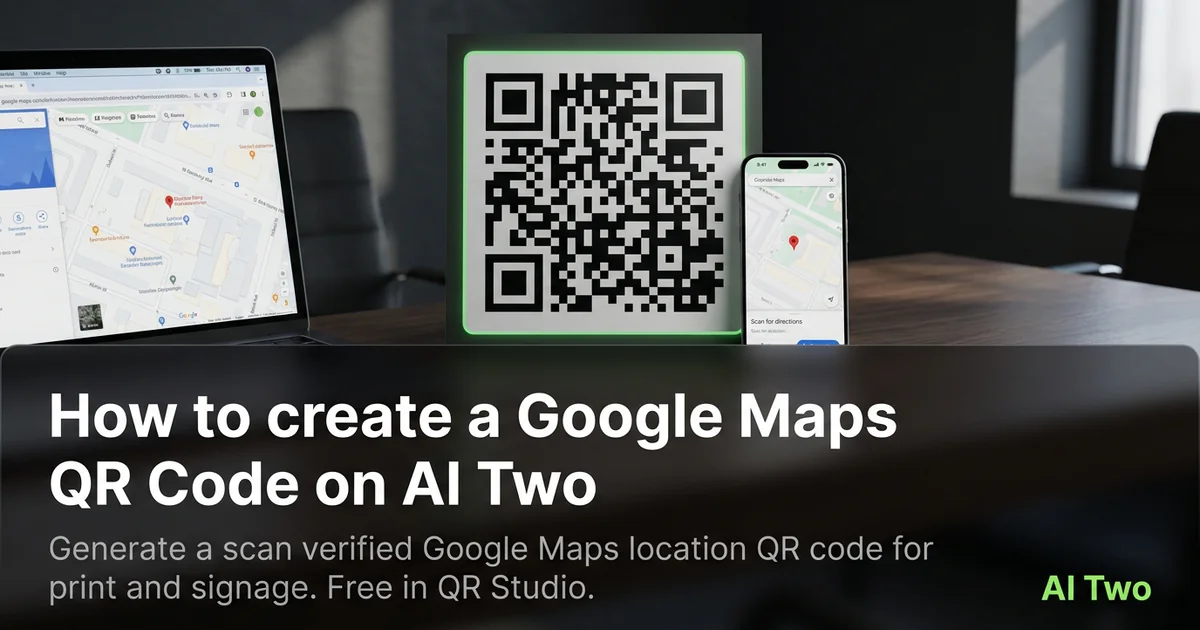
Google Maps QR codes on AI Two live in QR Studio’s business and apps tools. I open Google Maps QR Code when a storefront window, event banner, or brochure should open our pinned location without typing an address. Every code is scan verified before download. When I tested a place share link on a matte table tent, both phones landed on the correct map pin under fluorescent cafe lights. I paste the Maps share URL exactly as copied, then proof on two phones before any large print run.
What a Google Maps QR code does
You paste a Google Maps place or share URL, generate a QR image, and download a scan verified PNG for print or screen.
When I tested a retail pin, the scan opened the mobile map view with directions one tap away.
Credits apply per generation. I lock the URL first, then pick print size.
Stay in QR Studio for Spotify, PayPal, App Download, and GitHub generators when the payload is a different business link.
I regenerate when the business moves suites or the pin drifts after a Google edit.
Scan verification catches broken patterns before download. I still proof on paper at final size.
In my experience, labeling the business name beside the code helps staff explain what the scan opens.
For pop-up locations I date the filename so old signage is not mixed with a new pin after a move.
I keep the plain address in text under the code for customers on slow networks.
How to run it step by step
Step one: open the place in Google Maps and copy the share link. Step two: open Google Maps QR Code in QR Studio. Step three: paste the URL, generate, wait for scan verification, download. Step four: embed in signage art at the size you need. Step five: scan with two phones before a large print run.
I keep a screenshot of the map pin beside the PNG in the project folder.
Store the file with the business name in the filename notes.
If the suite number changes, regenerate. Do not edit modules in a layout app.
When I proofed a window decal, afternoon sun glare was the real test, not the monitor preview.
I note print width in millimeters beside the filename for vendor reorders.
If one phone struggles, I enlarge the art ten percent and regenerate.
I confirm the pin drops on the correct building on both iOS and Android before I approve the proof.
Print and placement tips
Use high contrast modules on a light field for storefront windows.
Matte stock reduces glare. Glossy stickers can mirror sunlight into the camera.
Size for the real viewing distance. Passersby scan from several feet away.
Leave a quiet zone free of logos and patterns.
Place the code near the business name on door posters when possible.
Test under the lighting that matches the install location.
Avoid printing over busy photography backgrounds without a white sticker island.
Mistakes I avoid
Using a search query URL instead of the official share link for the pinned place.
Skipping the phone proof because the PNG verified on screen.
Printing five hundred stickers before a two phone test.
Saving a low resolution PNG and upscaling in the layout app.
Pointing at a temporary event pin when permanent signage should show the main store.
When to use another QR tool
Need app store download links? App Download QR Code. Need PayPal or Spotify? Those pages sit in the same business cluster. Need a generic URL? Essential types.
The business and apps cluster guide maps sibling pages. The QR Studio pillar maps everything else.
Dynamic tracking codes live in My QR Codes when you need scan counts on campaign materials.
After the download
I attach the verified PNG to the print vendor ticket with quiet zone notes so prepress does not crop modules.
For retail windows I schedule a morning scan test after install when sun angle matches peak foot traffic.
If the business renames or moves suites, I regenerate the code the same week and swap signage proofs.
I store the payload URL in a text file beside the image so future staff know which pin the sticker opens.
Pop-up booths get a laminated proof taped inside the kit so volunteers scan the same code customers see on the banner.
FAQs
Related studio guides
How to create a Spotify QR Code on AI Two
Generate a scan verified Spotify QR code for playlists and tracks. Free in QR Studio.
Read guide
How to create a PayPal QR Code on AI Two
Generate a scan verified PayPal payment QR code for print and checkout. Free in QR Studio.
Read guide
How to create an App Download QR code on AI Two
Generate a scan verified App Download QR code in QR Studio so posters and packaging send people to the right install destination.
Read guide