
How to create a Phone QR Code on AI Two
Generate a scan verified phone call QR code for print and signage. Free in QR Studio.
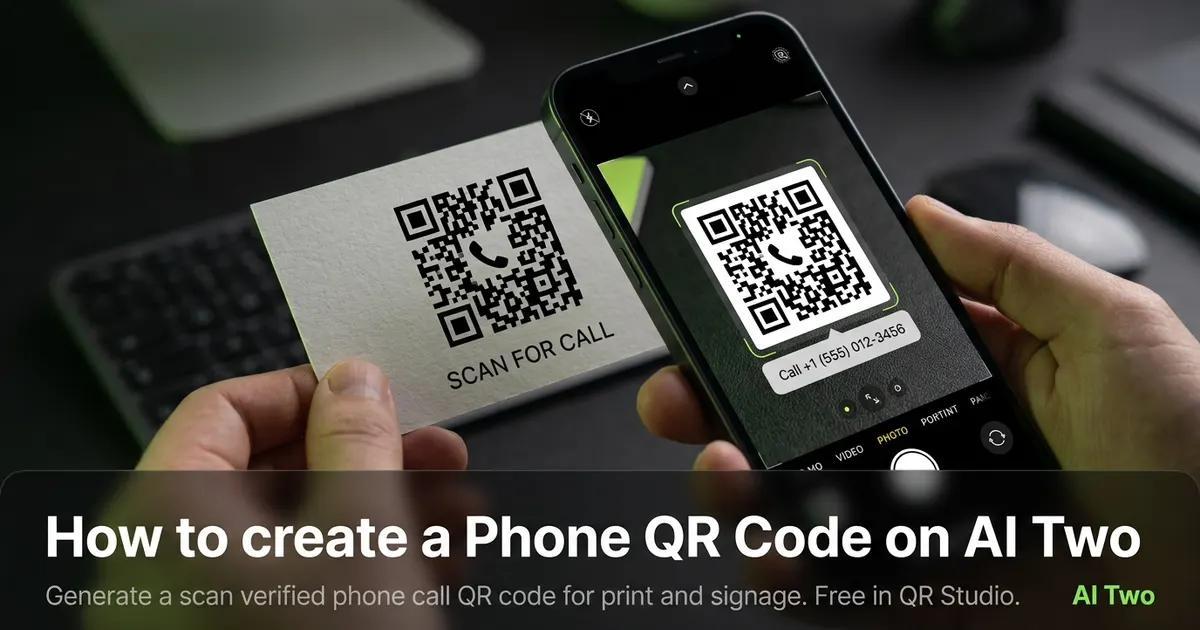
Phone QR codes on AI Two live in QR Studio contact tools. I open Phone QR Code when a poster, service truck wrap, or front desk card should start a call to our line without visitors typing digits. Every code is scan verified before download. When I tested a support number on a property management window cling, both phones opened the dialer with the correct country code under afternoon sun. I regenerate the PNG whenever operations changes the published number so old signage does not send callers to a retired line.
What a Phone QR code does
You enter the phone number, generate a QR image, and download a scan verified PNG that opens the dialer when scanned.
When I tested a local sales line on a trade show badge insert, the scan landed in the phone app with the full number prefilled so staff did not repeat digits aloud in a noisy hall.
Credits apply per generation. I lock the number first, then pick print size and styling if the form offers it.
Stay in QR Studio for email, SMS, and other contact generators when the job is messaging instead of a voice call.
I treat phone codes as staff facing shortcuts on signage. If the number changes, I regenerate and reproof before reprint.
Scan verification catches broken patterns before download. I still proof on paper at final size under venue lights.
In my experience, a short call to action beside the code helps guests know the scan starts a call, not a website or chat thread.
For seasonal campaigns I date the filename so old tent cards are not mixed with a new toll free line after operations updates routing.
I keep a printed proof in the front desk binder so weekend staff scan the same code visitors see on the counter card.
When a one day pop up runs only once, I still export at the final print width the vendor quotes instead of stretching a small PNG later.
I write the department name and month on the proof margin so staff can retire the insert when the campaign ends.
How to run it step by step
Step one: confirm the published number including country code. Step two: open Phone QR Code in QR Studio. Step three: enter the number, generate, wait for scan verification, download. Step four: print or embed at the size you need. Step five: scan with two phones before a large print run.
I keep a screenshot of the live number policy in the project folder beside the PNG.
Store the file with the department name in the filename notes.
If operations changes the line, regenerate. Do not edit modules in a layout app.
When I proofed a window cling, afternoon sun glare was the real test, not the monitor preview.
I note print width in millimeters beside the filename for vendor reorders.
If one phone struggles, I enlarge the art ten percent and regenerate.
I add the number in plain text under the code for visitors who prefer typing on slow networks.
I proof once on iOS and once on Android before I approve a signage run. One platform can fail while the monitor looks fine.
Credits apply per generation, so I lock the number and call to action text before I explore color styling options.
When the same counter also needs email contact, I keep a separate Email QR in the same folder instead of forcing one generic link.
Print and placement tips
Use high contrast modules on a light field for counter cards, truck panels, and window stickers.
Matte stock reduces glare. Glossy cards can mirror pendant lights into the camera.
Size for the real viewing distance. Callers often scan from arm length at a reception desk.
Leave a quiet zone free of logos and headshots.
Place the code where thumbs naturally reach on a folded tent card. Corner placement on folded stock fails in the wild.
Test under the lighting that matches the install site, including bright storefront sun and warm office bulbs.
Avoid printing over busy photography backgrounds without a white sticker island.
For outdoor service trucks, bump module size and quiet zone because phone cameras struggle under mixed daylight and shade.
Older cameras need bigger quiet zones than new flagships, so I size for the weakest phone I expect at the counter.
Mistakes I avoid
Using a personal mobile number on public signage. I publish a shared operations line first.
Skipping the phone proof because the PNG verified on screen.
Printing five hundred inserts before a two phone test.
Saving a low resolution PNG and upscaling in the layout app.
Mixing QR art with heavy dither textures that eat module edges on press.
Pointing the code at a website URL when the brief needs a click to call flow.
When to use another QR tool
Need a pre addressed email instead of a call? Open Email QR Code. Need short text without opening mail or dialer? SMS QR Code. Need WiFi, menu, or PDF payloads? Essential types in QR Studio. Need scan counts by campaign? Dynamic codes in My QR Codes rather than a static phone PNG alone.
The contact and messaging cluster guide maps sibling pages. The QR Studio pillar maps social and essential tools when the job is not a phone call.
Business cards that promote several contact paths sometimes need separate codes per channel instead of one generic link.
If legal asks for analytics on print campaigns, I pair a dynamic tracking code with the creative brief while keeping the phone payload tested on paper.
After the download
I attach the verified PNG to the print vendor ticket with quiet zone notes so prepress does not crop modules.
For front desk installs I schedule a scan test after mount when lighting matches peak visitor hours.
If operations rotates numbers seasonally, I date the filename and retire old counter cards so staff do not post outdated dial targets.
I keep a screenshot of the published number beside the PNG in the project folder for quick audits when a guest reports a failed scan.
Weekend staff sometimes swap counter creative without telling marketing, so the binder proof is the source of truth for which code is live today.
I store the payload number in a text file beside the image so future teammates know which line the card dials without opening design files.
FAQs
Related studio guides
How to create an Email QR Code on AI Two
Generate a scan verified Email QR Code that opens a pre addressed email when scanned. Free in QR Studio.
Read guide
How to create an SMS QR Code on AI Two
Generate a scan verified SMS QR code for print and signage. Free in QR Studio.
Read guideHow to create an Email QR Code on AI Two
Generate a scan verified Email QR Code that opens a pre addressed email when scanned. Free in QR Studio.
Read guide