Why AI Talking Photos Are Taking Over the Internet
AI talking photos are revolutionizing social media, marketing, and e-learning. What started as a novelty has exploded into a massive content format — the market for AI-generated talking avatars grew an estimated 340% in 2025. Popular platforms like HeyGen (valued at $150M), D-ID, and Magic Hour have proven the demand. Brands use talking photos for personalized ads; creators use them for viral memes; educators use them for engaging training content.
You can make photos talk without filming anyone. Take a headshot, a family photo, or an AI-generated portrait and transform it into a talking video in minutes. On TikTok and Instagram Reels alone, talking photo content has racked up billions of views. The technology has become so convincing that top brands are investing in AI talking avatars for customer service, testimonials, and advertising.
AITwo offers a complete 2-step workflow — generate the photo, then animate photos with AI to video. No third-party tools needed. Create any portrait with Image Generation, then bring it to life with Video Generation. You control both the look and the motion. The entire workflow runs in-browser — no downloads or complex software required.
What Are AI Talking Photos?
An AI talking photo is a static image that AI brings to life with natural movement — lips syncing to speech, subtle head turns, facial expressions, and now even hand gestures. This is different from traditional video editing. The AI understands the structure of the face and body and generates realistic motion from a single image. No green screen, no motion capture — just one photo and a text prompt.
Two main approaches exist: audio-driven (upload audio, AI lip-syncs the mouth to match) and prompt-driven (describe the motion you want, AI generates the video). AITwo uses the prompt-driven approach in Image-to-Video mode — you describe how the person should move and speak, and the AI produces natural-looking animation. This gives you more creative control since you're not limited to pre-recorded audio.
Method: Create AI Talking Photos on AITwo
Follow these 5 steps to make photos talk using Image Generation and Video Generation.
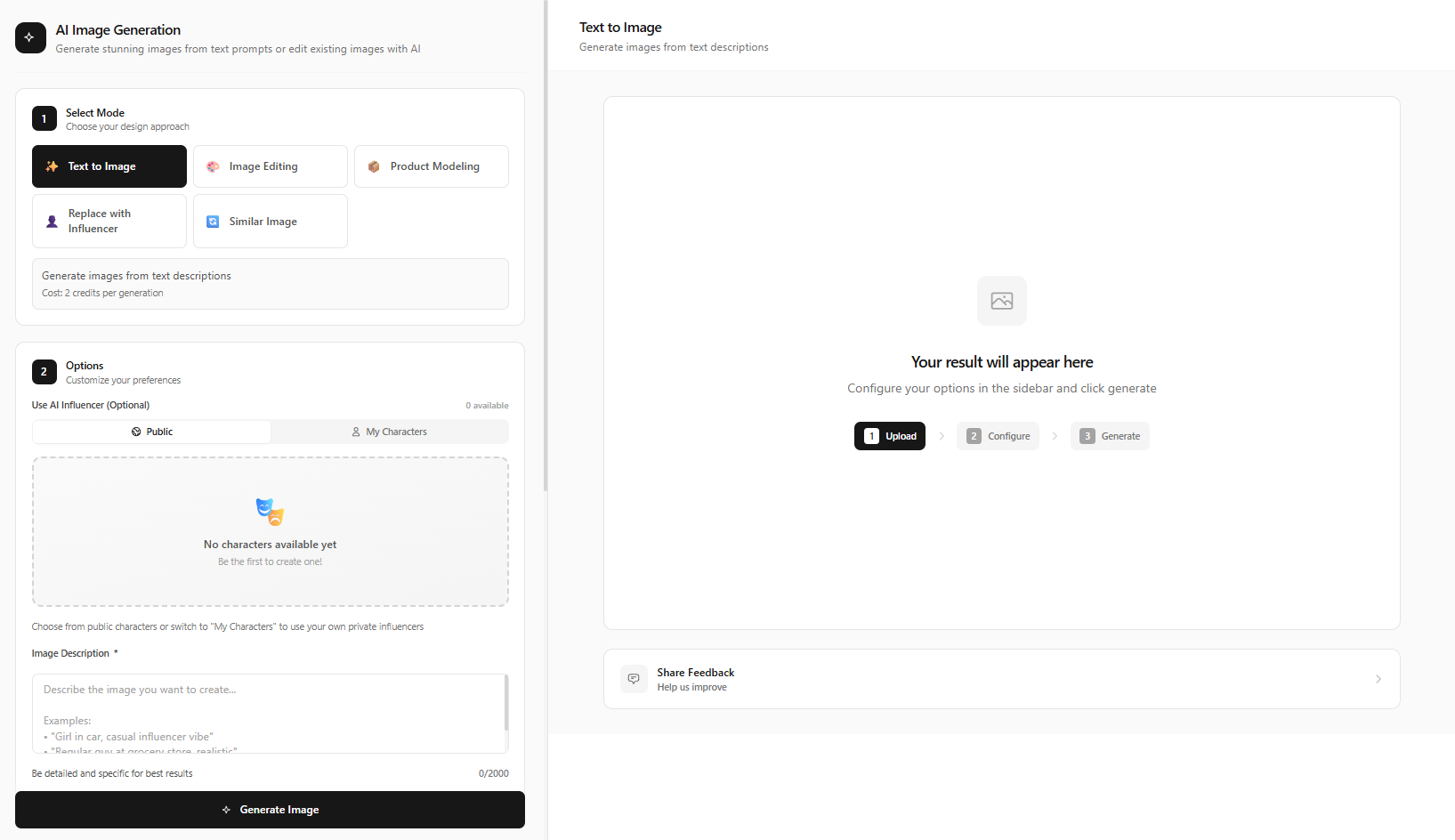
Open the Image Generation Tool
Go to /image-generation. Select "Text to Image" mode from the mode tabs. This tool lets you create any portrait from a text description. Choose your aspect ratio — 1:1 for square, 9:16 for Reels/TikTok, 16:9 for YouTube. Enable "AI Prompt Enhancement" for better results.
Write a Portrait Prompt
Describe the portrait you want. Include expression, lighting, background, and style. Here are proven prompt examples:
Professional headshot
"Professional headshot of a young woman with brown hair, warm smile, soft studio lighting, neutral background, sharp focus, 85mm lens, high-resolution"
Business presenter
"Corporate portrait of a man in a navy suit, confident expression, modern office background, ring light illumination, LinkedIn photo style"
Creative influencer
"Vibrant portrait of a Gen-Z girl with colorful hair, trendy outfit, pastel gradient background, influencer aesthetic, iPhone selfie style"
Pro tip:
For the best talking photo results, use a front-facing portrait with visible mouth and chin. Avoid side profiles, sunglasses, or hands covering the face.
Click "Generate Image" and Download
Click the "Generate Image" button — generation takes 10-30 seconds. Review the result. Generate again for variations if needed. Download the best result for use in Video Generation.
Switch to Video Generation → Image to Video
Navigate to /video-generation. Select "Image to Video" mode from the mode tabs. Upload your portrait image. Write a motion prompt — for example:
Motion prompt example
"The person looks at the camera, smiles slightly, begins speaking with natural lip movement, subtle head nods, soft eye blinks, professional presenter style"
More motion prompt examples:
- "Speaking confidently to the camera, natural lip sync, warm expression"
- "Nodding in agreement while talking, slight head tilt, engaging eye contact"
- "Explaining enthusiastically, animated facial expressions, natural mouth movement"
Choose duration and aspect ratio to match your platform.
Click "Generate Video" and Share
Hit "Generate Video" — processing takes 1-3 minutes. Preview the result, download when satisfied, and share on social media. Add voiceover separately using text-to-speech or your own recording for a complete talking photo experience.
Alternative: Use an Existing Photo
You can also upload your own photo directly in Image-to-Video mode at /video-generation. No need to generate an image if you already have a portrait — simply select Image to Video, upload your file, write your motion prompt, and click "Generate Video".
This workflow is ideal for animating family photos, professional headshots, or any existing portrait. The same motion prompt principles apply — describe lip movement, head gestures, and expression. Results depend on image quality: high-resolution, front-facing portraits with clear facial features work best.
Platform-Specific Tips
Different platforms favor different formats. For TikTok and Reels, use 9:16 vertical — talking photos perform well in the first 3 seconds, so pair with a strong hook. For YouTube, 16:9 works for intros, outros, and B-roll. For LinkedIn and professional use, keep expressions subtle and professional. For Instagram Stories, 9:16 with quick, punchy motion prompts works best.
Match your motion prompt energy to the platform. TikTok and Reels favor more expressive, energetic movement. LinkedIn and corporate videos work better with calm, measured gestures. Adapt the same base image across platforms by changing only the motion prompt.
Save your best motion prompts for reuse. Once you find what works for your niche, document it and iterate — small tweaks can improve engagement noticeably. A/B test different motion prompts to optimize performance.
Top 5 Use Cases for AI Talking Photos
AI talking photos are versatile. Whether you're a creator, marketer, educator, or business owner, there's a use case that fits. Here are the five most popular applications:
- Social media content — TikTok, Reels, YouTube Shorts. Creators use talking photos for memes, storytelling, and personality-driven content that stands out in the feed.
- Marketing & ads — Personalized video ads, product testimonials, and influencer-style promotions without hiring talent.
- E-learning & training — Virtual instructors, onboarding videos, and training modules that feel more engaging than static slides.
- Customer support avatars — FAQ explainers, help videos, and automated support content with a human face.
- Personal/fun projects — Animate family photos, create birthday messages, or bring historical figures "to life" for creative projects.
Tips for Perfect AI Talking Photos
- Use front-facing portraits with clear facial features — avoid profiles or obscured faces.
- Be specific in motion prompts: "natural lip movement," "speaks to camera," "subtle head nods."
- Match aspect ratio to platform: 9:16 for Reels/TikTok, 16:9 for YouTube, 1:1 for Instagram.
- Start with high-resolution, well-lit images for best animation quality.
- Use Script Writer to draft voiceover scripts, then add audio in a video editor.
If your first result looks off, try regenerating with slight prompt variations. "Slight smile" vs "warm smile" can change the feel. "Nodding gently" vs "subtle head movement" affects motion intensity. Experiment until you find what works for your content.
Pro creators often generate 3-5 variations and pick the best. Use Prompt Writer to refine your image and motion prompts for optimal results.
Troubleshooting Common Issues
Lip sync looks off?
Try adding "natural lip movement" or "speaks naturally to camera" to your motion prompt. Ensure your source image has a clear, visible mouth.
Animation feels robotic?
Add "subtle head nods," "soft eye blinks," or "gentle facial expressions." More specific motion prompts produce more natural results.
Wrong aspect ratio?
Set aspect ratio before generating — in both Image Generation (for the portrait) and Video Generation (for the final video).
Need a script for your voiceover?
Use Script Writer to generate engaging scripts, then record or use TTS and sync in your video editor.
Start Creating AI Talking Photos Now
Join creators and marketers using AITwo to animate photos with AI. Start free — no credit card required.