How AI Scene Generators Are Reshaping Production
AI scene generators create cinematic environments from text descriptions. No 3D software, no location scouting, no VFX teams. Tools like Pikascenes, BasedLabs, and Agent Opus have proven the demand — creators and studios are adopting AI for backgrounds, B-roll, and full environments. Production time drops from weeks to minutes.
An AI video scene generator adds motion: camera pans, environmental movement, dynamic lighting. An AI background generator creates static backdrops for thumbnails, presentations, and composites. AITwo offers multiple approaches: Image Generation for still scenes, Video Generation for animated scenes, Graphic Designer for designed compositions, and viral tools for specific scene types. For still environments specifically, the dedicated AI Scene Generator tool wraps this into one form — describe the scene, pick the type, time of day, atmosphere, and art style, and generate.
Combine scenes with characters using AI Fashion Models or Influencer Generator. The cinematic scene AI pipeline is end-to-end on one platform.
Types of Scenes You Can Generate
The AI scene generator adapts to any environment you describe:
Interior
Living rooms, offices, restaurants, studios. Control lighting, furniture, mood.
Exterior
Cityscapes, suburbs, nature, industrial. Urban day/night, weather.
Fantasy / Sci-fi
Alien worlds, enchanted forests, space stations. No limits.
Studio / Product
Clean backgrounds, gradient backdrops. Professional, minimal.
Abstract / Artistic
Surreal, painterly, geometric. For overlays and design.
Method 1: Static Scenes with Image Generation
Four steps for photorealistic still scenes.
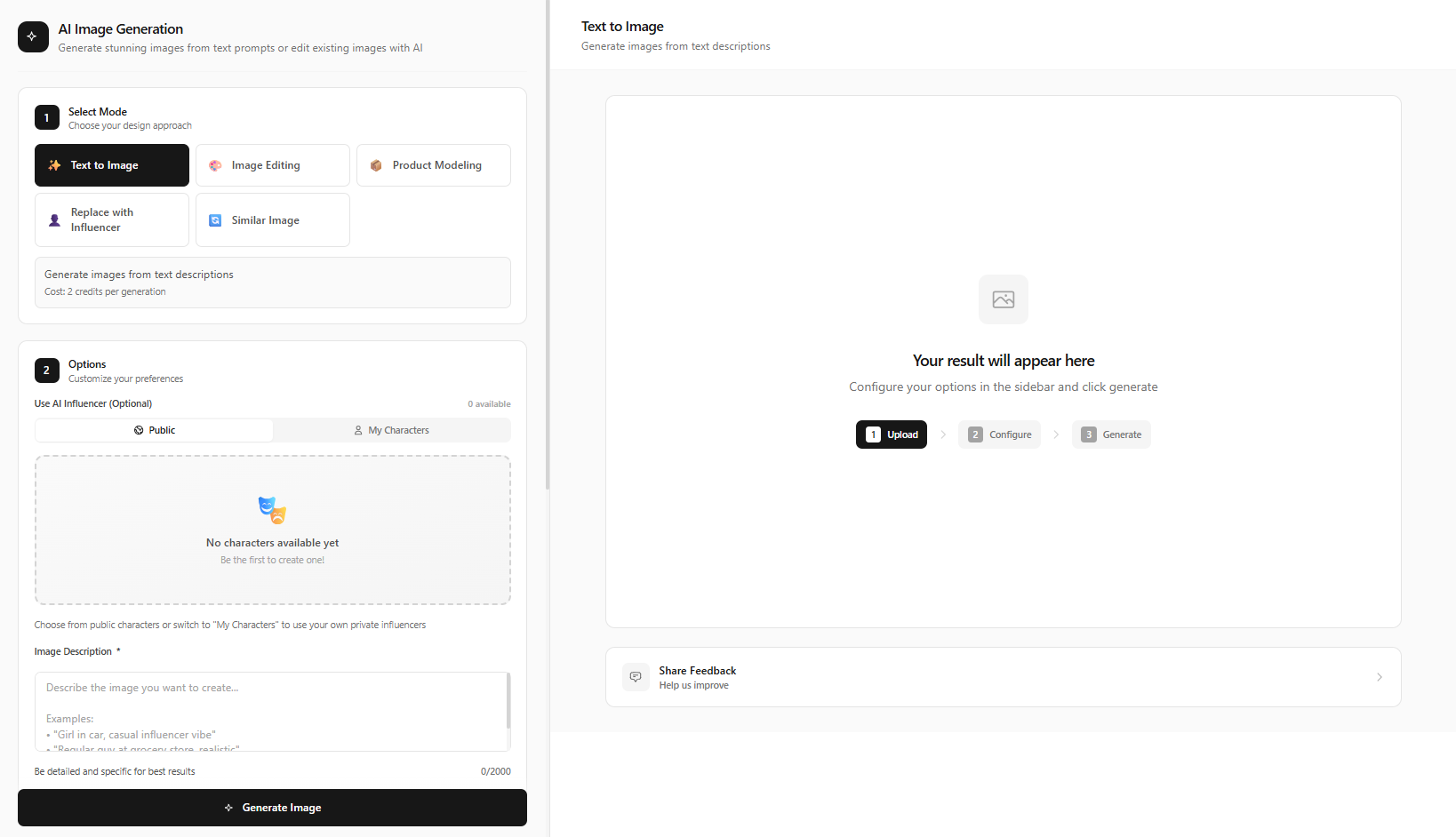
Go to Image Generation → Text to Image Mode
Navigate to /image-generation and select Text to Image mode.
Write a Detailed Scene Prompt
Include environment, lighting, time of day, style. Examples by category:
"Minimalist modern living room, large windows, golden hour sunlight, neutral tones, plants, Scandinavian design, 8K cinematic"
"Urban night cityscape, neon signs, rain-slicked streets, Blade Runner style, ultra detailed"
"Enchanted forest, bioluminescent mushrooms, misty path, moonlight filtering through trees, fantasy epic"
"Minimalist product backdrop, soft gray gradient, soft shadows, professional studio lighting"
Choose Aspect Ratio
16:9 for wide cinematic, 9:16 for vertical social, 1:1 for square. Match to your final output.
Click Generate Image → Download
Click "Generate Image". Review, refine the prompt if needed, and download.
Pro tip: Spatial hierarchy
Structure prompts with foreground (closest detail), midground (subject), background (environment), and atmosphere (fog, light, mood). Example: "Foreground: dust particles. Midground: wooden table with coffee cup. Background: misty mountains. Atmosphere: golden hour, soft diffuse light."
Method 2: Animated Scenes with Video Generation
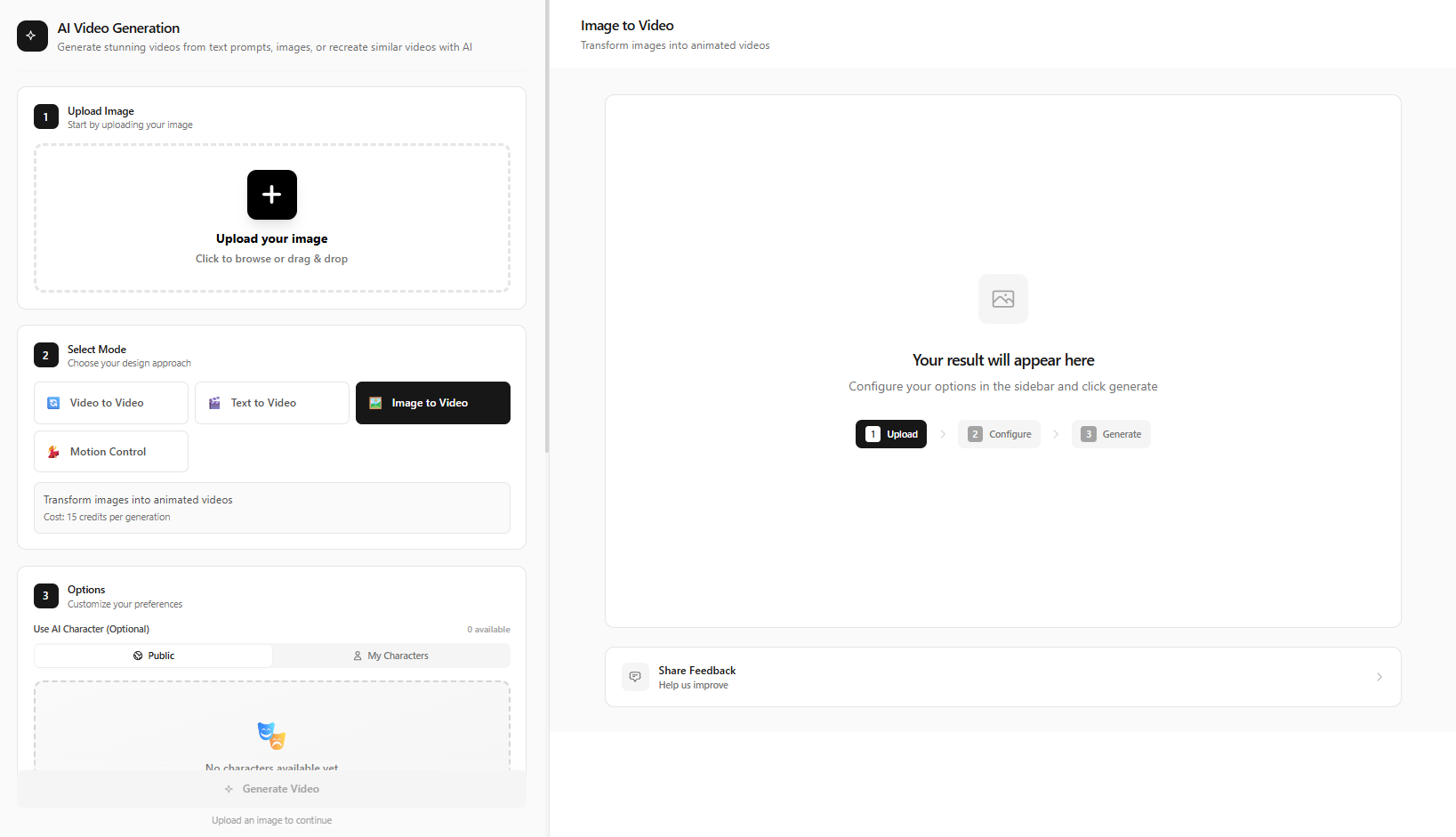
For moving scenes, use /video-generation.
Go to Video Generation → Text to Video Mode
Select Text to Video. Write a scene prompt that includes camera movement.
Write Scene Prompt with Camera Movement
"Slow drone shot over a misty mountain valley at sunrise, camera glides forward, golden light breaking through clouds, cinematic 4K"
Click Generate Video
Click "Generate Video". Alternative: Use Image to Video — upload a still scene, add a motion prompt (e.g., "camera pans left", "clouds drift"), then Generate Video.
Method 3: Designed Scenes with Graphic Designer
For branded or stylized scenes with design elements:
Go to Graphic Designer → Choose Category
Navigate to /graphic-designer. Choose a category: social-media-graphics, flyers-posters, youtube-thumbnails, or related.
Describe Scene → Click Generate
Describe the scene you want — environment, style, text overlays. Click "Generate".
Combine Scenes with Characters
Place people in your generated scenes:
- AI Fashion Models — Go to /ai-fashion-models. Generate a scene with Image Generation, then place models in it. Click "Generate Fashion Photo".
- Influencer Generator — Go to /influencer-generator/create. Create your character → "Generate Character". Use Image Generation → Replace with Influencer mode → upload your scene, apply the influencer → "Apply Influencer".
12 AI Scene Prompt Examples
Copy and adapt these prompts. Organized by category:
"Urban night cityscape, neon signs, rain-slicked streets, flying cars, Blade Runner style, ultra detailed"
"Cozy café interior, warm lighting, wooden tables, steam from cups, autumn ambiance, photorealistic"
"Luxury penthouse interior, floor-to-ceiling windows, city skyline, minimalist furniture, golden hour"
"Mountain landscape at sunset, misty valley, pine trees, golden light breaking through clouds, cinematic"
"Beach sunset, turquoise water, palm trees, golden sky, wanderlust aesthetic, 4K"
"Space station interior, futuristic technology, blue ambient lighting, sci-fi film quality"
"Enchanted forest, bioluminescent mushrooms, mystical path, moonlight, fantasy epic"
"Modern office interior, natural light, plants, clean design, productivity vibe"
"Rooftop cityscape at night, city lights, urban skyline, cinematic wide shot"
"Vintage street, cobblestone, antique shops, nostalgic atmosphere, film grain"
"Underwater coral reef, sun rays filtering through water, tropical fish, serene blue tones"
"Desert sunset, red rock formations, golden light, American Southwest, cinematic wide shot"
Pro Tips for Cinematic AI Scenes
- 1. Include lighting and time of day — "Golden hour", "overcast", "blue hour", "studio lighting" dramatically change mood.
- 2. Specify camera angle and style — "Wide shot", "aerial view", "close-up", "dutch angle" — plus "cinematic", "photorealistic", "8K" for quality.
- 3. Add atmosphere — "Misty", "dust particles", "rain", "fog", "bokeh" make scenes feel immersive.
- 4. Use spatial hierarchy — Foreground, midground, background, atmosphere. Gives the AI clear compositional structure.
- 5. For video: always include motion — "Camera pans", "clouds drift", "leaves rustle". Static prompts produce static output.
- 6. Combine Image + Video — Generate a keyframe with Image Generation, animate with Image to Video for control.
Start Generating AI Scenes Today
Use AITwo's Image Generation, Video Generation, and Graphic Designer to create any environment you can imagine.